FAQ
With the launch of the CoinW Signal Bot, you can easily turn your TradingView (TV) strategies into fully automated live orders that run 24/7.
This guide is written specifically for users who use PineScript™ strategies (Strategy-type scripts). We will walk you through how to configure alert messages in simple, plain language, so even users with no programming background can easily follow along.
Quick Overview: Are You Using a Strategy or an Indicator?
Before configuring, please confirm the type of script you are running on TradingView:
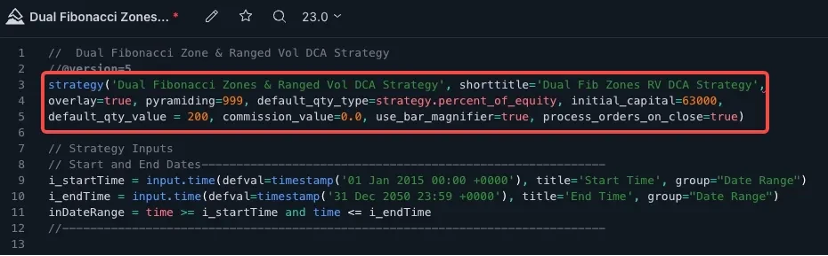
Strategy: The code starts with strategy(...) or contains order execution commands such as strategy.entry. It can not only generate buy and sell signals on the chart but also run backtests and automatically calculate the position size for each trade. (This guide is designed for strategy users.)
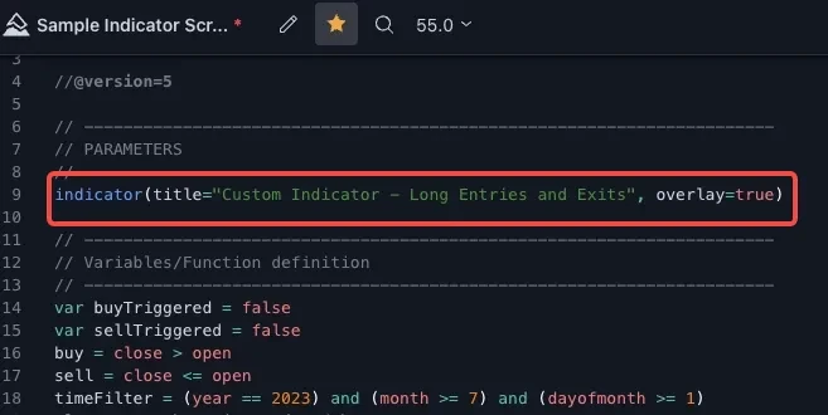
Indicator: The code starts with indicator(...). It is used only for chart analysis and drawing lines or alerts, and does not include position sizing calculations. (If you are using an indicator, the platform does not currently support indicator-based trading.)
Step 1: Copy the Alert Message Template
To help you get started quickly, when creating an alert on TradingView, copy the JSON code below and paste it into the "Message" input box.
Format Warning: Please make sure to keep the curly braces {} and double quotes "" intact and do not omit the trailing commas.
Step 2: Parameter Breakdown (What to Change vs. What to Keep)
The parts enclosed in {{ }} in the template are TradingView's "standard placeholders." When a signal is triggered, TV will automatically fill them with real market data. Do not modify them.
1. Alert Message – id
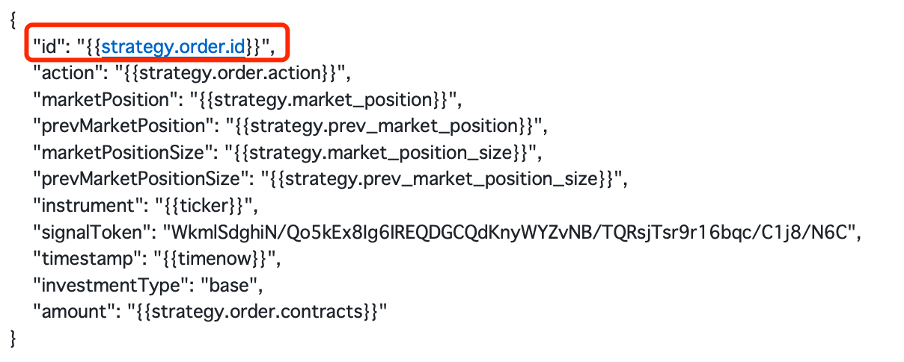
id – Order Identifier
{{strategy.order.id}} – Returns the ID of the executed order (the string used as the first parameter in the order-generating function call: strategy.entry, strategy.exit, or strategy.order).
2. Alert Message – action
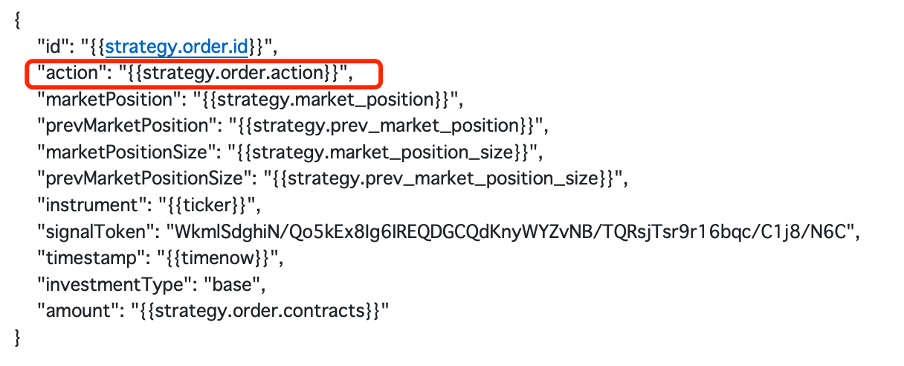
Action – "Buy" or "Sell"?
{{strategy.order.action}} – Returns the string "buy" or "sell" for the executed order.
3. Alert Message – marketPosition
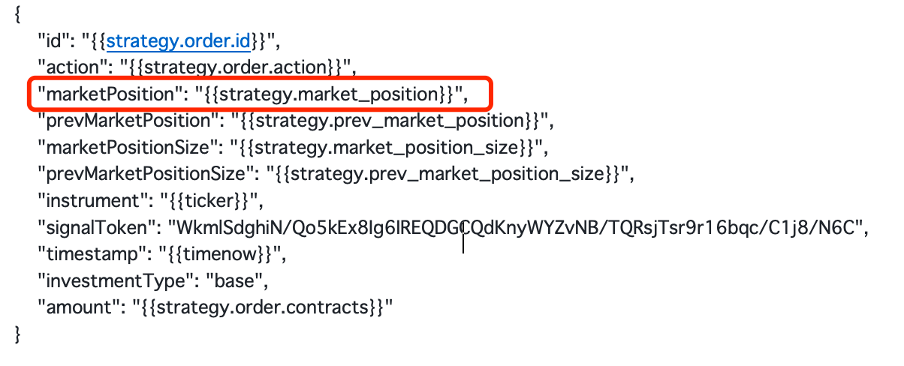
marketPosition – Expected position state (at the time the order is executed)
{{strategy.market_position}} – Returns the strategy's current position as a string: "long", "flat", or "short".
4. Alert Message – prevMarketPosition
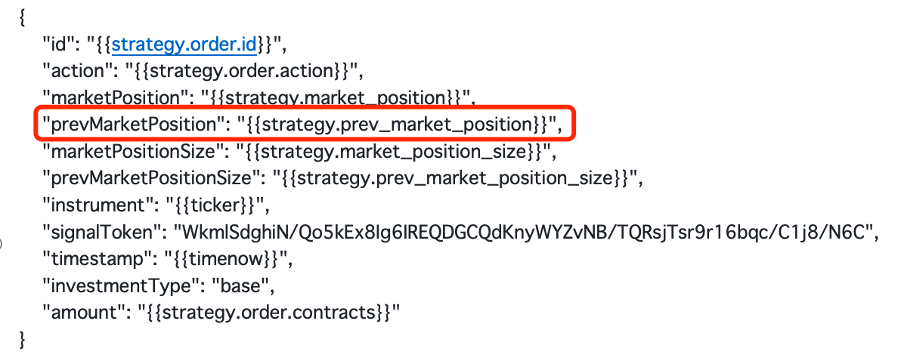
prevMarketPosition – Previous position state (before the order is executed)
{{strategy.prev_market_position}} – Returns the strategy's previous position as a string: "long", "flat", or "short".
5. Alert Message – instrument
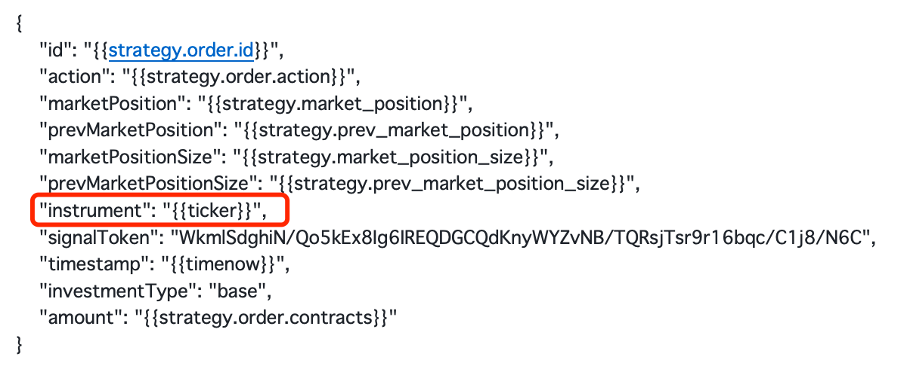
ticker – TradingView placeholder value
A "standard placeholder" is a piece of text enclosed in double curly braces and included in the alert message.
{{ticker}} returns the symbol of the TradingView chart that generated the alert.
Example: "BTCUSDT.P", "ETHUSDT.P".
6. Alert Message – signalToken
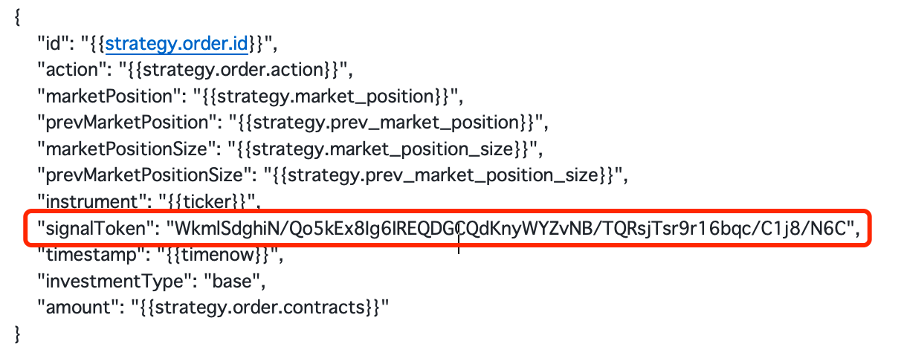
Signal Code – Signal authentication. This security measure ensures that incoming requests are legitimate and authorized. When a user successfully creates a new signal on CoinW, this signal code is automatically generated and needs to be copied into the TradingView alert message.
Step 3: How to Set Up Position Sizing and Compounding Modes (Core Guide)
investmentType and amount are the parameters you need to pay the most attention to. They determine how much money your bot will use each time a trading signal is triggered.
Based on different trading habits, we have summarized the three most common configuration modes below:
Mode 1: Fully Synchronize with TV Strategy Position Sizing
Completely delegate position sizing to your TradingView strategy script. The script calculates the "number of coins / contract quantity" to buy for each trade, and the CoinW bot follows it 1:1 without any additional logic.
Configuration:
"investmentType": "base" (means placing orders based on the base currency quantity)
"amount": "{{strategy.order.contracts}}" (lets TV automatically fill in the calculated order quantity)
Does it compound? Depends on how your TV script is written. Whatever your TV strategy does for compounding, the live bot will follow exactly the same way.
Single/Multi-symbol compatibility: This mode is perfectly compatible with both single and multiple symbols. TV automatically calculates the quantity for each symbol based on its price. For example, for the same 1,000U, TV will calculate either 0.01 BTC or hundreds of thousands of DOGE. This is the safest mode for running multi-symbol strategies. However, users need to determine the corresponding margin based on their leverage settings. For example, with 3x leverage versus 20x leverage – how is the margin calculated for different symbols?
This is a common pitfall for many beginners. When you use this mode, the instruction TV sends to CoinW is simply how many coins to buy. So how much USDT will actually be deducted from your account as margin? The answer depends entirely on the leverage multiple you have set on the CoinW trading page.
Formula: Actual Margin = (Quantity of coins from TV × Price of the coin at signal trigger) ÷ Your Leverage Multiple
Real Example: Suppose the current BTC price is 60,000 USDT. Your TV strategy sends a long signal and automatically calculates an order quantity of 0.1 BTC. The total position value of this order is: 0.1 × 60,000 = 6,000 USDT. So, how much available funds do you need in your CoinW account to execute this signal?
Scenario A: If you are using low leverage (e.g., 3x leverage) – Your actual margin = 6,000 USDT ÷ 3 = 2,000 USDT. (Explanation: Your futures account's available balance must have at least 2,000 USDT; otherwise, the bot will report "insufficient available margin" and miss the signal.)
Scenario B: If you are using high leverage (e.g., 20x leverage) – Your actual margin = 6,000 USDT ÷ 20 = 300 USDT. (Explanation: You only need 300 USDT in margin to open the 0.1 BTC position. Since less margin is required, the trade is more likely to succeed, but please be aware of the liquidation risk associated with high leverage.)
Mode 2: Fixed Amount Position Sizing
Every time a trading signal is received, only a fixed amount of USDT is used as margin, regardless of how much profit is in your account. Profits stay in the account, which helps keep the risk per trade under control.
Configuration (example: 50 USDT per trade):
"investmentType": "margin" (means using fixed margin)
"amount": "50" (enter a specific number, representing 50 USDT)
Does it compound? No. The first trade uses 50 USDT, and even if your account doubles, the next trade still uses only 50 USDT.
Single/Multi-symbol compatibility: Compatible. Whether BTC or SHIB triggers the signal, only 50 USDT will be used to open the position. No need to worry about price differences across different symbols causing fund allocation errors.
Mode 3: Percentage of Account Balance
Each time a trading signal is received, the system will automatically calculate your available balance in your CoinW futures account and use a fixed percentage of it as margin.
Configuration (example: using 10% of available funds per trade):
"investmentType": "percentage_balance" (means using a percentage of available balance)
"amount": "10" (enter a number between 0.01 and 100; 10 represents 10%)
Does it compound? Yes, it compounds automatically. If your starting capital is 1,000 USDT, the first trade uses 100 USDT. If your account grows to 2,000 USDT after profits, the next trade will automatically use 200 USDT, letting your profits compound. Conversely, if you incur losses, the per-trade amount will decrease accordingly, helping to reduce liquidation risk.
Single/Multi-symbol compatibility: Excellent for single-symbol strategies. Use with caution for multi-symbol strategies. If you run multi-symbol strategies with this mode, be sure to use a low percentage (e.g., set it to 2%). Otherwise, during extreme market conditions where multiple symbols trigger signals simultaneously, your available funds could be fully tied up, causing some signals to fail.
Error Prevention Tip: If you're running multi-symbol strategies, never set investmentType to base while also using a fixed number for amount (e.g., "amount": "10"). Buying 10 BTC would require hundreds of thousands of USDT, while buying 10 SHIB might not even meet the minimum order amount. This will cause the system to keep throwing errors!
Security Reminder: Your signalToken is like your live trading password — keep it absolutely confidential. Do not share screenshots of it in public communities (such as WeChat or Telegram groups). If it gets leaked, others could send malicious signals and take control of your live account. If you suspect it has been compromised, delete the bot on CoinW immediately and create a new one.
With the launch of the CoinW Signal Bot, you can easily turn your TradingView (TV) strategies into fully automated live orders that run 24/7.
This guide is written specifically for users who use PineScript™ strategies (Strategy-type scripts). We will walk you through how to configure alert messages in simple, plain language, so even users with no programming background can easily follow along.
Quick Overview: Are You Using a Strategy or an Indicator?
Before configuring, please confirm the type of script you are running on TradingView:
Strategy: The code starts with strategy(...) or contains order execution commands such as strategy.entry. It can not only generate buy and sell signals on the chart but also run backtests and automatically calculate the position size for each trade. (This guide is designed for strategy users.)
Indicator: The code starts with indicator(...). It is used only for chart analysis and drawing lines or alerts, and does not include position sizing calculations. (If you are using an indicator, the platform does not currently support indicator-based trading.)
Step 1: Copy the Alert Message Template
To help you get started quickly, when creating an alert on TradingView, copy the JSON code below and paste it into the "Message" input box.
Format Warning: Please make sure to keep the curly braces {} and double quotes "" intact and do not omit the trailing commas.
Step 2: Parameter Breakdown (What to Change vs. What to Keep)
The parts enclosed in {{ }} in the template are TradingView's "standard placeholders." When a signal is triggered, TV will automatically fill them with real market data. Do not modify them.
1. Alert Message – id
id – Order Identifier
{{strategy.order.id}} – Returns the ID of the executed order (the string used as the first parameter in the order-generating function call: strategy.entry, strategy.exit, or strategy.order).
2. Alert Message – action
Action – "Buy" or "Sell"?
{{strategy.order.action}} – Returns the string "buy" or "sell" for the executed order.
3. Alert Message – marketPosition
marketPosition – Expected position state (at the time the order is executed)
{{strategy.market_position}} – Returns the strategy's current position as a string: "long", "flat", or "short".
4. Alert Message – prevMarketPosition
prevMarketPosition – Previous position state (before the order is executed)
{{strategy.prev_market_position}} – Returns the strategy's previous position as a string: "long", "flat", or "short".
5. Alert Message – instrument
ticker – TradingView placeholder value
A "standard placeholder" is a piece of text enclosed in double curly braces and included in the alert message.
{{ticker}} returns the symbol of the TradingView chart that generated the alert.
Example: "BTCUSDT.P", "ETHUSDT.P".
6. Alert Message – signalToken
Signal Code – Signal authentication. This security measure ensures that incoming requests are legitimate and authorized. When a user successfully creates a new signal on CoinW, this signal code is automatically generated and needs to be copied into the TradingView alert message.
Step 3: How to Set Up Position Sizing and Compounding Modes (Core Guide)
investmentType and amount are the parameters you need to pay the most attention to. They determine how much money your bot will use each time a trading signal is triggered.
Based on different trading habits, we have summarized the three most common configuration modes below:
Mode 1: Fully Synchronize with TV Strategy Position Sizing
Completely delegate position sizing to your TradingView strategy script. The script calculates the "number of coins / contract quantity" to buy for each trade, and the CoinW bot follows it 1:1 without any additional logic.
Configuration:
"investmentType": "base" (means placing orders based on the base currency quantity)
"amount": "{{strategy.order.contracts}}" (lets TV automatically fill in the calculated order quantity)
Does it compound? Depends on how your TV script is written. Whatever your TV strategy does for compounding, the live bot will follow exactly the same way.
Single/Multi-symbol compatibility: This mode is perfectly compatible with both single and multiple symbols. TV automatically calculates the quantity for each symbol based on its price. For example, for the same 1,000U, TV will calculate either 0.01 BTC or hundreds of thousands of DOGE. This is the safest mode for running multi-symbol strategies. However, users need to determine the corresponding margin based on their leverage settings. For example, with 3x leverage versus 20x leverage – how is the margin calculated for different symbols?
This is a common pitfall for many beginners. When you use this mode, the instruction TV sends to CoinW is simply how many coins to buy. So how much USDT will actually be deducted from your account as margin? The answer depends entirely on the leverage multiple you have set on the CoinW trading page.
Formula: Actual Margin = (Quantity of coins from TV × Price of the coin at signal trigger) ÷ Your Leverage Multiple
Real Example: Suppose the current BTC price is 60,000 USDT. Your TV strategy sends a long signal and automatically calculates an order quantity of 0.1 BTC. The total position value of this order is: 0.1 × 60,000 = 6,000 USDT. So, how much available funds do you need in your CoinW account to execute this signal?
Scenario A: If you are using low leverage (e.g., 3x leverage) – Your actual margin = 6,000 USDT ÷ 3 = 2,000 USDT. (Explanation: Your futures account's available balance must have at least 2,000 USDT; otherwise, the bot will report "insufficient available margin" and miss the signal.)
Scenario B: If you are using high leverage (e.g., 20x leverage) – Your actual margin = 6,000 USDT ÷ 20 = 300 USDT. (Explanation: You only need 300 USDT in margin to open the 0.1 BTC position. Since less margin is required, the trade is more likely to succeed, but please be aware of the liquidation risk associated with high leverage.)
Mode 2: Fixed Amount Position Sizing
Every time a trading signal is received, only a fixed amount of USDT is used as margin, regardless of how much profit is in your account. Profits stay in the account, which helps keep the risk per trade under control.
Configuration (example: 50 USDT per trade):
"investmentType": "margin" (means using fixed margin)
"amount": "50" (enter a specific number, representing 50 USDT)
Does it compound? No. The first trade uses 50 USDT, and even if your account doubles, the next trade still uses only 50 USDT.
Single/Multi-symbol compatibility: Compatible. Whether BTC or SHIB triggers the signal, only 50 USDT will be used to open the position. No need to worry about price differences across different symbols causing fund allocation errors.
Mode 3: Percentage of Account Balance
Each time a trading signal is received, the system will automatically calculate your available balance in your CoinW futures account and use a fixed percentage of it as margin.
Configuration (example: using 10% of available funds per trade):
"investmentType": "percentage_balance" (means using a percentage of available balance)
"amount": "10" (enter a number between 0.01 and 100; 10 represents 10%)
Does it compound? Yes, it compounds automatically. If your starting capital is 1,000 USDT, the first trade uses 100 USDT. If your account grows to 2,000 USDT after profits, the next trade will automatically use 200 USDT, letting your profits compound. Conversely, if you incur losses, the per-trade amount will decrease accordingly, helping to reduce liquidation risk.
Single/Multi-symbol compatibility: Excellent for single-symbol strategies. Use with caution for multi-symbol strategies. If you run multi-symbol strategies with this mode, be sure to use a low percentage (e.g., set it to 2%). Otherwise, during extreme market conditions where multiple symbols trigger signals simultaneously, your available funds could be fully tied up, causing some signals to fail.
Error Prevention Tip: If you're running multi-symbol strategies, never set investmentType to base while also using a fixed number for amount (e.g., "amount": "10"). Buying 10 BTC would require hundreds of thousands of USDT, while buying 10 SHIB might not even meet the minimum order amount. This will cause the system to keep throwing errors!
Security Reminder: Your signalToken is like your live trading password — keep it absolutely confidential. Do not share screenshots of it in public communities (such as WeChat or Telegram groups). If it gets leaked, others could send malicious signals and take control of your live account. If you suspect it has been compromised, delete the bot on CoinW immediately and create a new one.