FAQ

How to Bind and Unbind Your Account Passkey
Published on: 2025/08/12 18:14Last Update: 2025/08/12 18:14

How to Bind a Passkey

APP

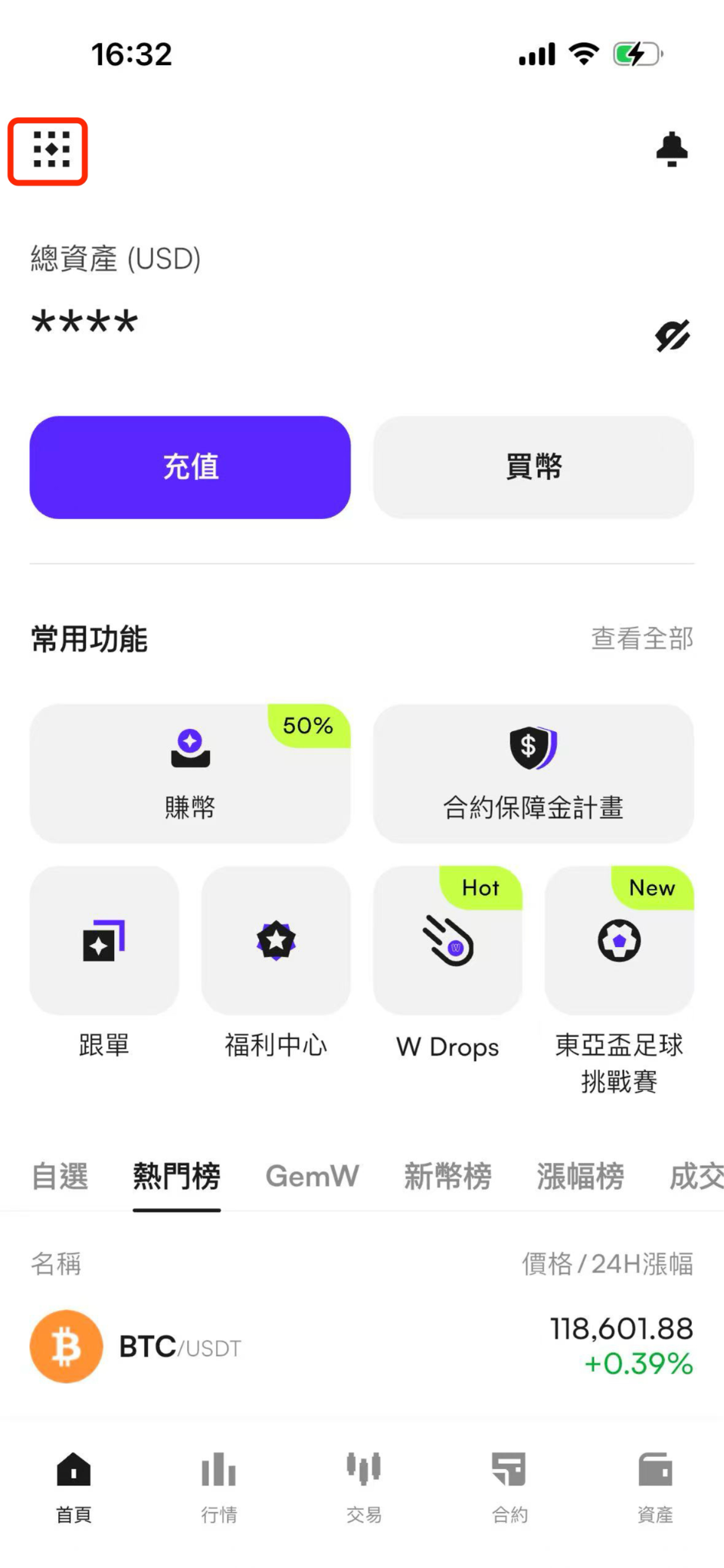
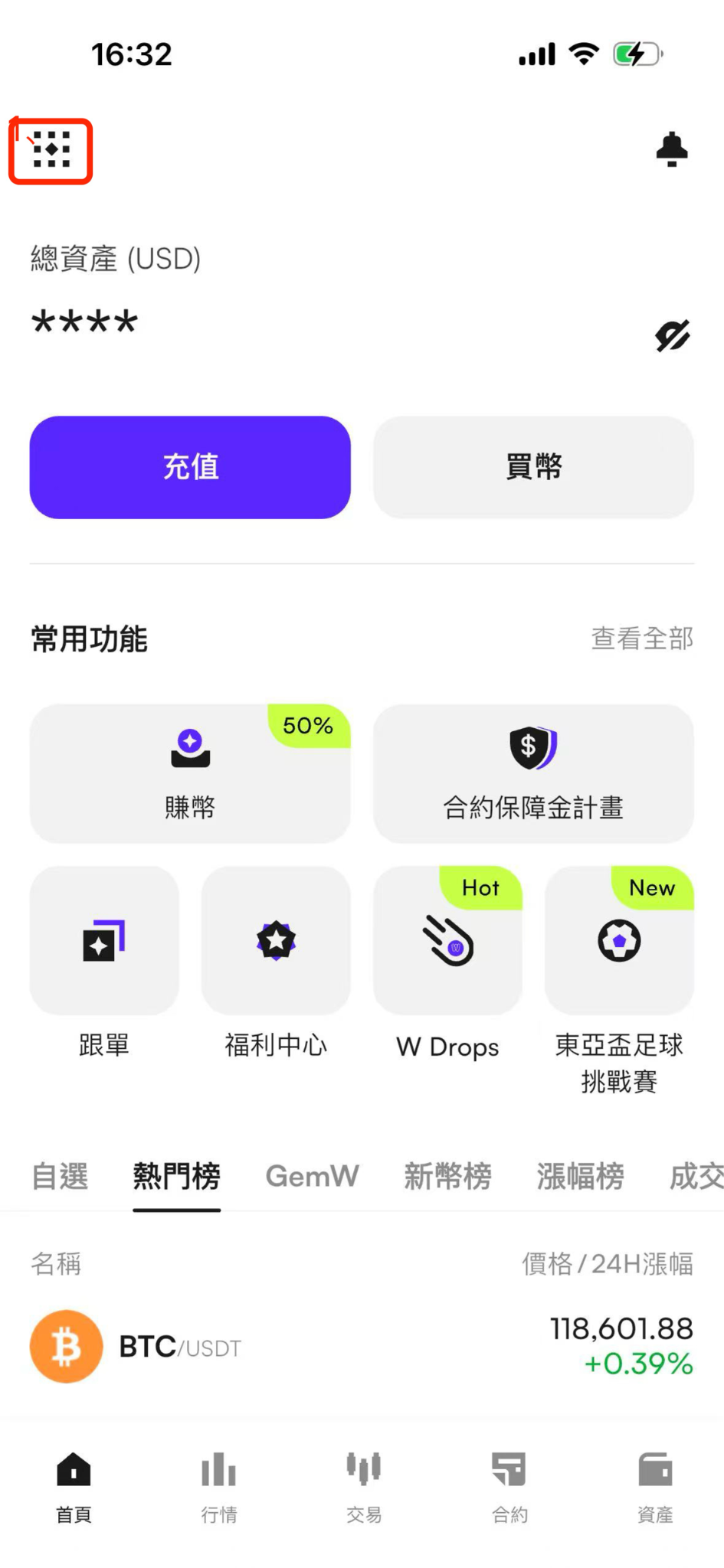
(1) Open the CoinW App and go to the home screen.

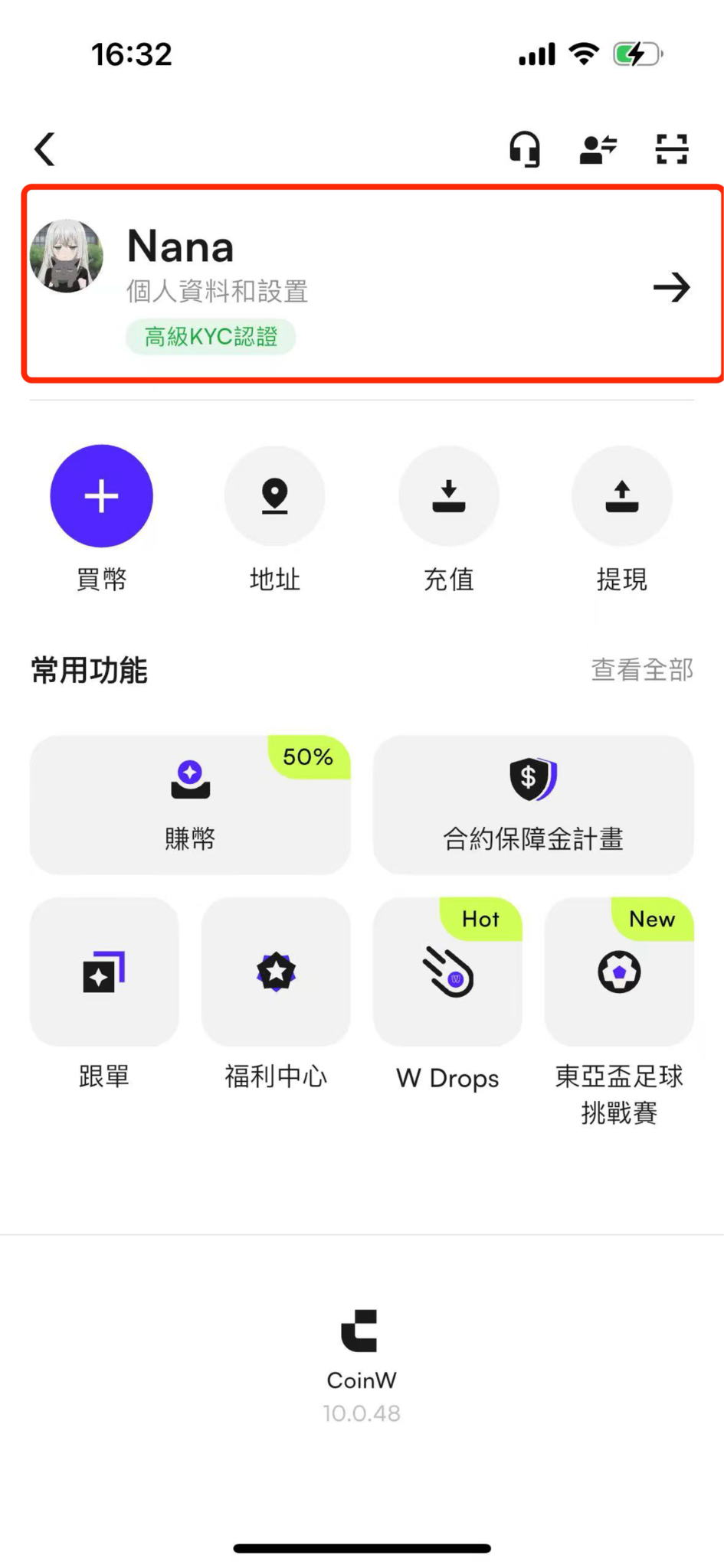
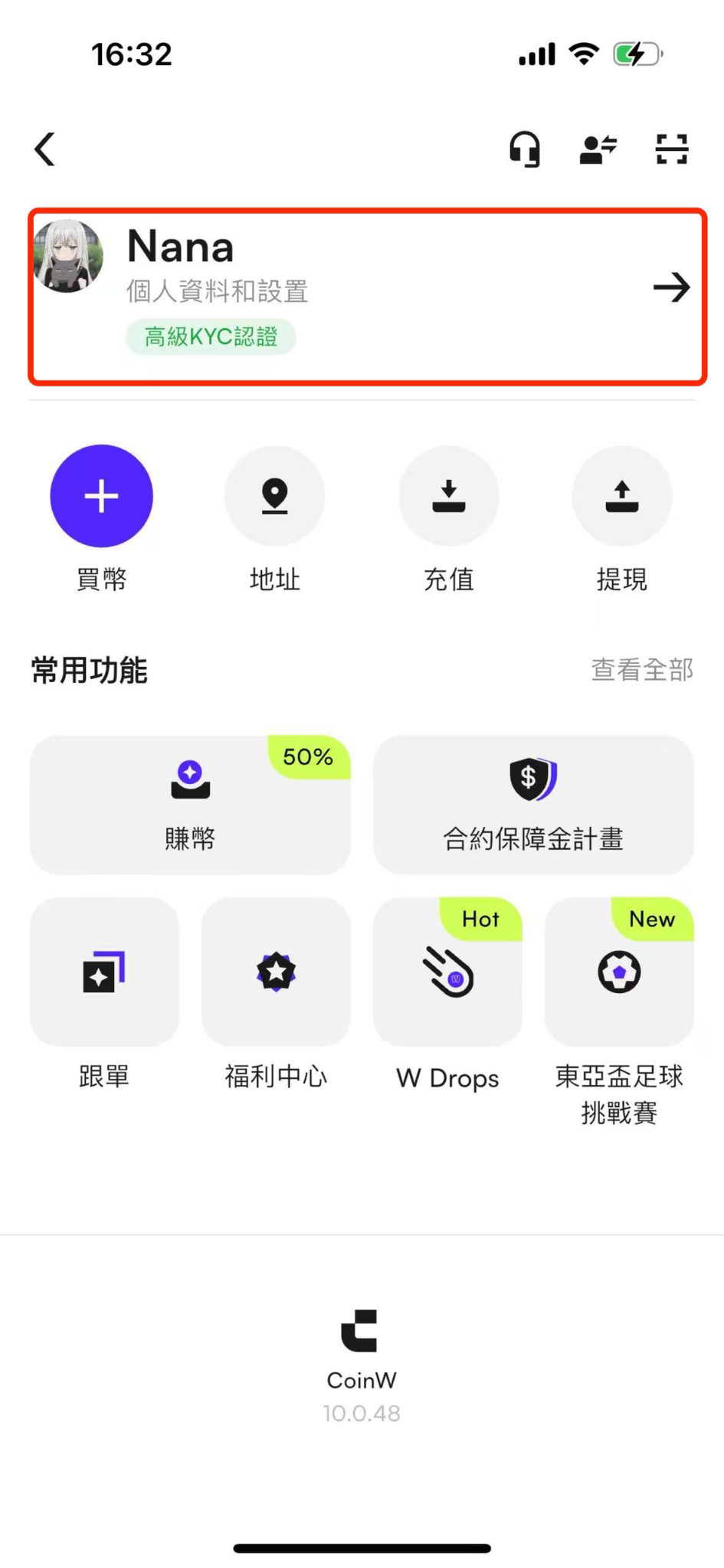
(2) Tap the profile icon in the top-left corner to enter Personal Center.

(3) In Personal Center, tap Profile & Settings.

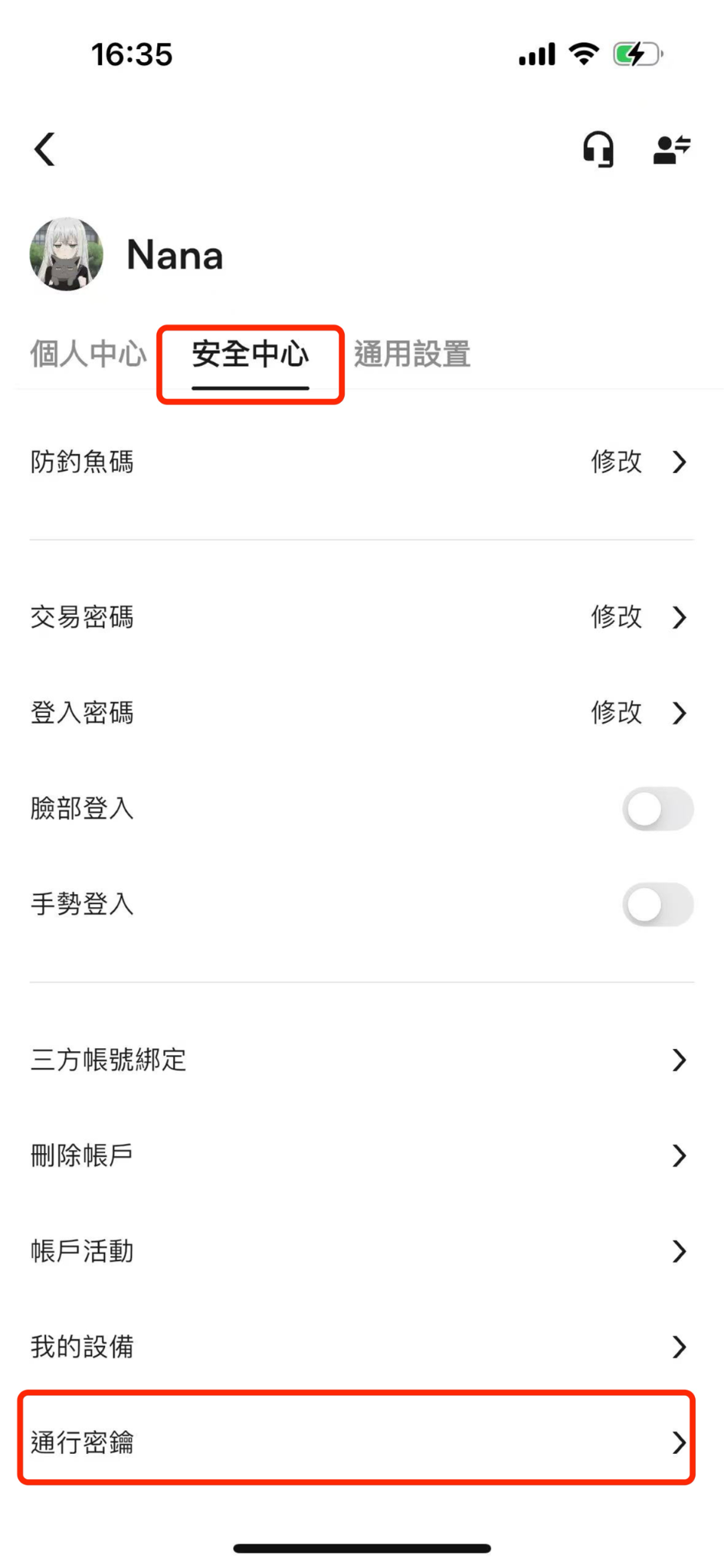
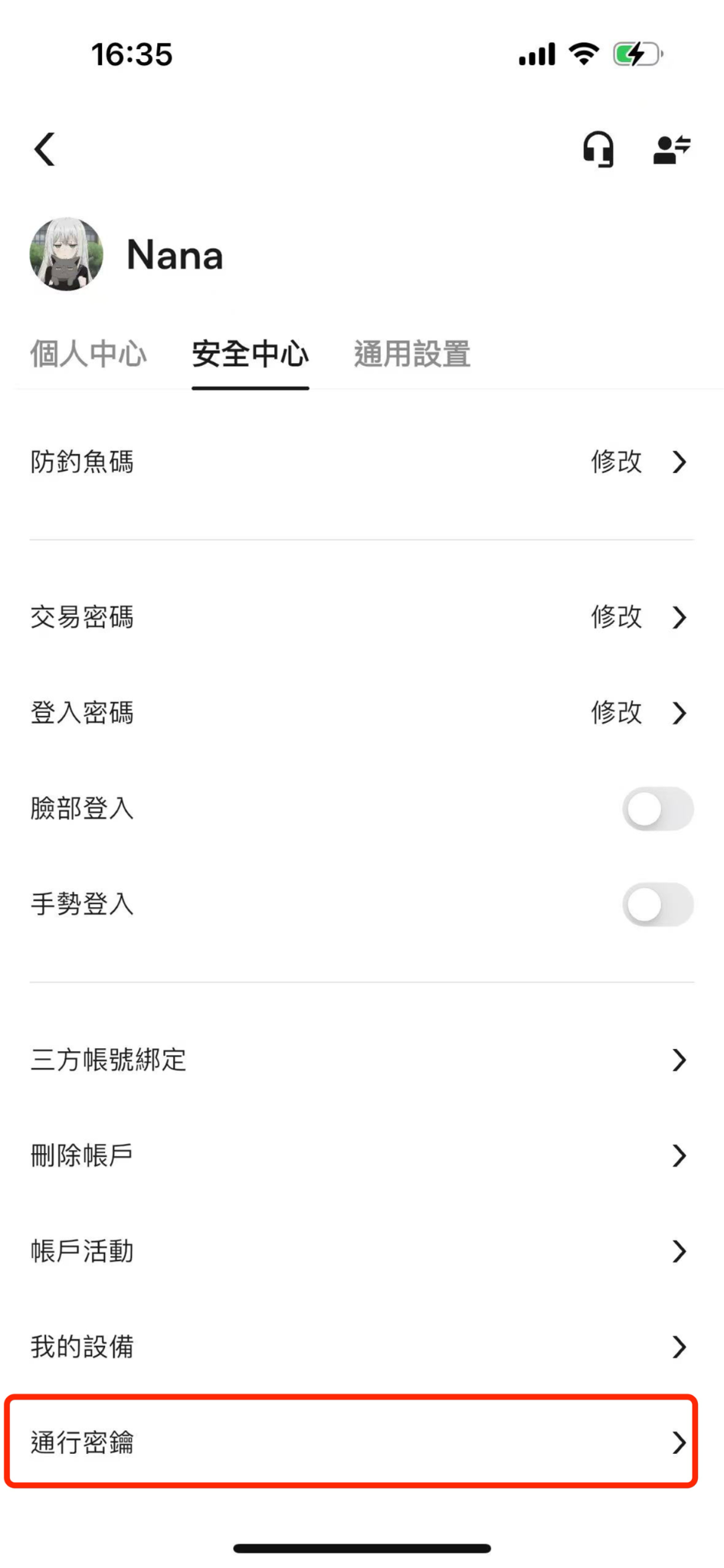
(4) Tap Security, then scroll to the bottom and tap Passkey.

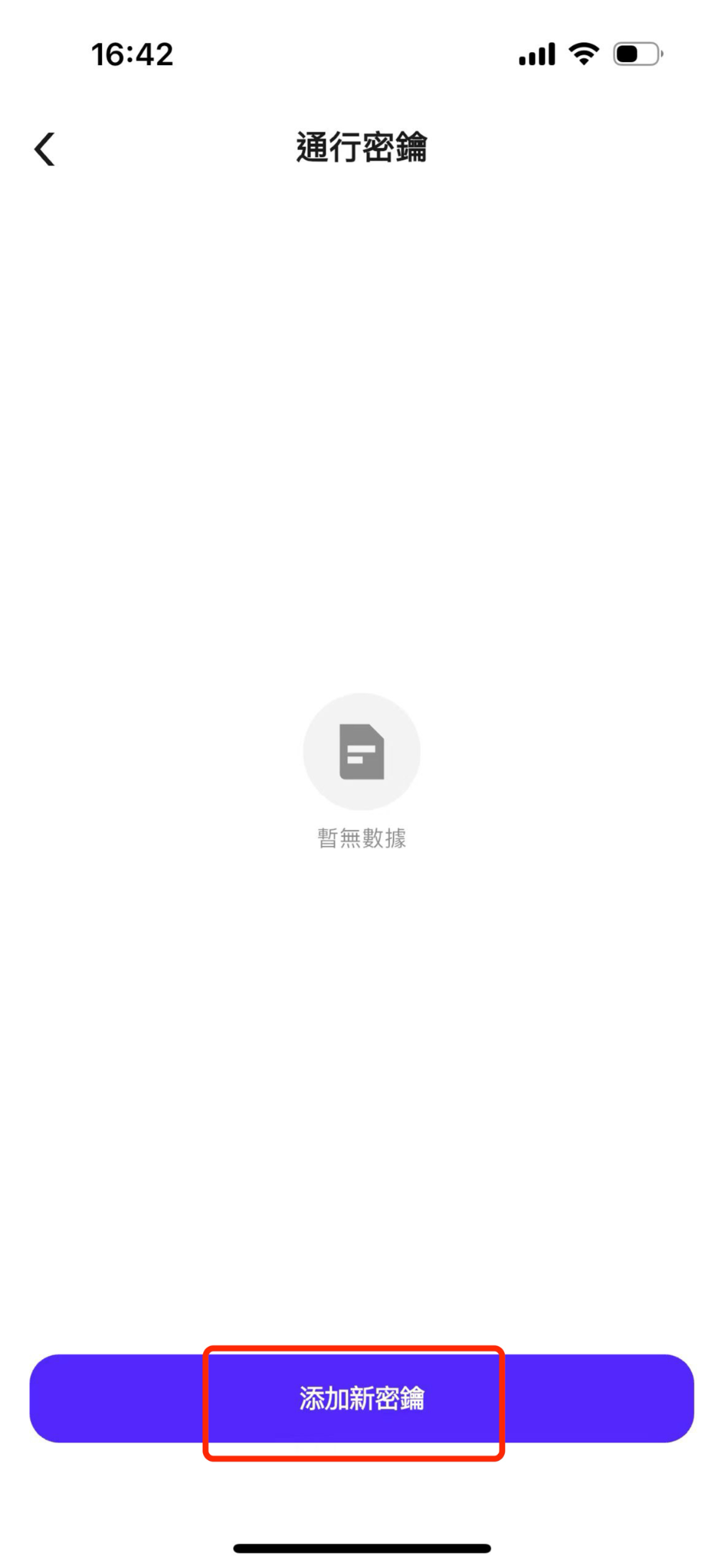
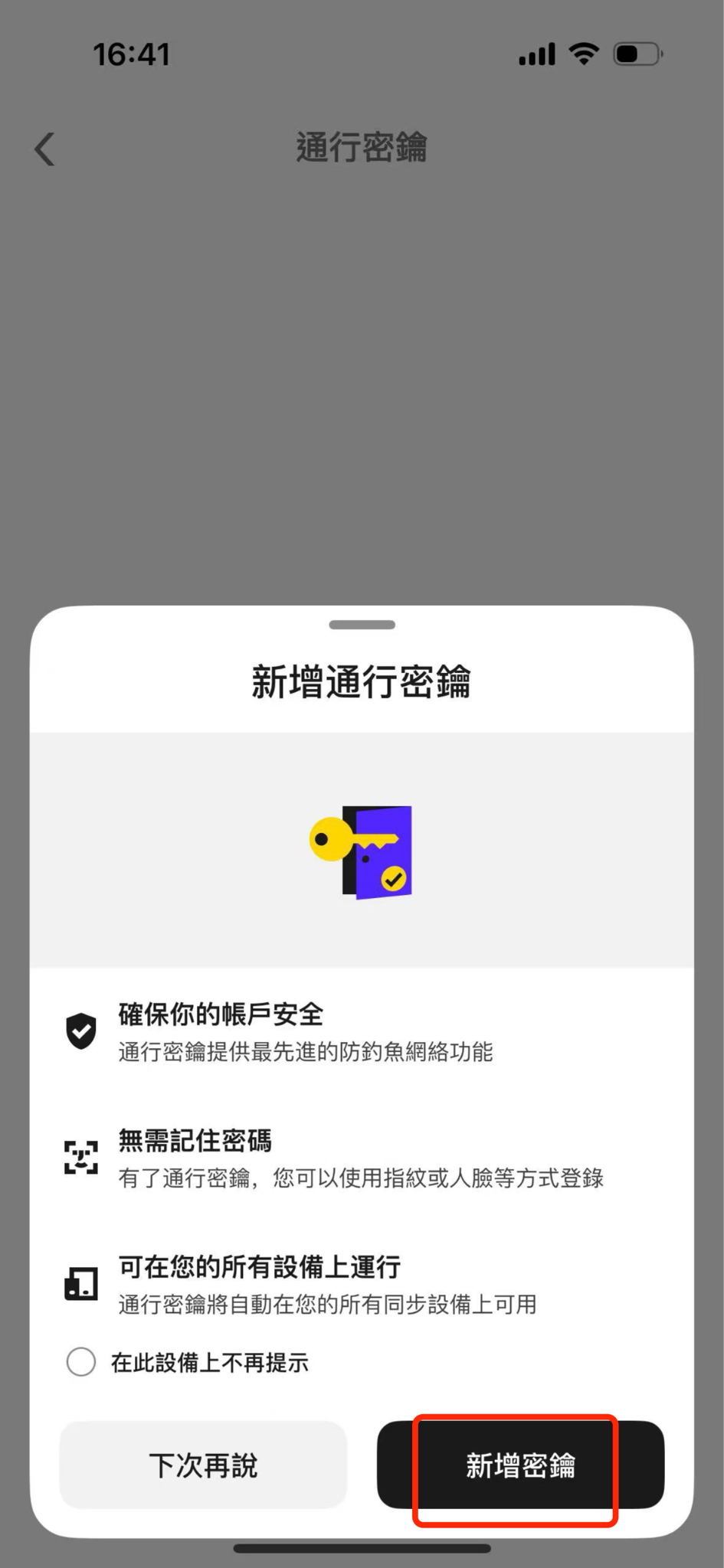
(5) Tap Add Passkey at the bottom of the screen, then tap the Continue button in the lower-right corner.

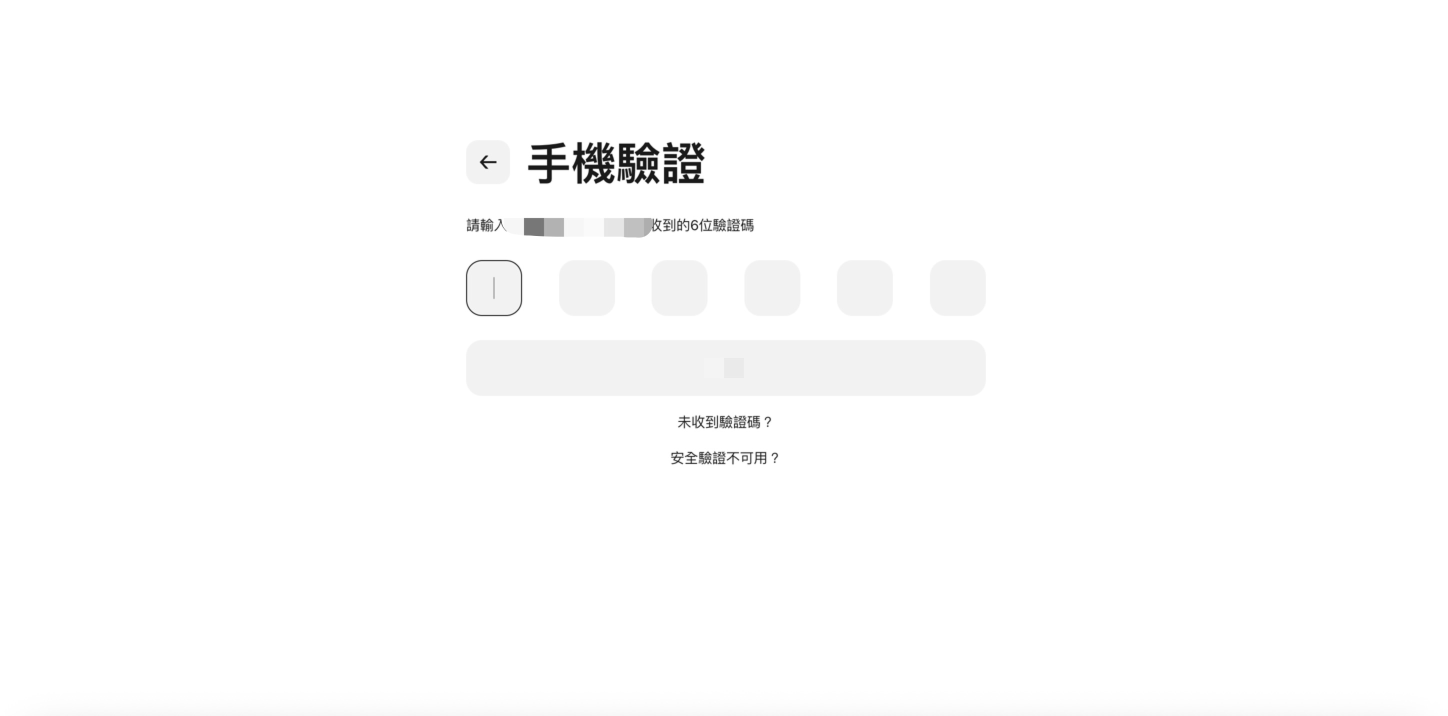
(6) On the next screen, you will be asked to verify your account’s security credentials.

(7) If your account is bound to an email, mobile number, and Google Authenticator, all three methods must be verified.

(8) After successful verification, you will be redirected to a facial recognition or fingerprint screen.

Complete the biometric verification to successfully bind the passkey.


WEB

(1) Visit the CoinW official website and log in.

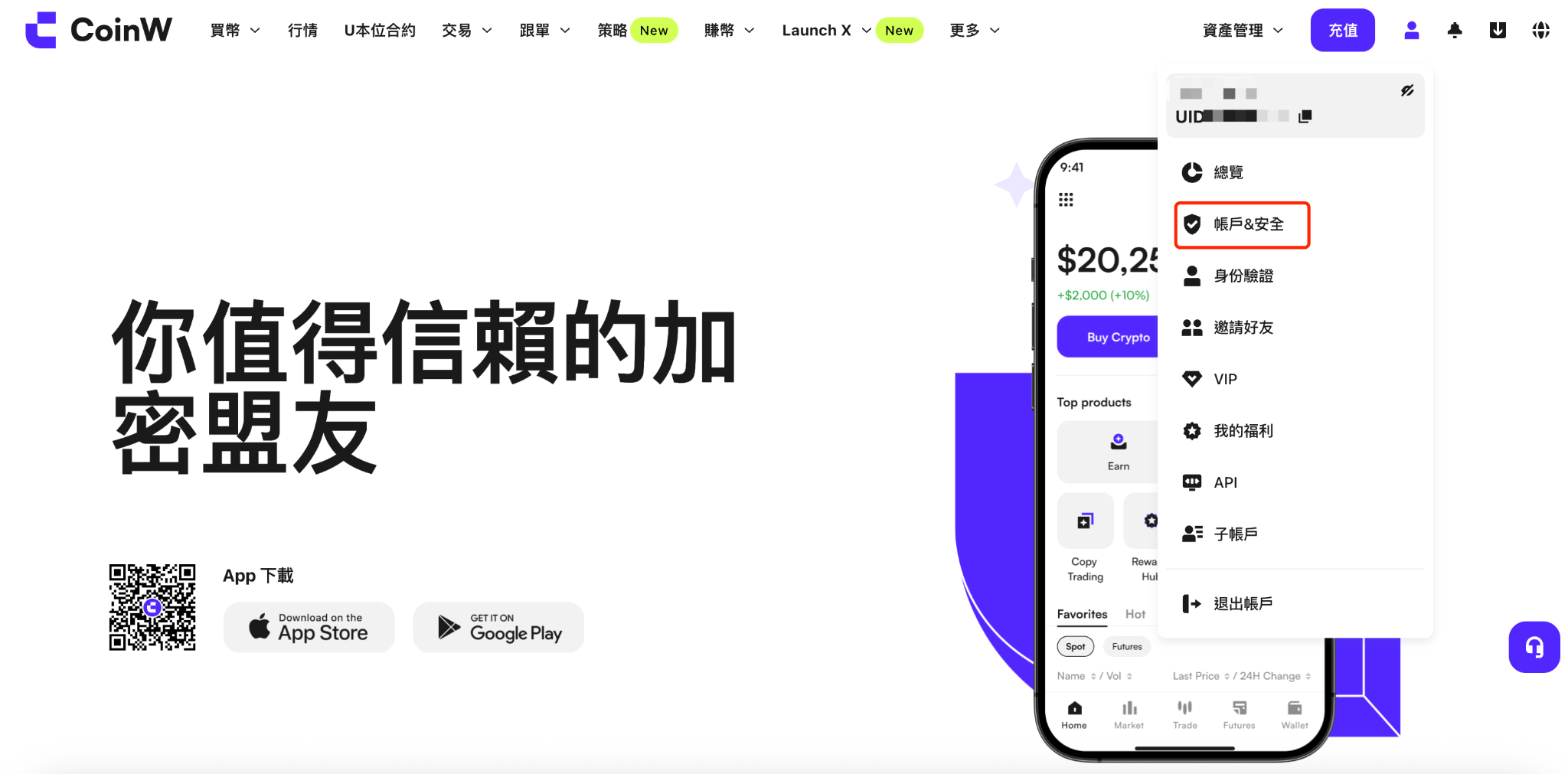
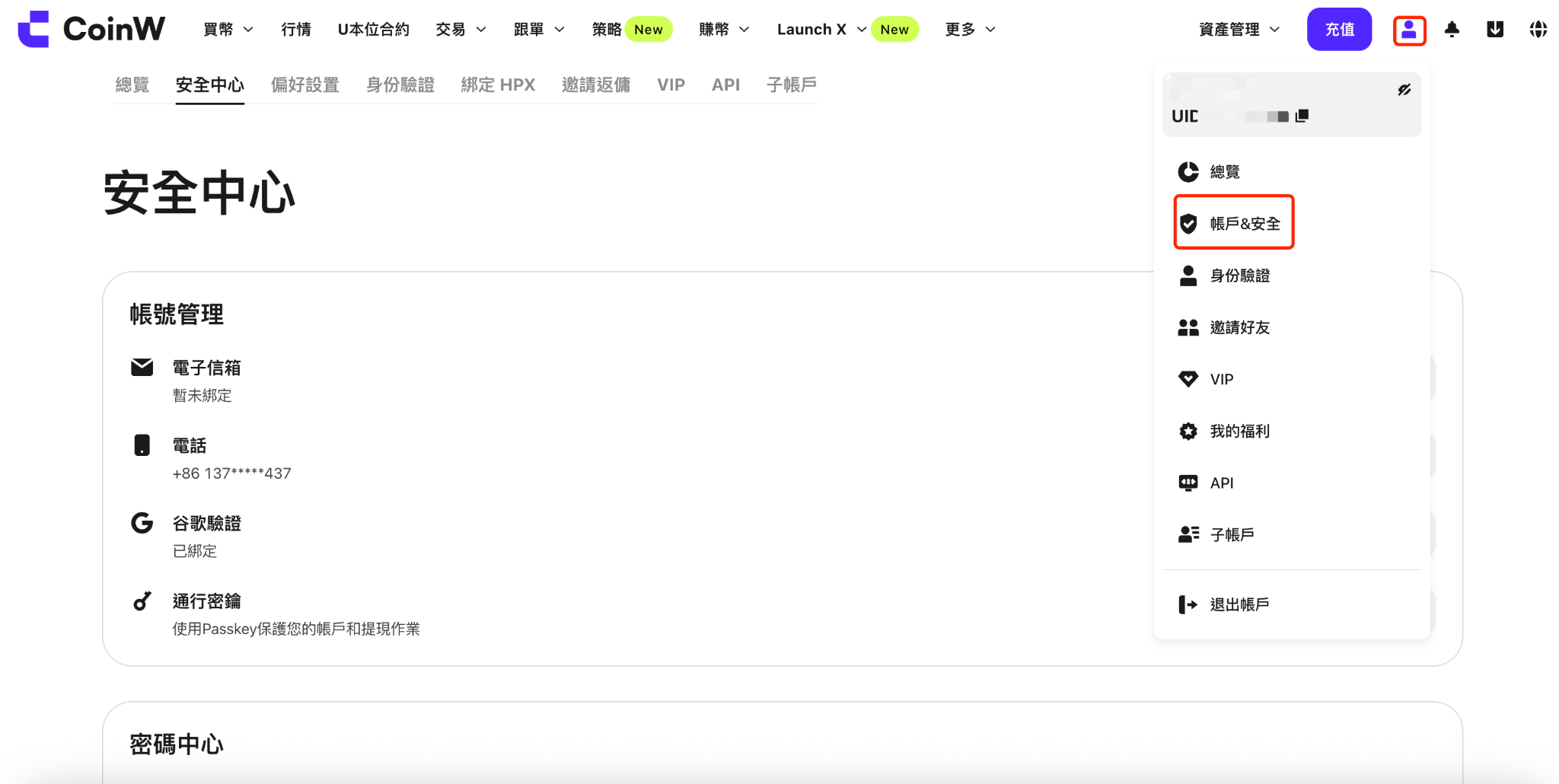
(2) Click the user icon in the upper-right corner and select Account & Security.

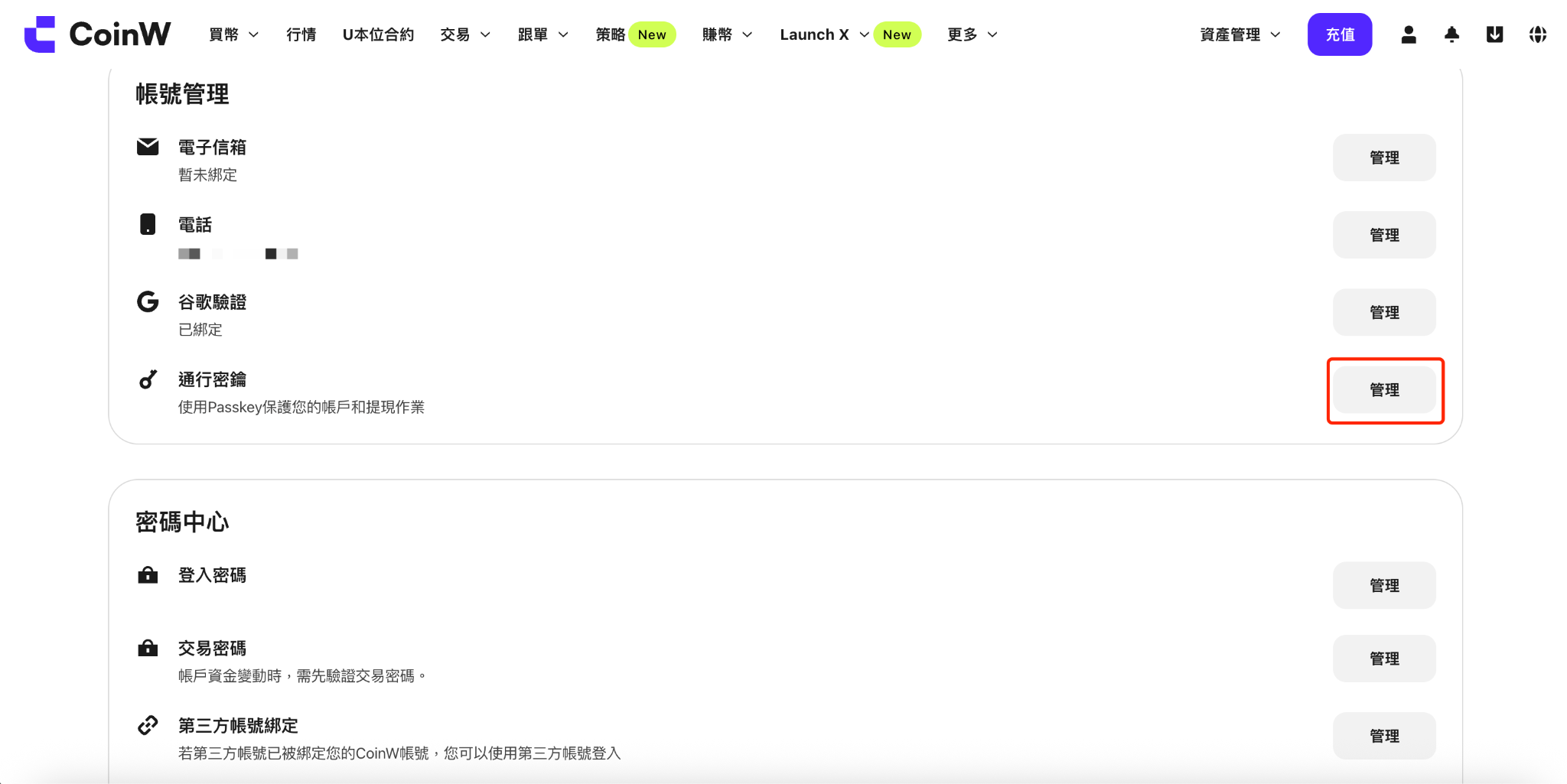
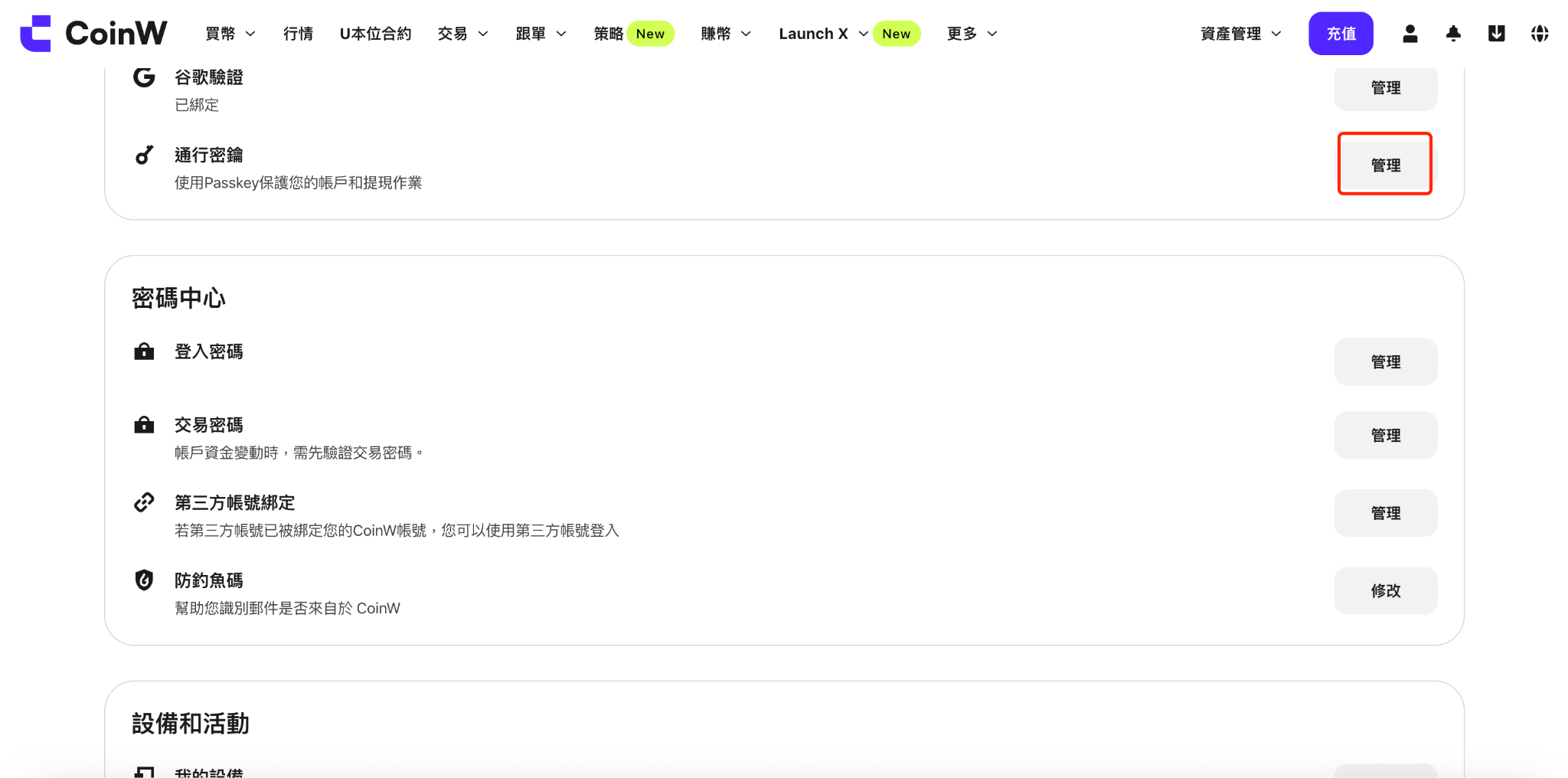
(3) Go to the Security Center, then click the 【Set】 button next to Passkey.

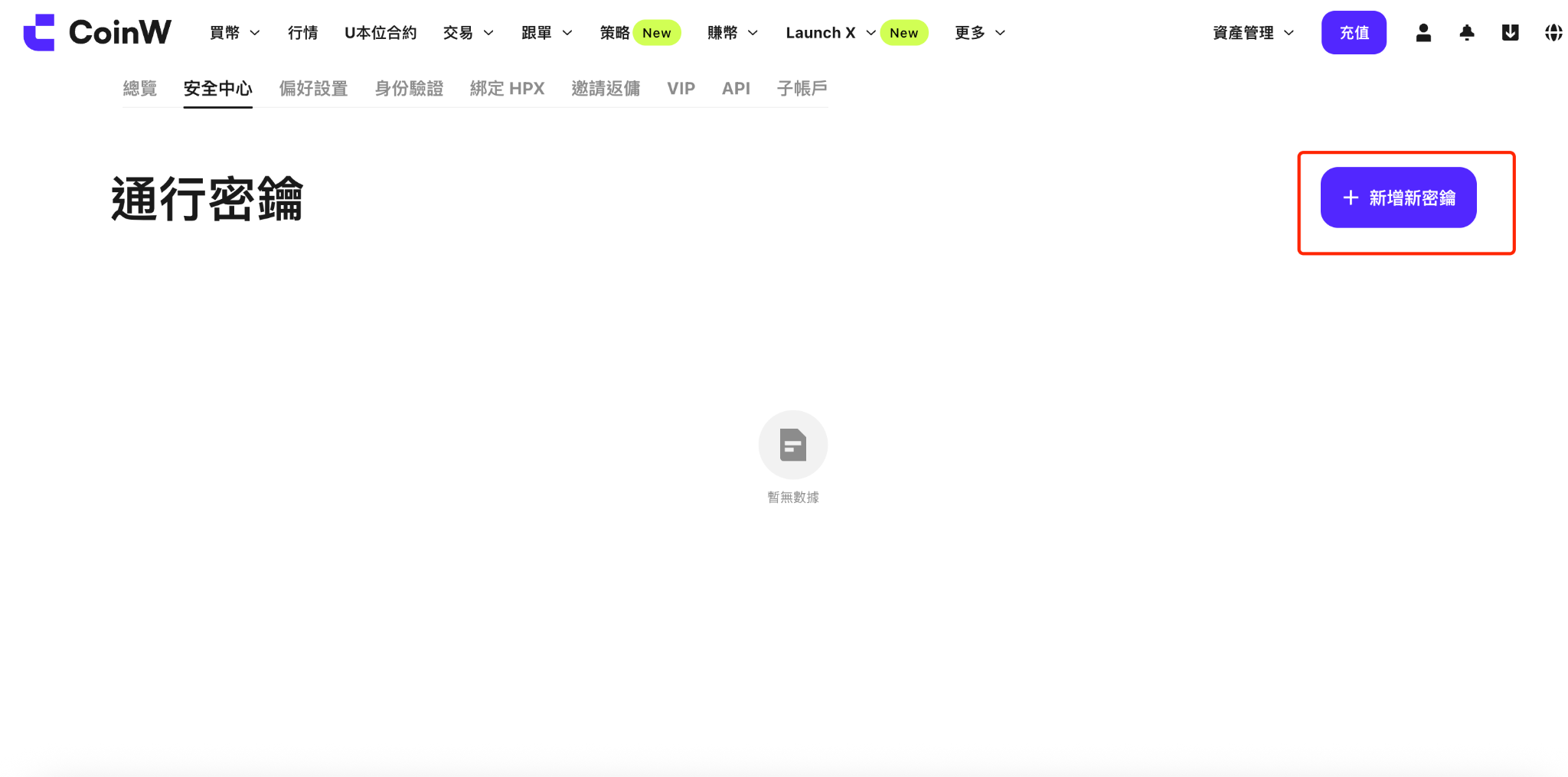
(4) Click Add Passkey, then select Enable Passkey.

(5) Follow the on-screen instructions to verify your account's security credentials.

(6) If your account is bound to an email, mobile number, and Google Authenticator, all three verifications are required.

(7) Once verified, you’ll be prompted to choose where to store your passkey.

(8) To use the passkey on both the App and Web, it is recommended to use iCloud Keychain or save it to your mobile device or tablet.

(9) After selecting a storage location, follow the on-screen instructions to complete the binding process.


How to Unbind a Passkey

APP

(1) Open the CoinW App and go to the home screen.

(2) Tap the profile icon in the top-left corner to enter Personal Center.

(3) Tap Profile & Settings.

(4) Go to Security Center, scroll to the bottom, and tap Passkey.

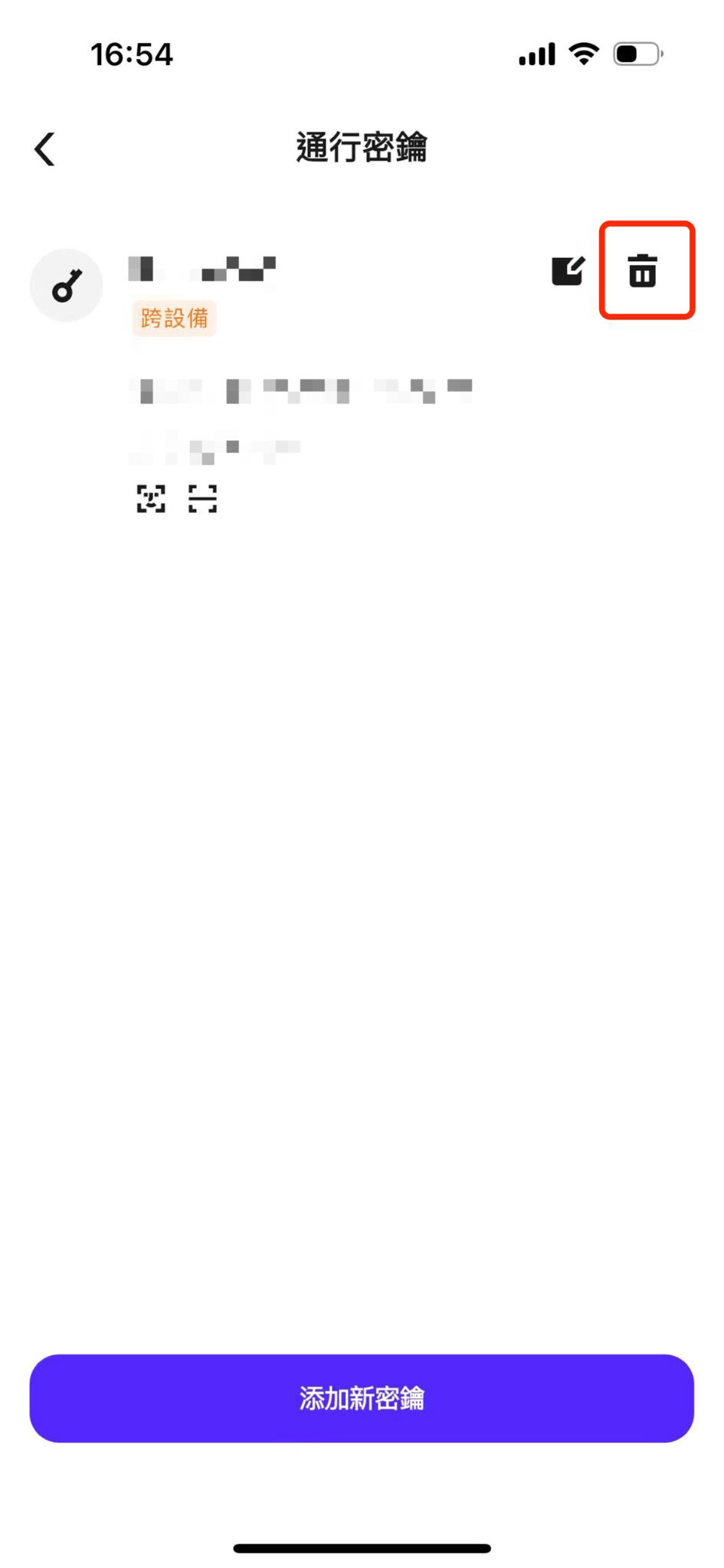
(5) Tap the delete icon on the screen.

(6) You can unbind the passkey in two ways:

Use the existing passkey verification: Simply complete facial recognition or fingerprint verification to unbind.

Or, tap Switch Verification Method at the bottom of the screen to use alternate methods.

The system will require verification via mobile number, email, and Google Authenticator. Once verified, the passkey will be unbound.


WEB

(1) Log in to the CoinW official website.

(2) Click the user icon in the top-right corner and select Account & Security.

(3) In the Security Center, click the 【Set】 button next to Passkey.

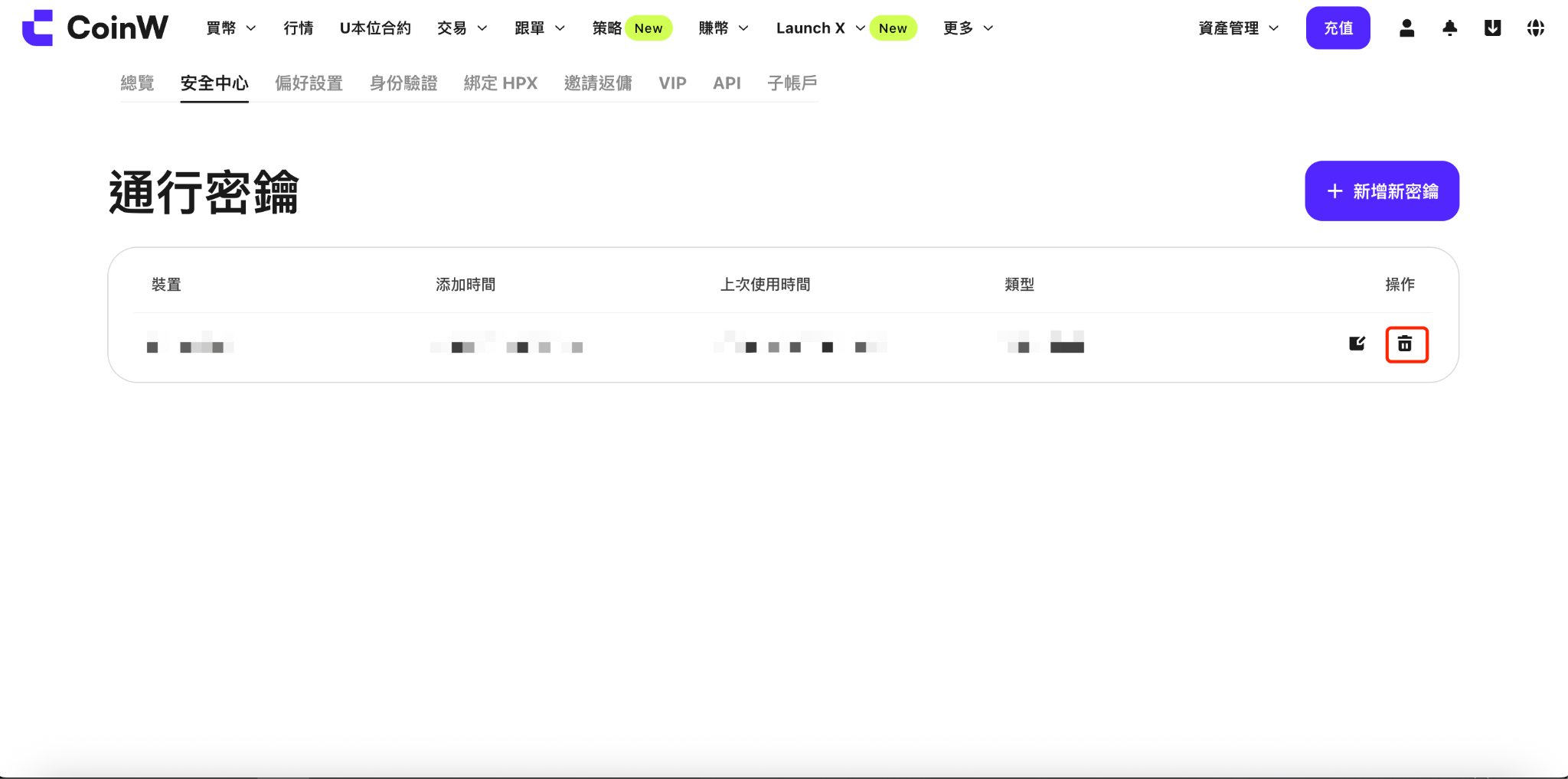
(4) Click the delete icon on the screen.

(5) On the security verification page, you can choose to switch verification methods:

Use passkey verification to unbind: Simply complete fingerprint verification to unbind.

Or use alternative methods: The system will verify your mobile number, email, and Google Authenticator. Once verified, the passkey will be unbound.


Notes

(1) CoinW recommends binding a passkey to enhance your account security.

(2) Passkeys improve both the security and convenience of account access.

(3) Passkeys offer state-of-the-art anti-phishing protection and allow you to log in using biometric methods such as fingerprints or facial recognition.

(4) Once set up, your passkey will be automatically available on all your synced devices.

Was this article helpful?
9 out of 1 found this helpful
Limited-Time New User Offer!
Sign up now to claim your exclusive 12000 USDT gift pack!
Already have an account?Log In
Popular Articles
How to Bind and Unbind Your Account Passkey
Published on: 2025/08/12 18:14Last Update: 2025/08/12 18:14

How to Bind a Passkey

APP

(1) Open the CoinW App and go to the home screen.

(2) Tap the profile icon in the top-left corner to enter Personal Center.

(3) In Personal Center, tap Profile & Settings.

(4) Tap Security, then scroll to the bottom and tap Passkey.

(5) Tap Add Passkey at the bottom of the screen, then tap the Continue button in the lower-right corner.

(6) On the next screen, you will be asked to verify your account’s security credentials.

(7) If your account is bound to an email, mobile number, and Google Authenticator, all three methods must be verified.

(8) After successful verification, you will be redirected to a facial recognition or fingerprint screen.

Complete the biometric verification to successfully bind the passkey.


WEB

(1) Visit the CoinW official website and log in.

(2) Click the user icon in the upper-right corner and select Account & Security.

(3) Go to the Security Center, then click the 【Set】 button next to Passkey.

(4) Click Add Passkey, then select Enable Passkey.

(5) Follow the on-screen instructions to verify your account's security credentials.

(6) If your account is bound to an email, mobile number, and Google Authenticator, all three verifications are required.

(7) Once verified, you’ll be prompted to choose where to store your passkey.

(8) To use the passkey on both the App and Web, it is recommended to use iCloud Keychain or save it to your mobile device or tablet.

(9) After selecting a storage location, follow the on-screen instructions to complete the binding process.


How to Unbind a Passkey

APP

(1) Open the CoinW App and go to the home screen.

(2) Tap the profile icon in the top-left corner to enter Personal Center.

(3) Tap Profile & Settings.

(4) Go to Security Center, scroll to the bottom, and tap Passkey.

(5) Tap the delete icon on the screen.

(6) You can unbind the passkey in two ways:

Use the existing passkey verification: Simply complete facial recognition or fingerprint verification to unbind.

Or, tap Switch Verification Method at the bottom of the screen to use alternate methods.

The system will require verification via mobile number, email, and Google Authenticator. Once verified, the passkey will be unbound.


WEB

(1) Log in to the CoinW official website.

(2) Click the user icon in the top-right corner and select Account & Security.

(3) In the Security Center, click the 【Set】 button next to Passkey.

(4) Click the delete icon on the screen.

(5) On the security verification page, you can choose to switch verification methods:

Use passkey verification to unbind: Simply complete fingerprint verification to unbind.

Or use alternative methods: The system will verify your mobile number, email, and Google Authenticator. Once verified, the passkey will be unbound.


Notes

(1) CoinW recommends binding a passkey to enhance your account security.

(2) Passkeys improve both the security and convenience of account access.

(3) Passkeys offer state-of-the-art anti-phishing protection and allow you to log in using biometric methods such as fingerprints or facial recognition.

(4) Once set up, your passkey will be automatically available on all your synced devices.

Was this article helpful?
9 out of 1 found this helpful
Limited-Time New User Offer!
Sign up now to claim your exclusive 12000 USDT gift pack!
Already have an account?Log In
Popular Articles