FAQ
I. Binding your account's mobile number
(1) If you registered with a mobile number, no additional binding is needed—it is automatically bound after registration.
(2) If you registered with an email address, you must bind a mobile number before making crypto purchases.
(3) If your account only has a mobile number bound but no email, you cannot unbind the mobile number. You must bind an email first.
Below is the procedure for binding, modifying, and unbinding a mobile number.
【WEB Version】
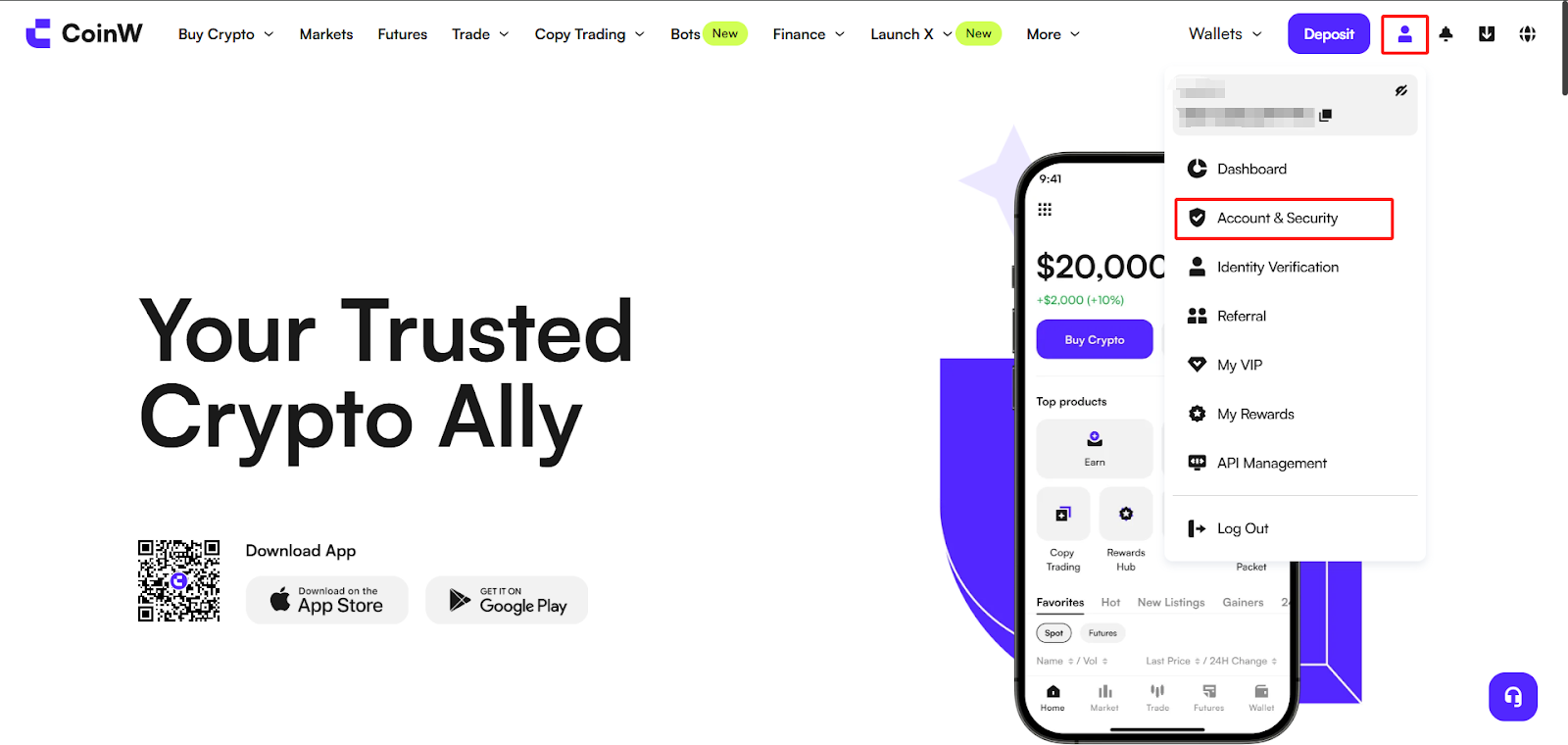
(1) Log in to the CoinW website, click the account icon in the top right, then click [Account & Security] to enter the Security Center.
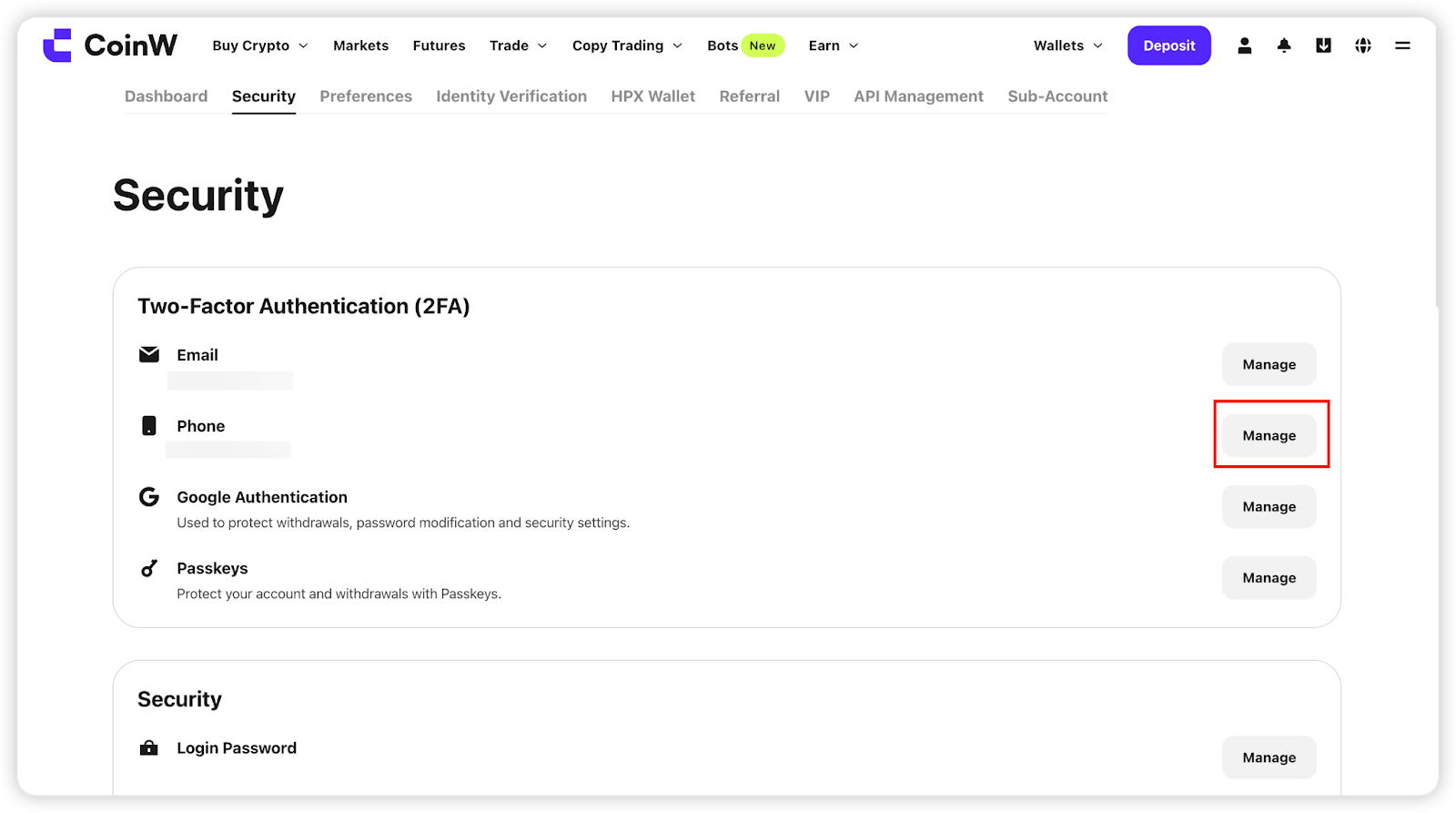
(2) In "Account Management", find the Phone option, click [Manage] on the right, then click [Bind] to enter the binding interface.
【APP Version】
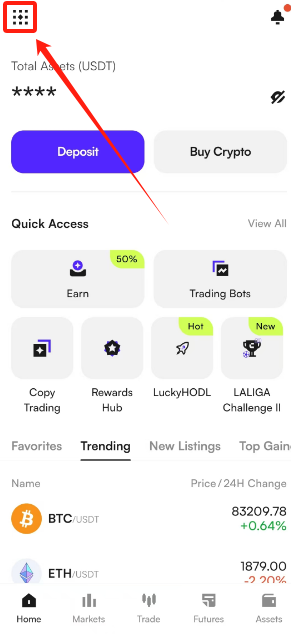
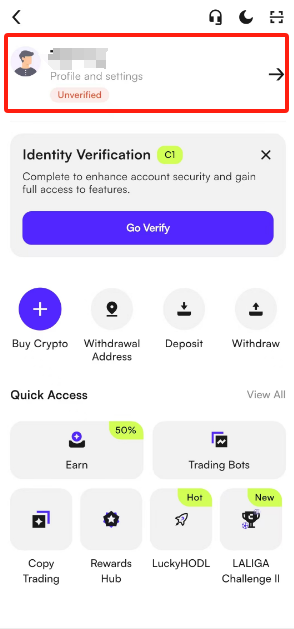
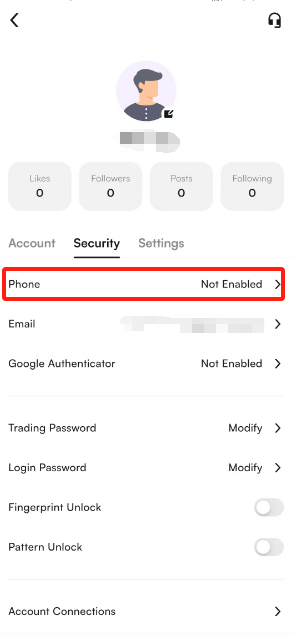
(1) Open the CoinW App, go to the home page, click the account icon in the top left, tap your profile picture, and enter the Security Center.
(2) Tap [Security Center] - [Phone], then tap to enter the phone binding interface.
(3) Verify your phone number and input the code to complete the binding.
Note:
If you see a message like "This number is already bound/registered", it means your phone number is already associated with another CoinW account. Please use a different, unused number.
II. Changing or unbinding your mobile number
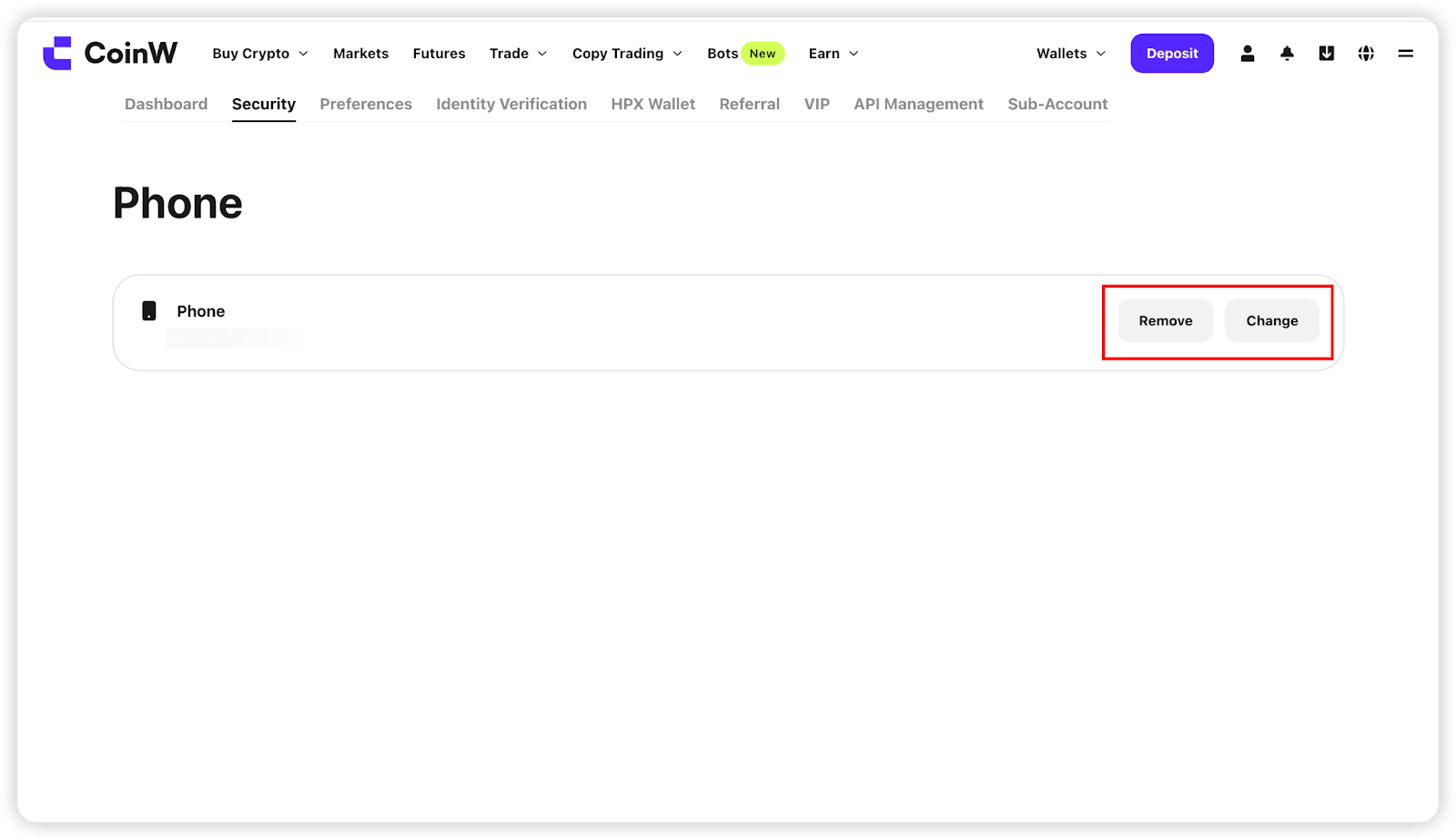
(1) On WEB, click [Modify] or [Remove] to enter the mobile modification page;
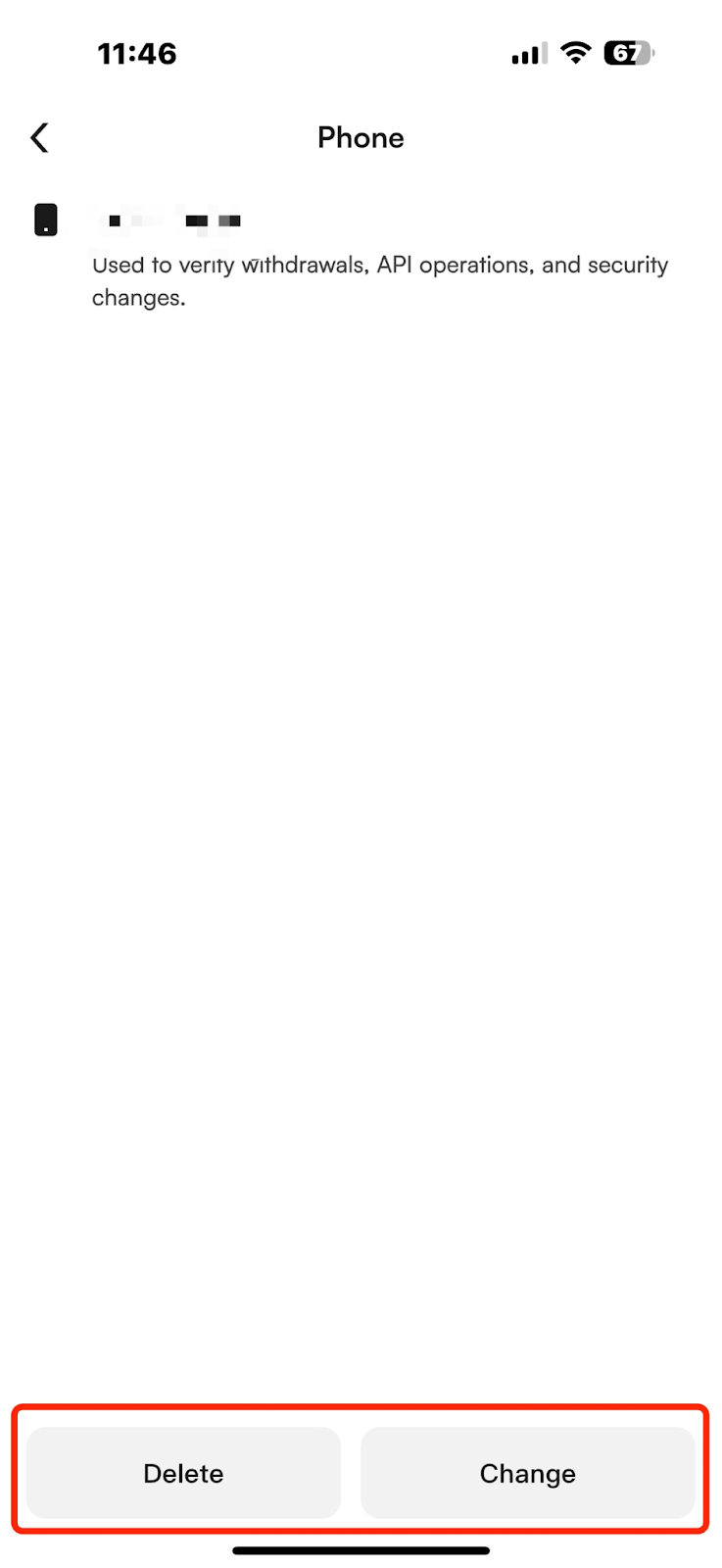
On APP, tap [Modify] or [Delete] to modify the number.
You’ll need to verify two of your account's bound security methods, such as Authenticator Key, SMS code, Email code, or Google code.
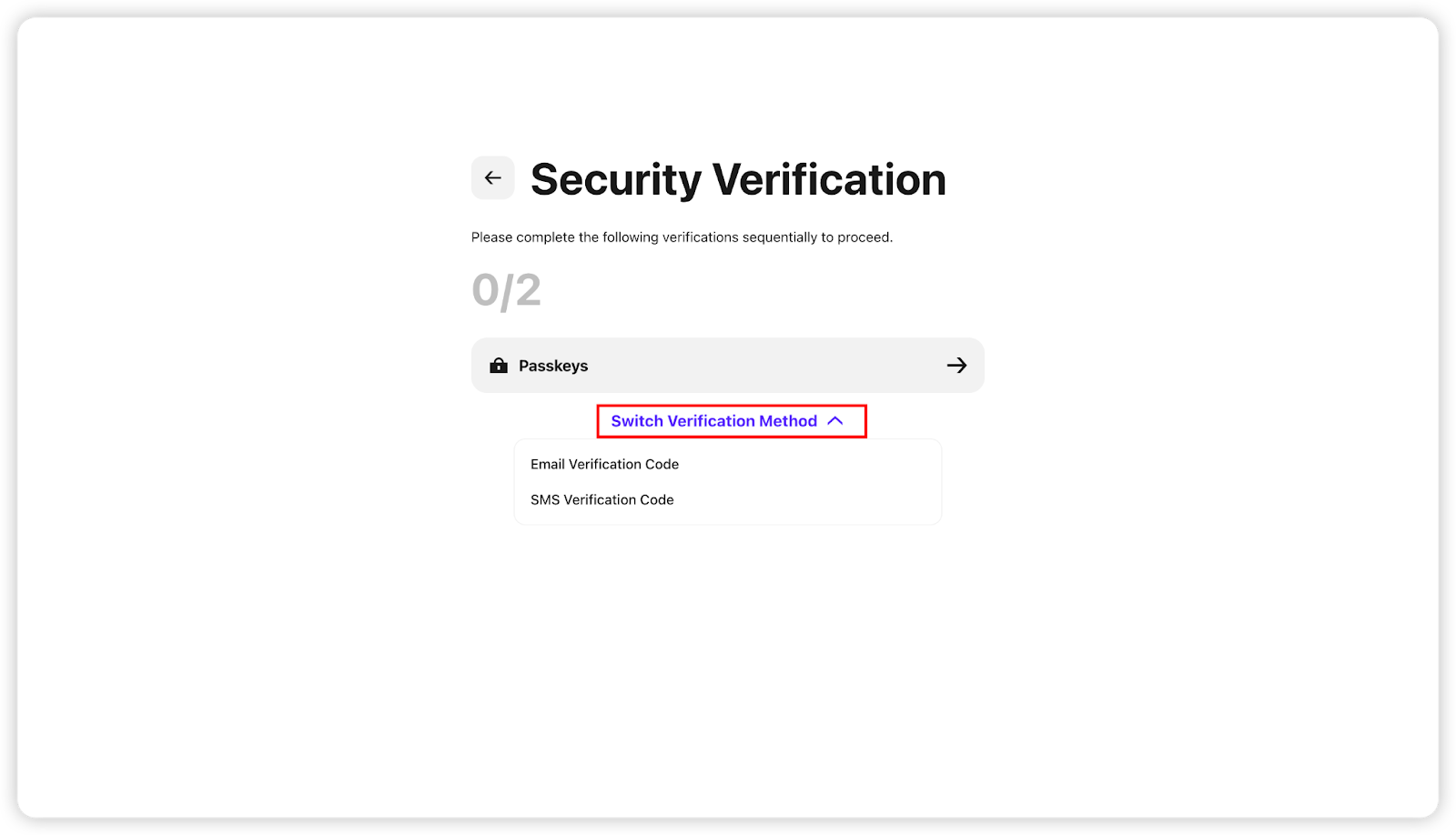
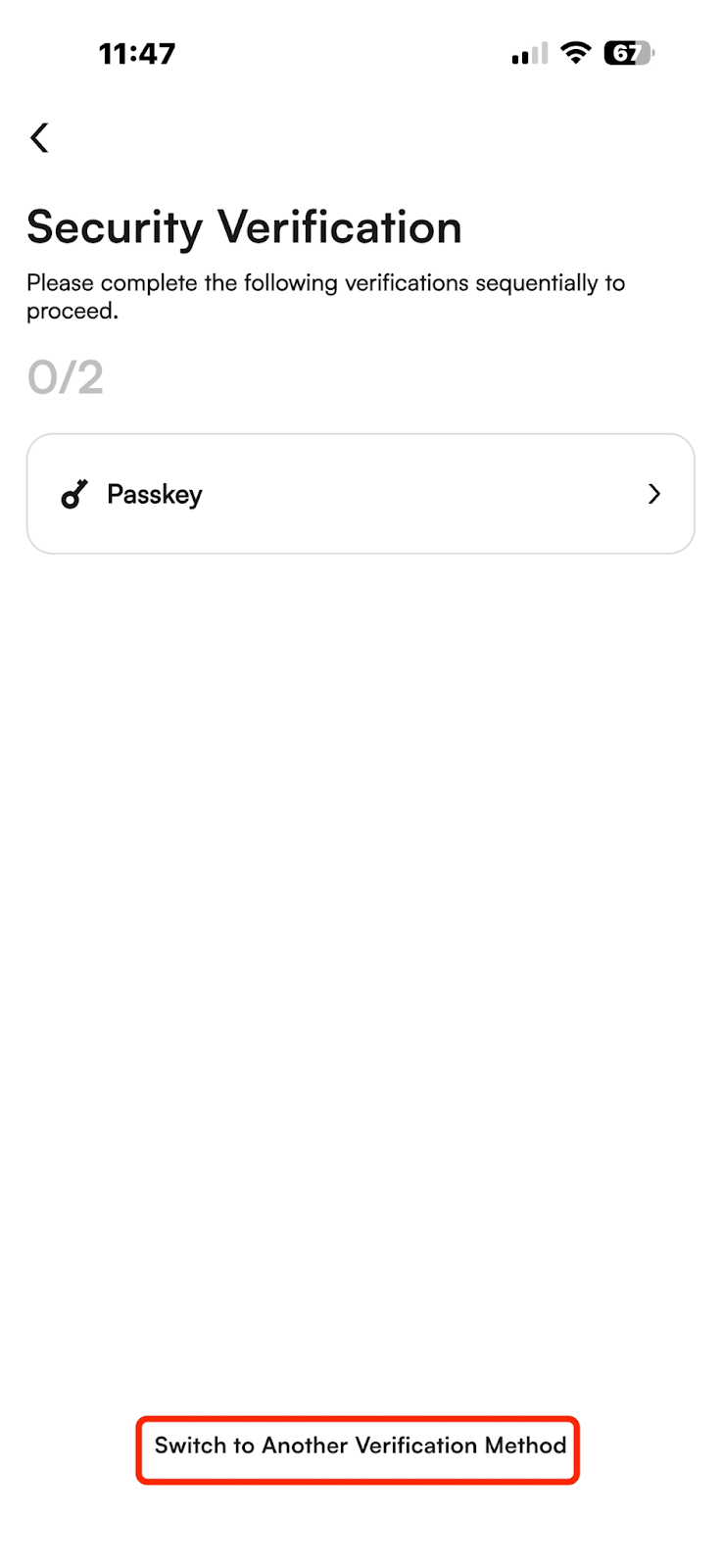
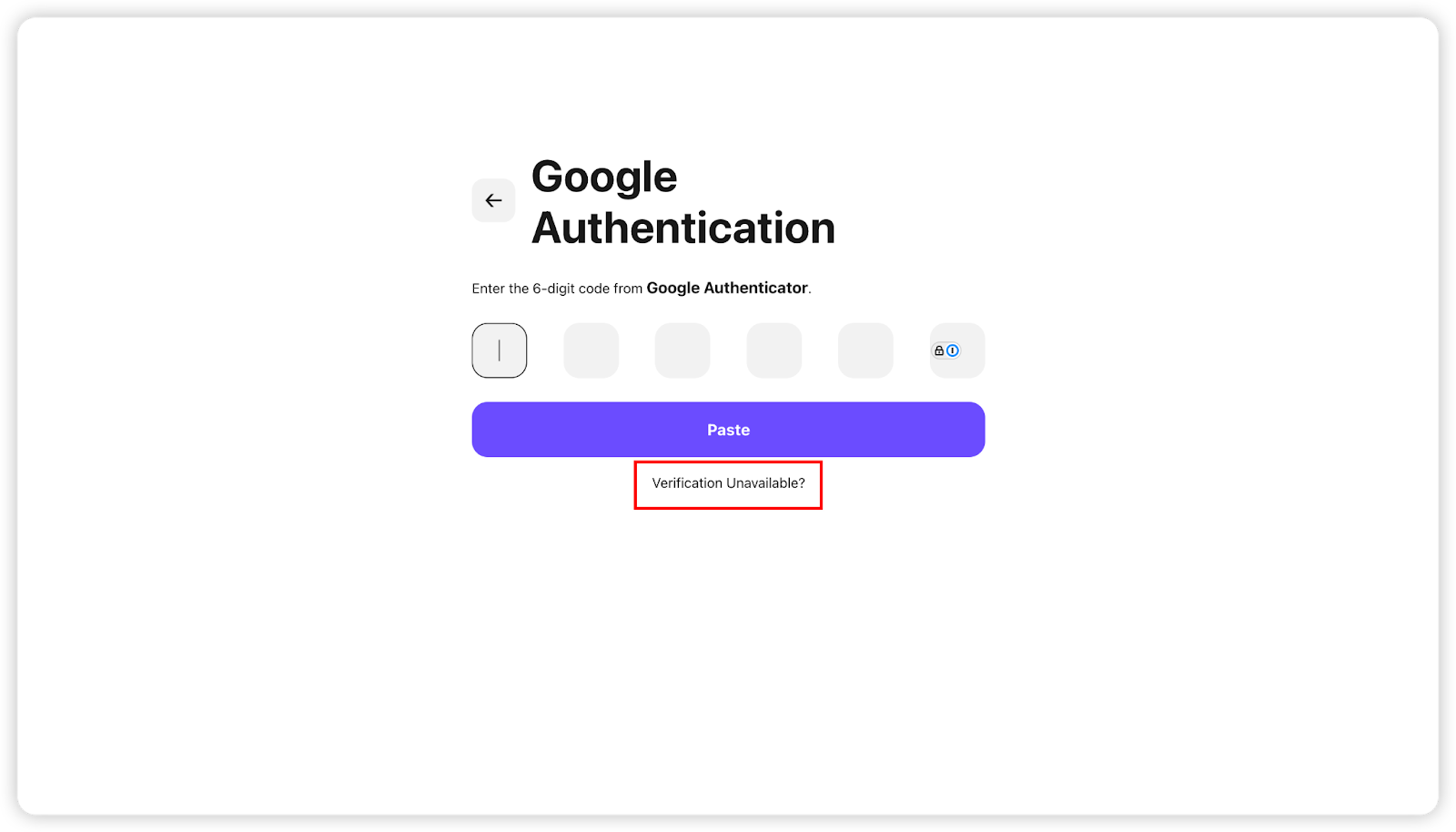
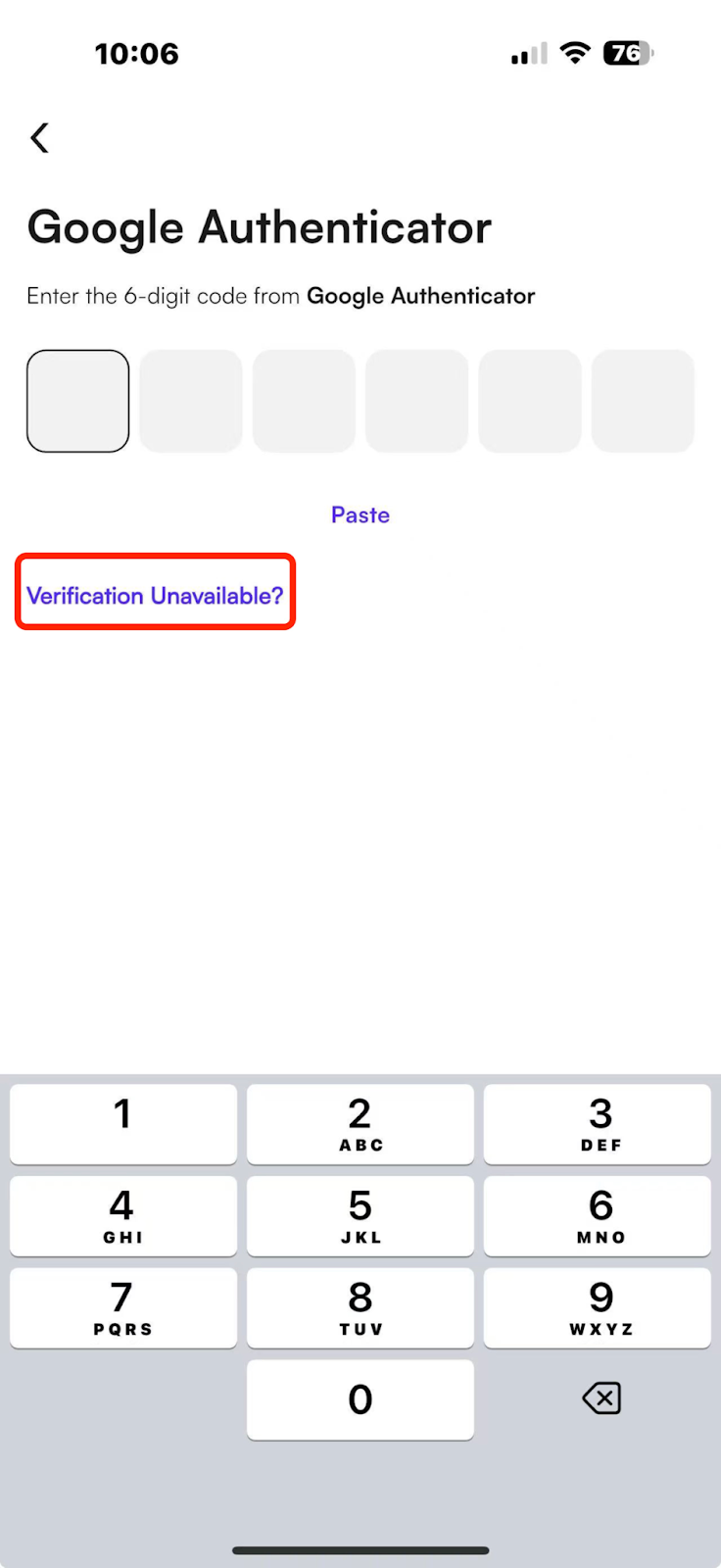
(2) If some methods are unavailable, tap [Security Option Unavailable] to reset the relevant options.
Reminders:
(1) To protect your account assets, withdrawals or USDT sales will be disabled for 24 hours after changing your mobile number.
(2) After successful binding/modification, your account will be logged out automatically. Please log in again.
If you have any questions, contact Customer Support.
I. Binding your account's mobile number
(1) If you registered with a mobile number, no additional binding is needed—it is automatically bound after registration.
(2) If you registered with an email address, you must bind a mobile number before making crypto purchases.
(3) If your account only has a mobile number bound but no email, you cannot unbind the mobile number. You must bind an email first.
Below is the procedure for binding, modifying, and unbinding a mobile number.
【WEB Version】
(1) Log in to the CoinW website, click the account icon in the top right, then click [Account & Security] to enter the Security Center.
(2) In "Account Management", find the Phone option, click [Manage] on the right, then click [Bind] to enter the binding interface.
【APP Version】
(1) Open the CoinW App, go to the home page, click the account icon in the top left, tap your profile picture, and enter the Security Center.
(2) Tap [Security Center] - [Phone], then tap to enter the phone binding interface.
(3) Verify your phone number and input the code to complete the binding.
Note:
If you see a message like "This number is already bound/registered", it means your phone number is already associated with another CoinW account. Please use a different, unused number.
II. Changing or unbinding your mobile number
(1) On WEB, click [Modify] or [Remove] to enter the mobile modification page;
On APP, tap [Modify] or [Delete] to modify the number.
You’ll need to verify two of your account's bound security methods, such as Authenticator Key, SMS code, Email code, or Google code.
(2) If some methods are unavailable, tap [Security Option Unavailable] to reset the relevant options.
Reminders:
(1) To protect your account assets, withdrawals or USDT sales will be disabled for 24 hours after changing your mobile number.
(2) After successful binding/modification, your account will be logged out automatically. Please log in again.
If you have any questions, contact Customer Support.