FAQ
【WEB】
I. Download the Google Authenticator App on your mobile phone
Please refer to the following icon:
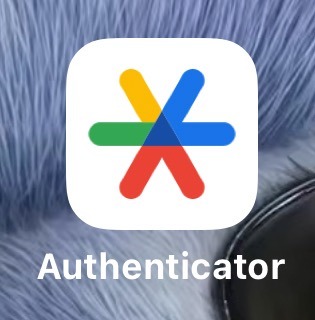
Download link:
Android: Go directly to the app store or search in the browser to download. Please ensure you download the official app.
iOS: https://itunes.apple.com/cn/app/google-authenticator/id388497605?mt=8
Or search in the App Store. If not found, use an overseas Apple ID to download.
II. Enter the Google Binding Page on the Official Website
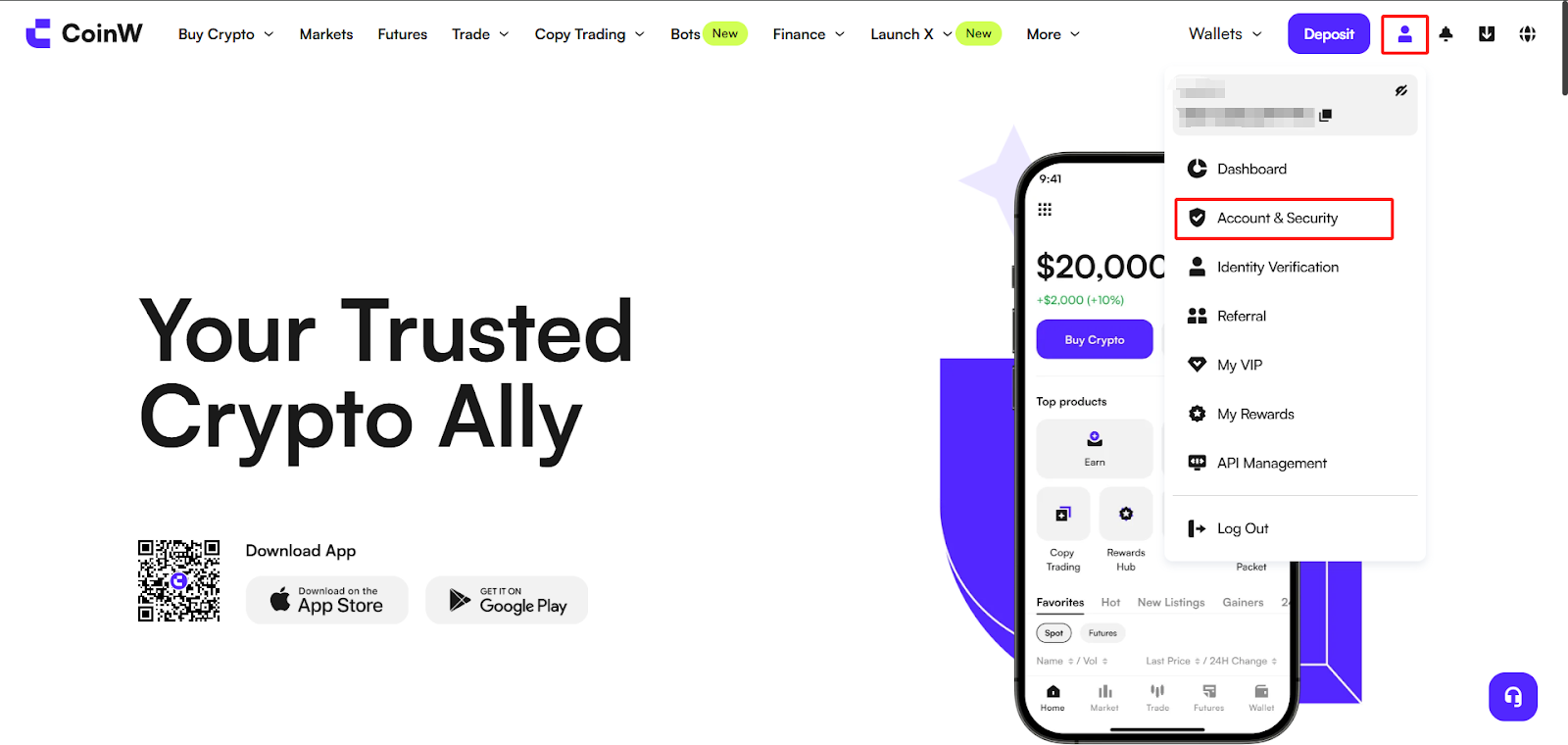
(1) Log in to the CoinW official website. Click the account icon in the top right corner, and click [Account & Security] to enter the security center.
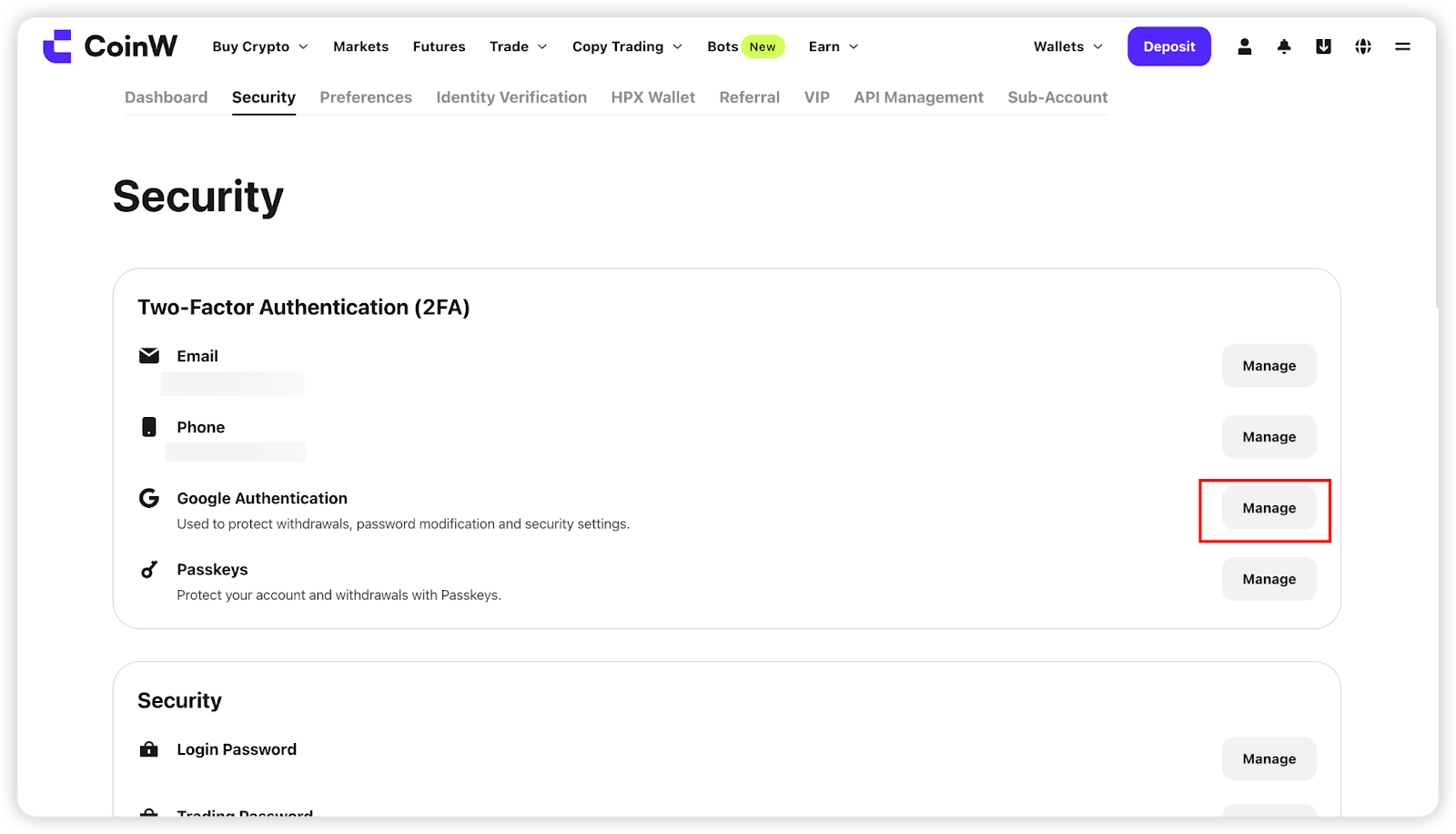
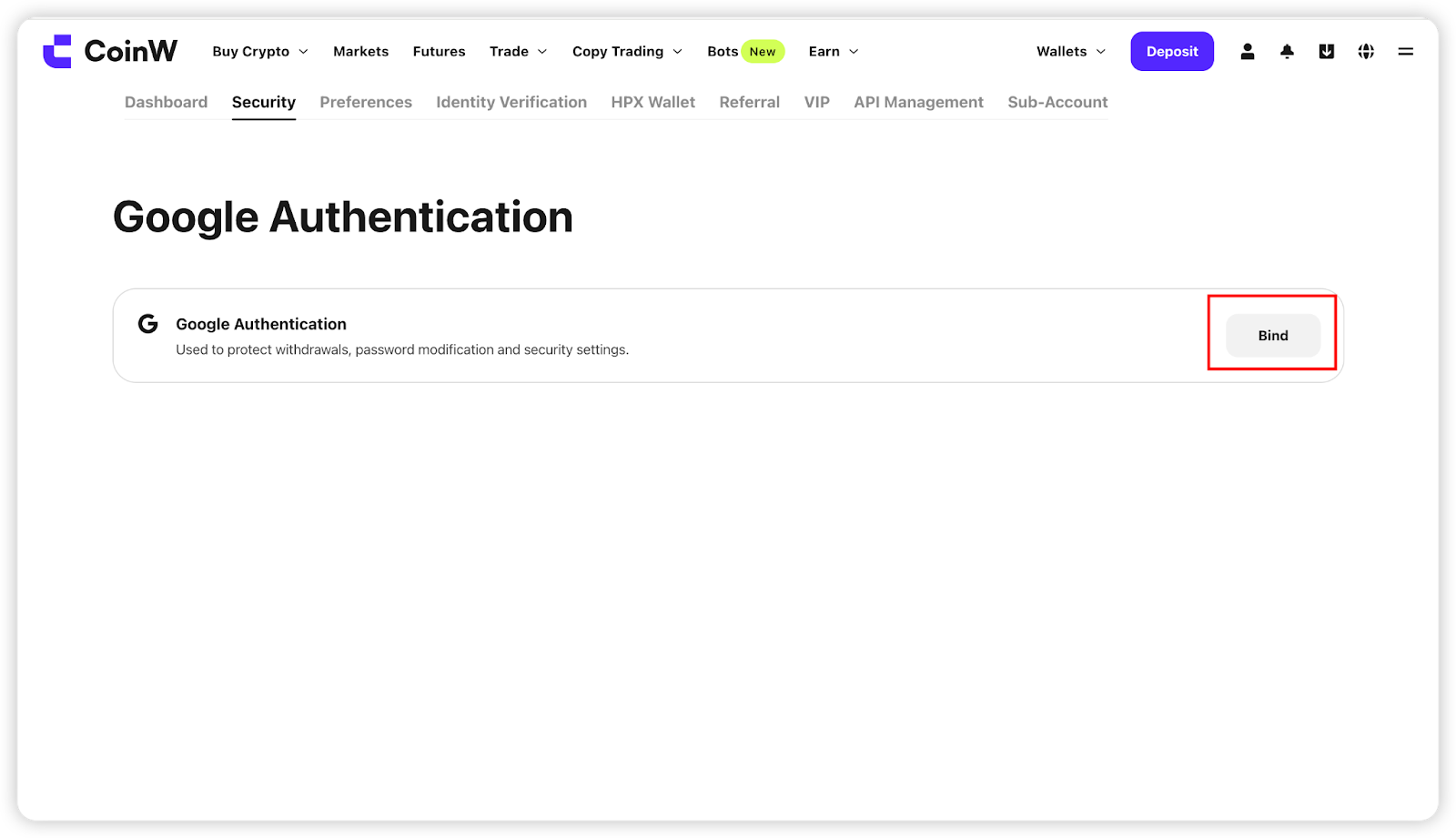
(2) Under account management, find Google Authentication, click the [Manage] button on the right, and then click [Bind] to enter the Google Authenticator binding page.
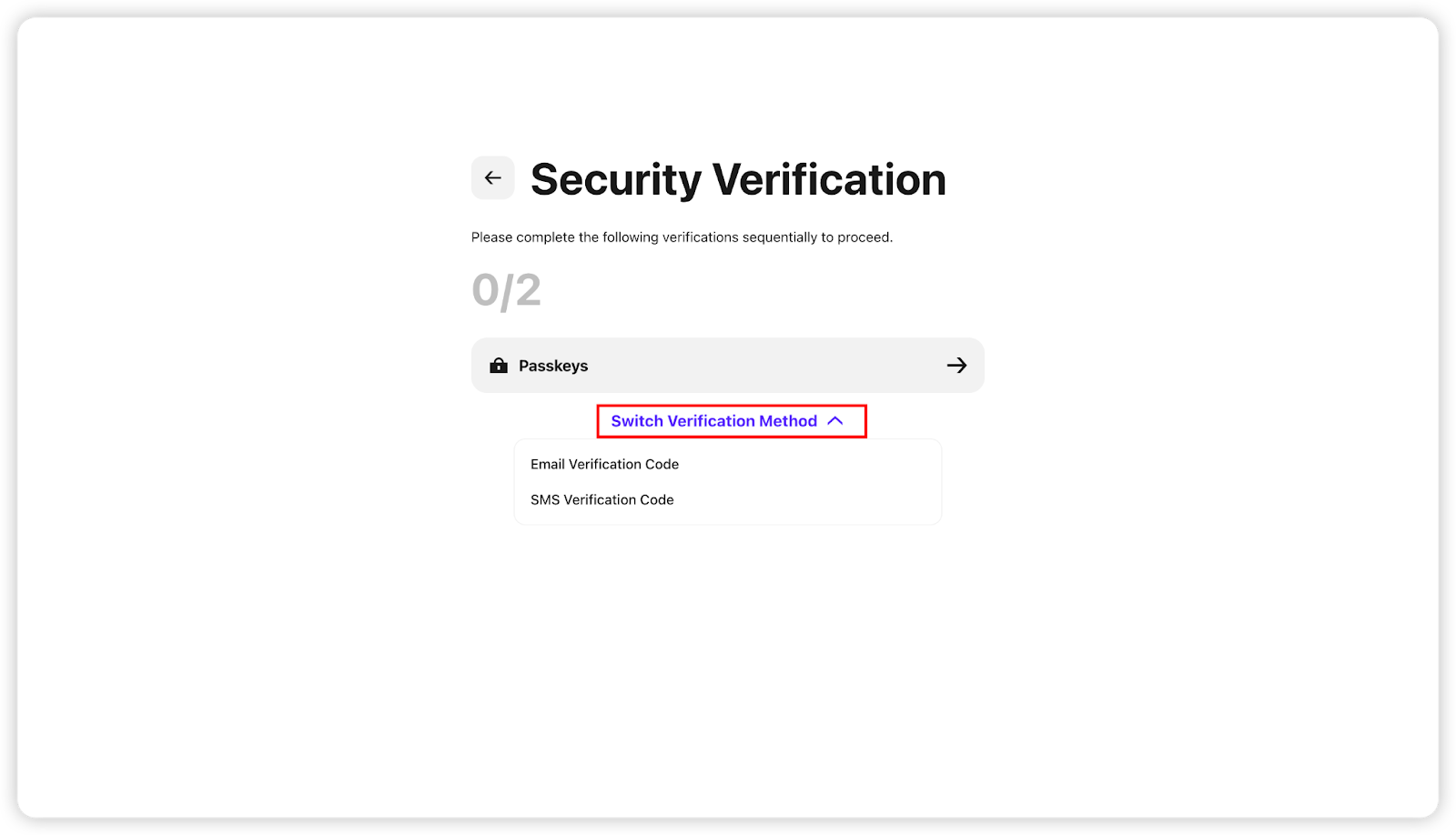
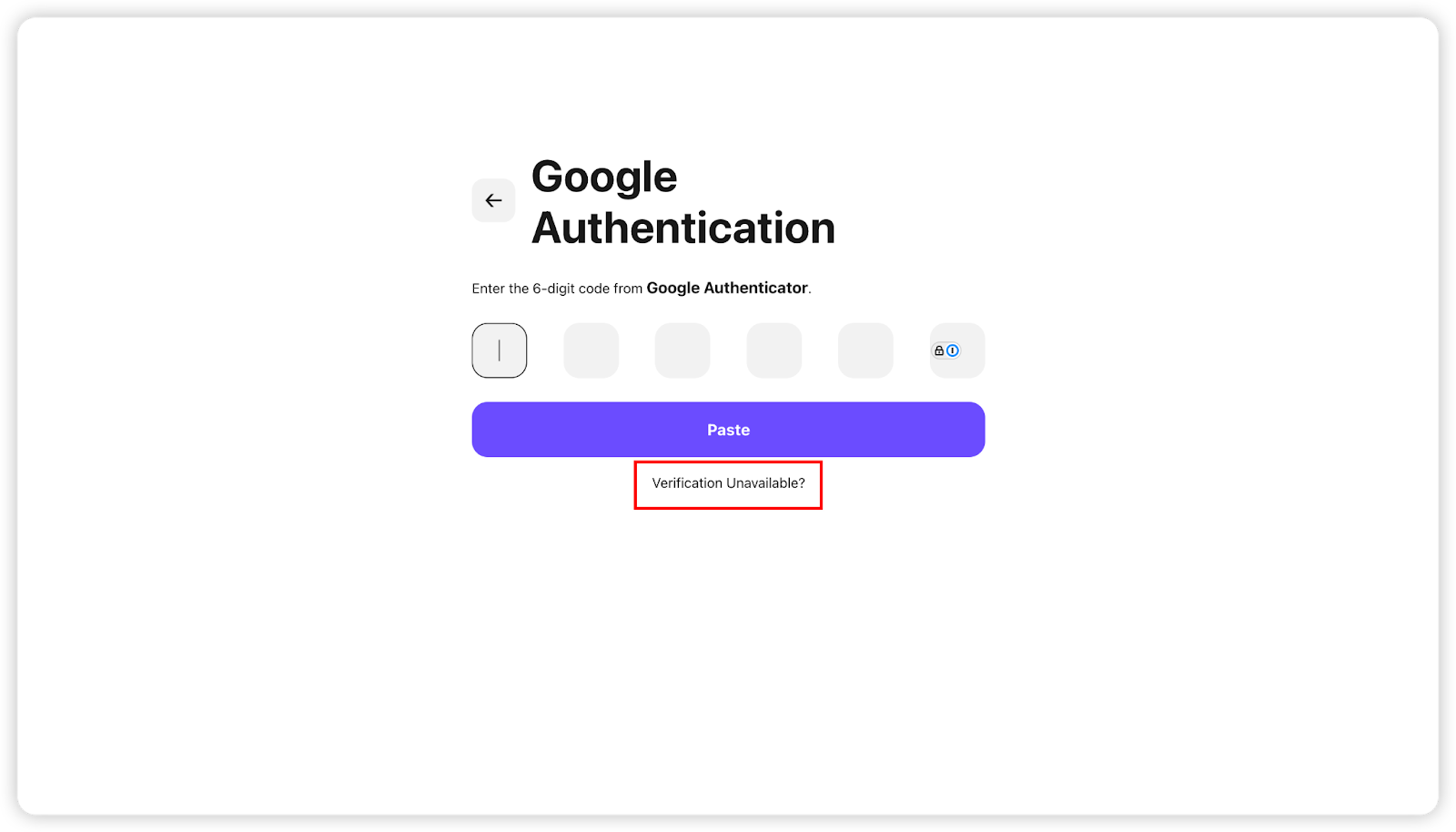
(3) You need to verify two of your security options, including passkey, SMS code, and email code. If any option is unavailable, click [Security Option Unavailable] to reset.
III. Get Google Secret Key
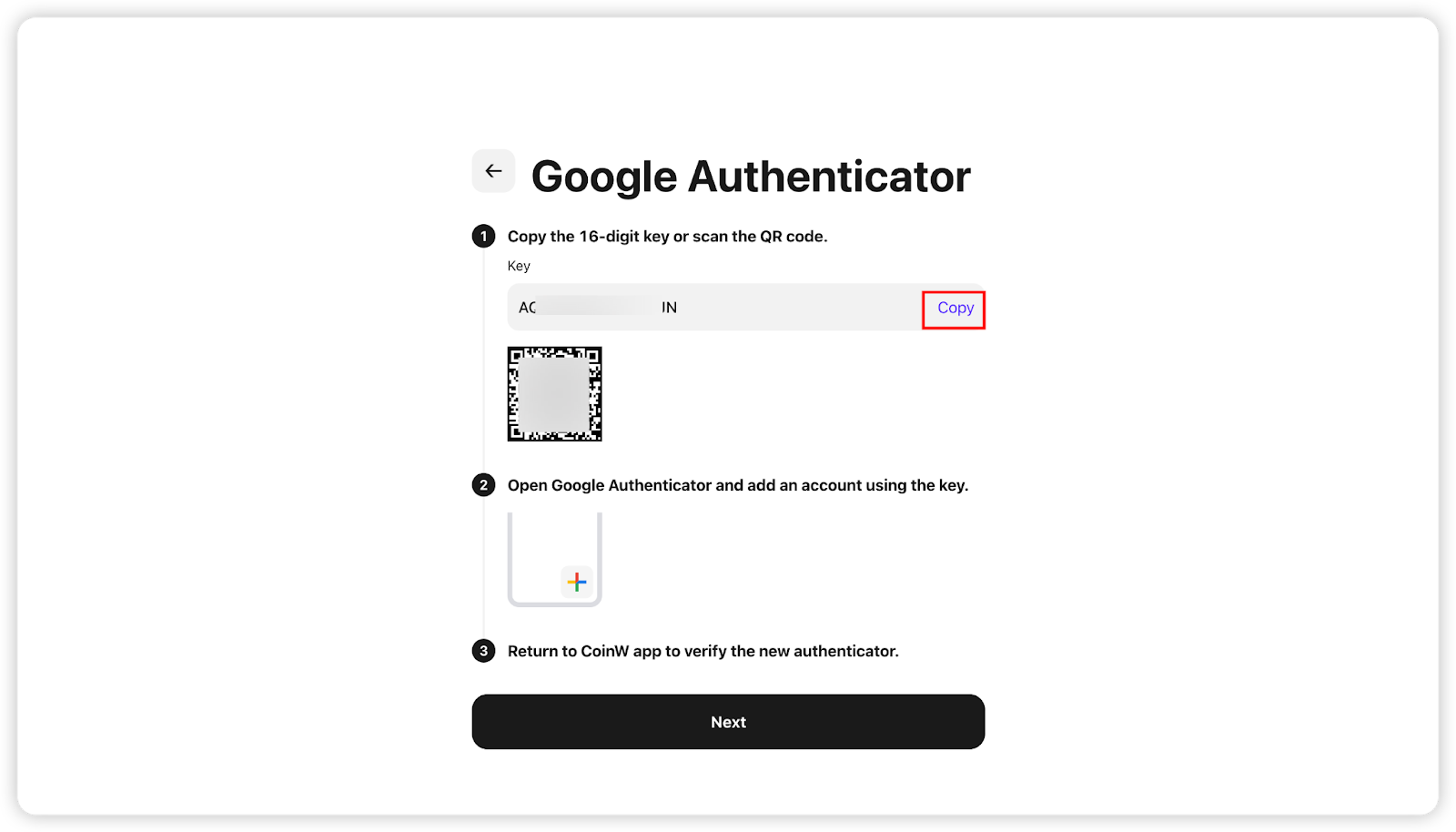
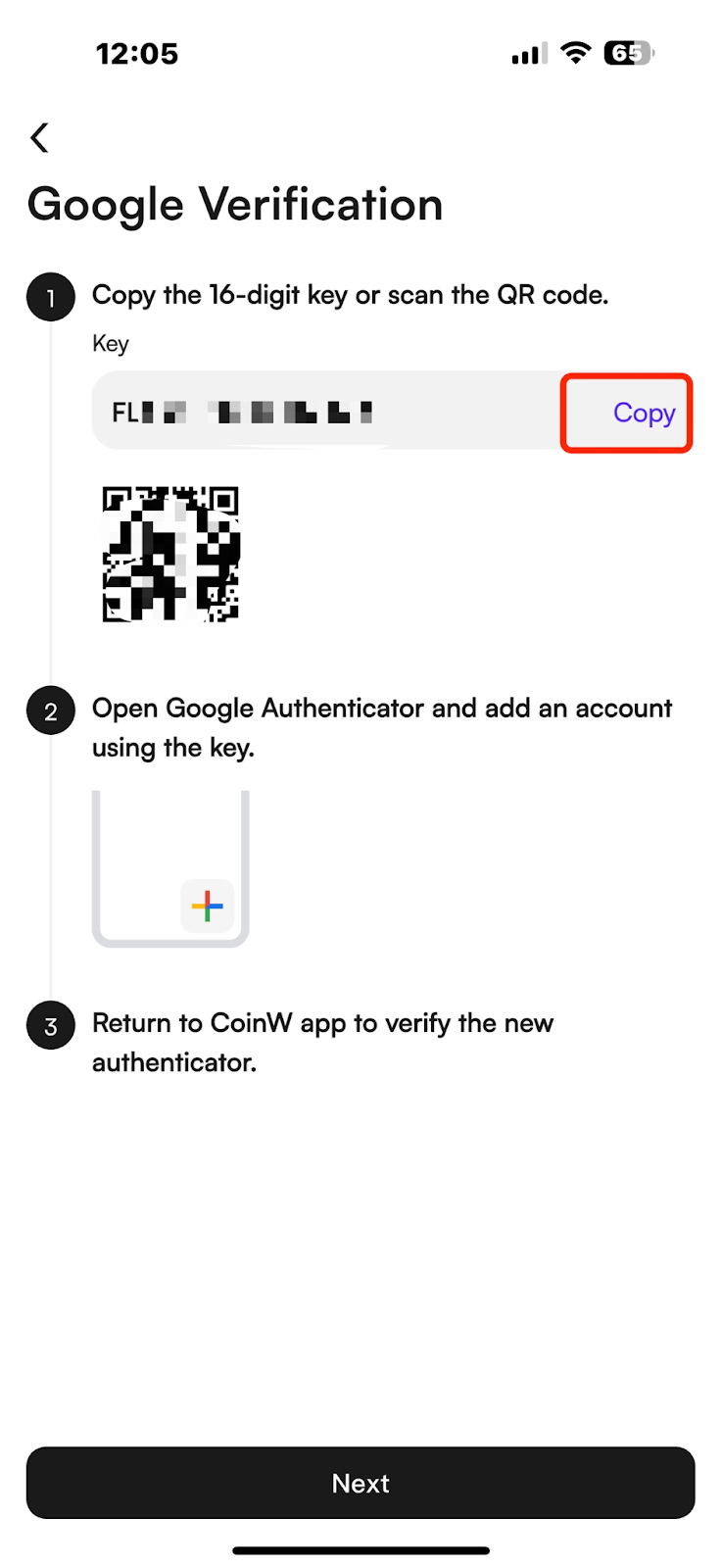
Once verification is successful, you will enter the binding interface. A key will appear—copy this key.
Open the Google Authenticator App and tap the "+" button at the bottom right. Choose either "Scan QR Code" or "Enter Key" to proceed.
After adding successfully, a random 6-digit code will be generated.
Note: Save this key in a notepad to help rebind on a new device if needed.
IV. Enter the Google Code to Complete Binding
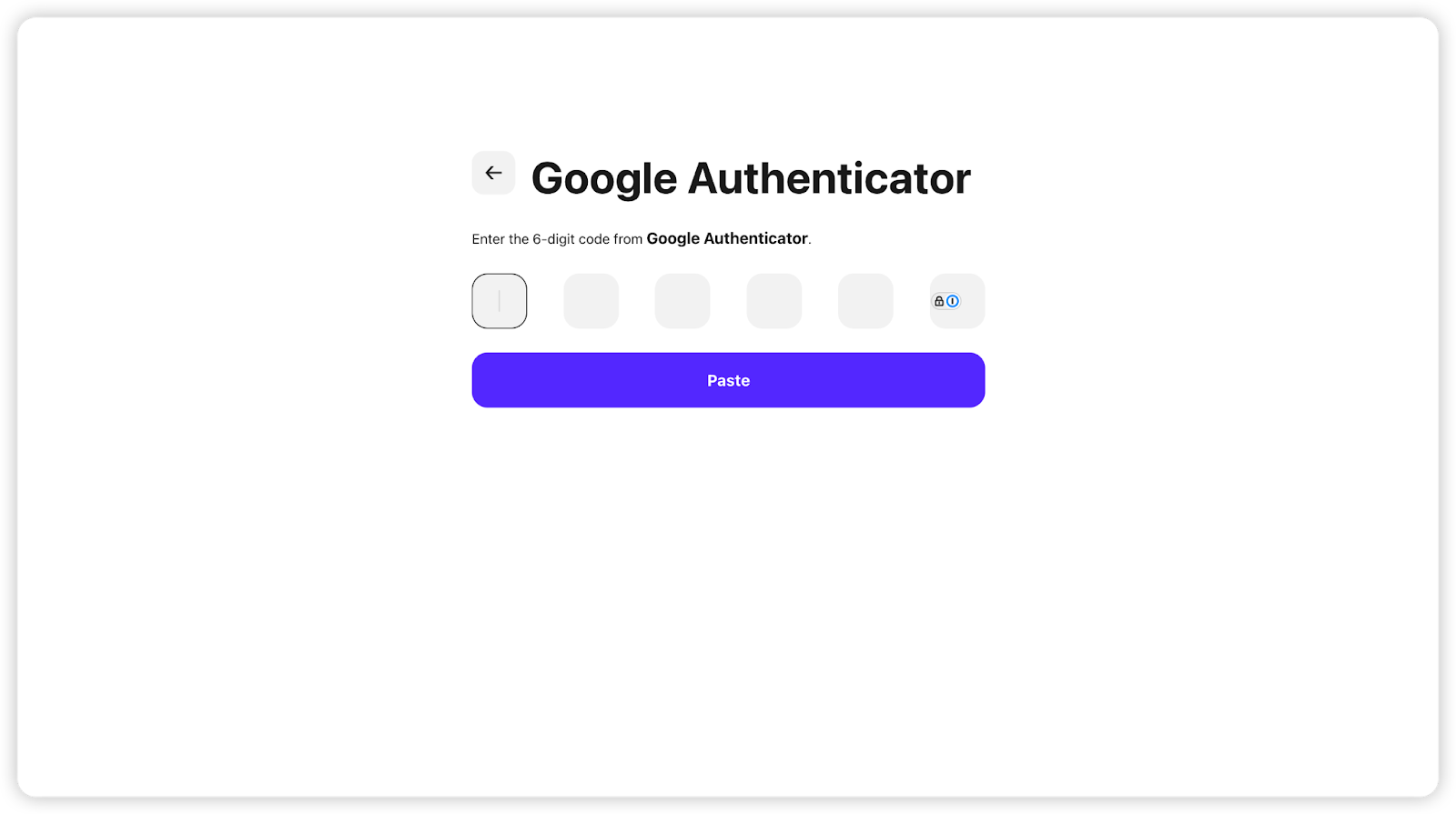
Enter the 6-digit verification code into the CoinW binding page and complete the process.
【APP】
I. Download the Google Authenticator App on your mobile phone
Same as Step 1 above.
II. Enter the Google Binding Page in the APP
(1) Open the CoinW APP, go to the homepage, and tap the account icon in the top left corner to enter the security center.
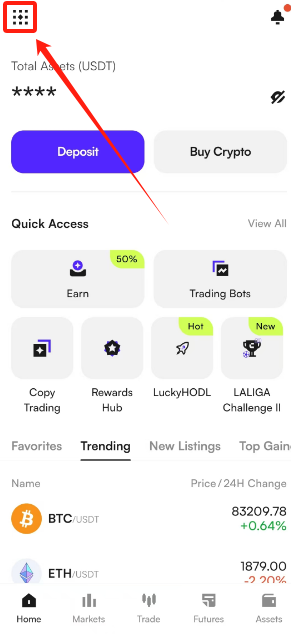
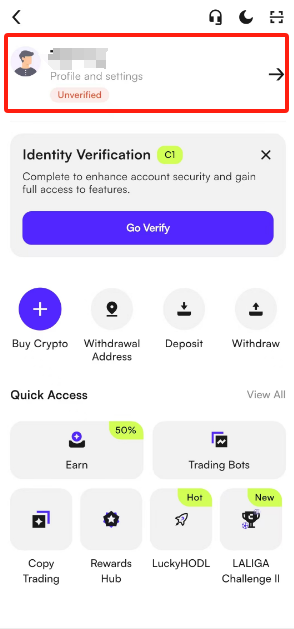
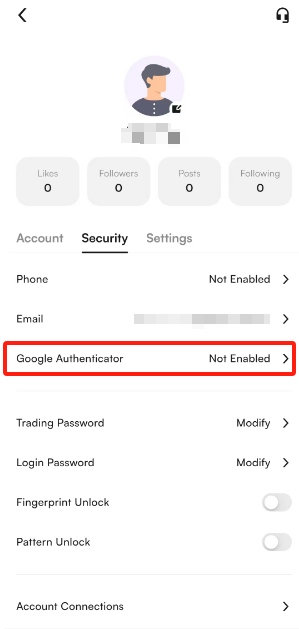
(2) Tap [Security Center] - [Google Authenticator], then tap [Set Up] to enter the binding page.
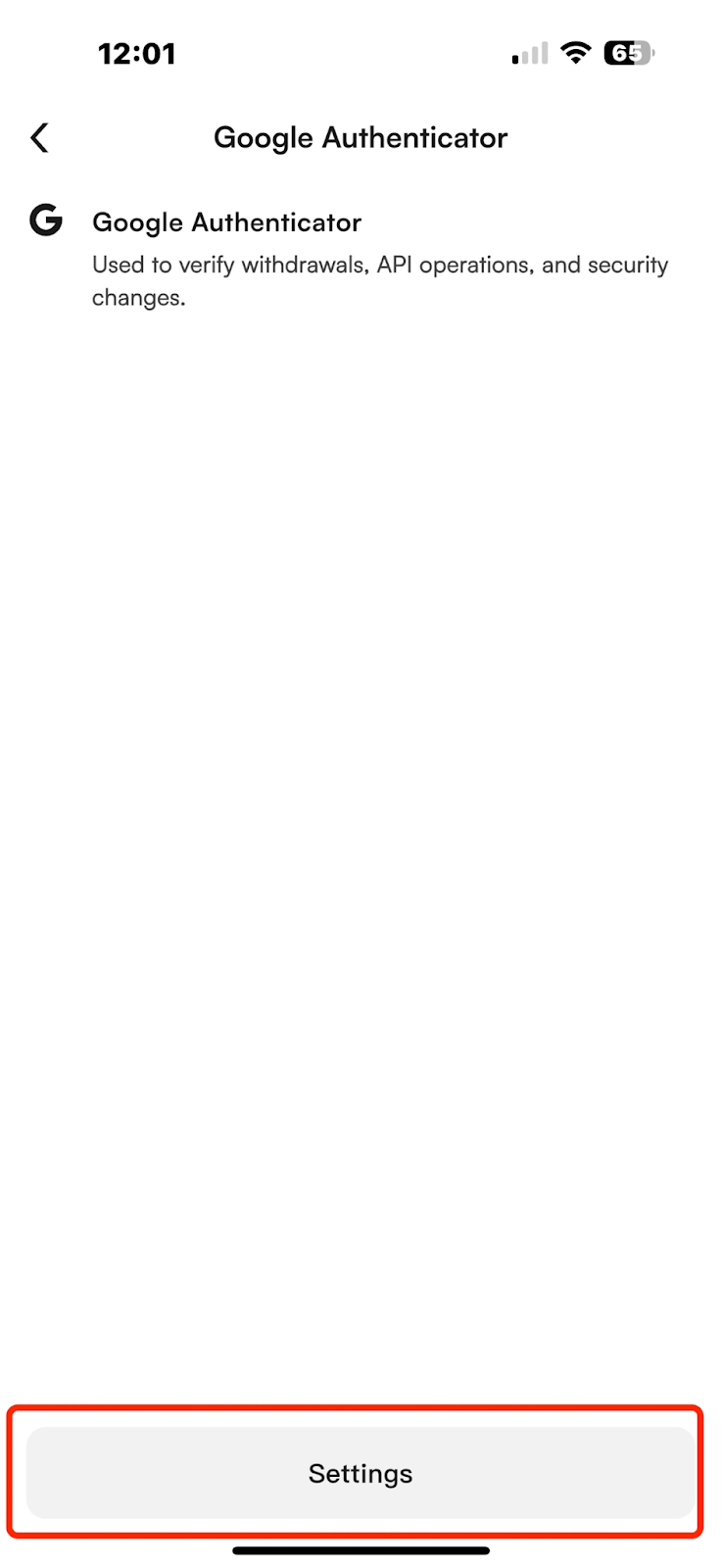
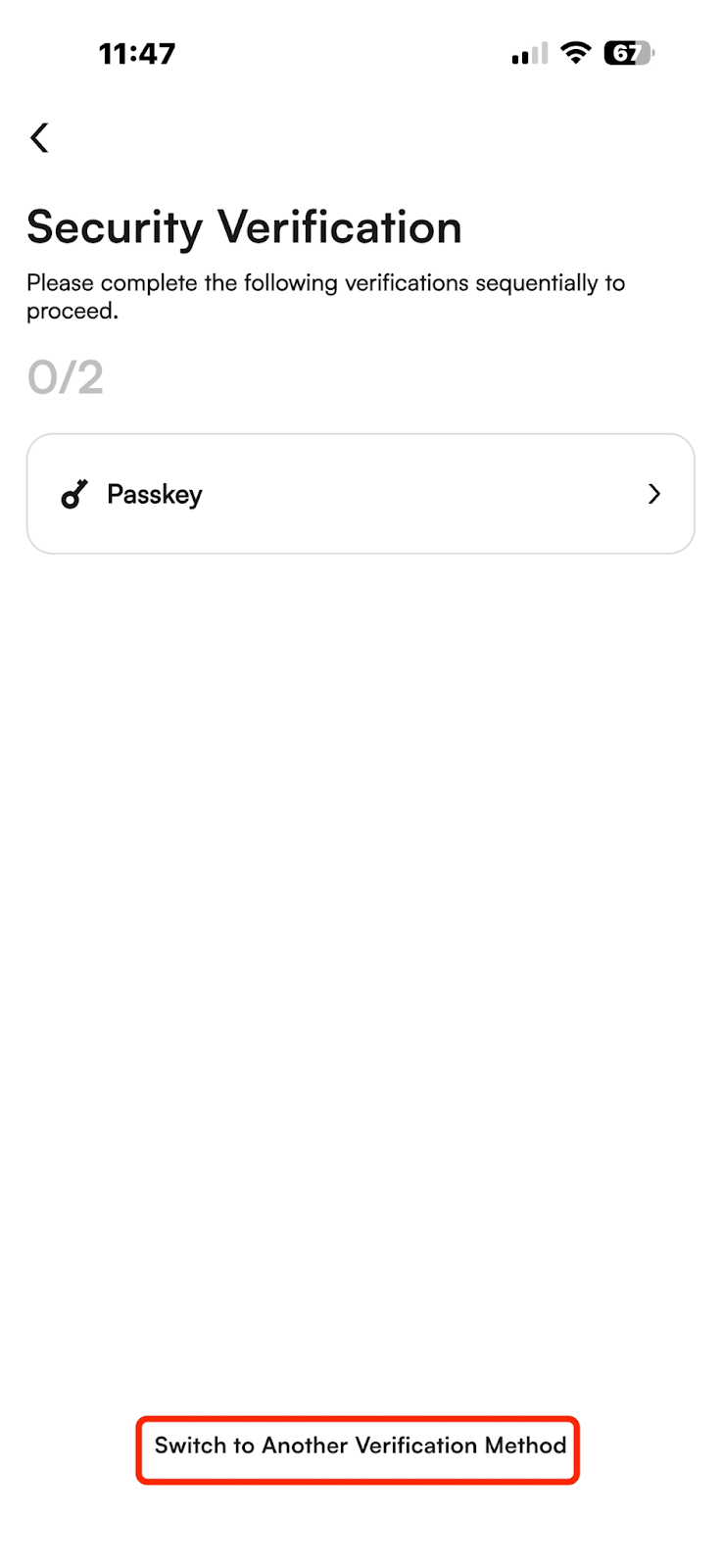
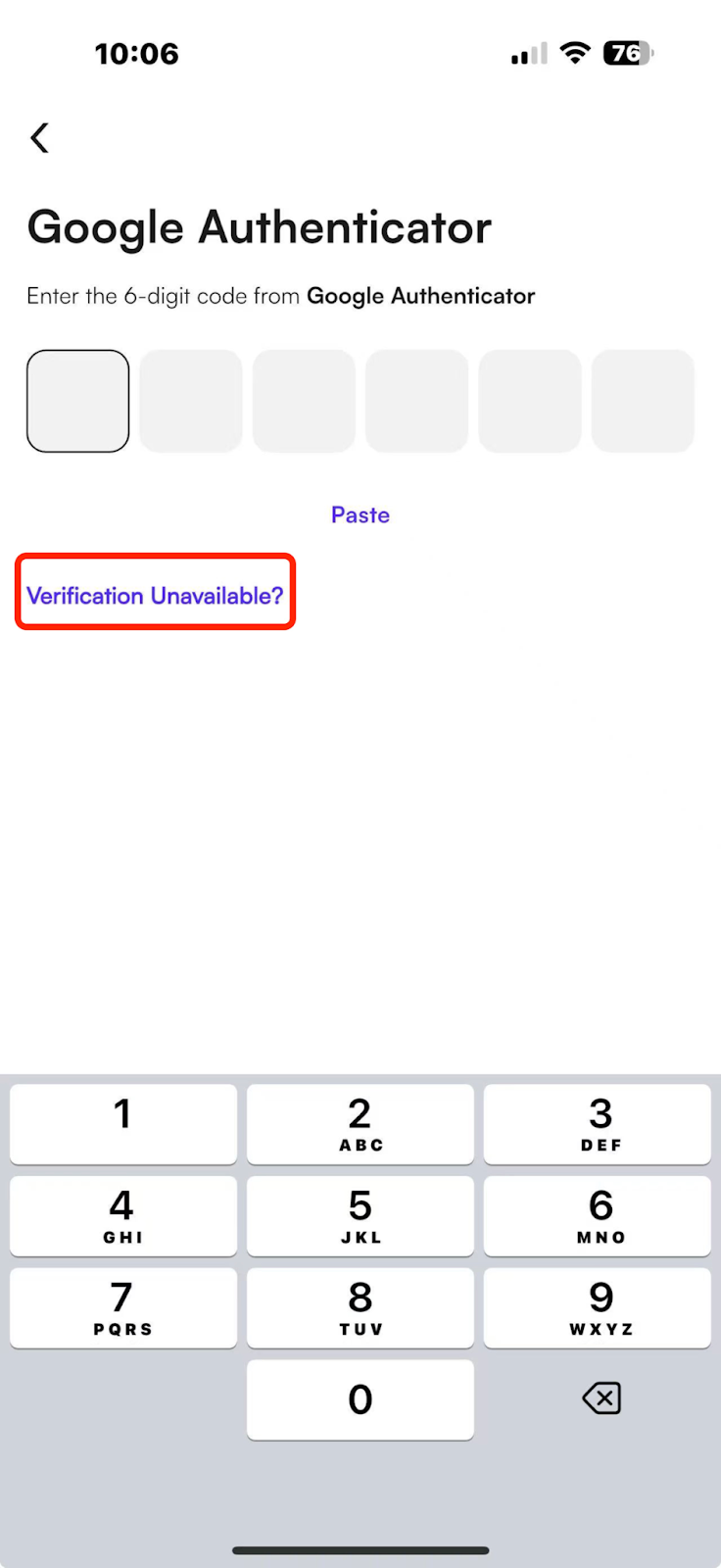
(3) You need to verify two of your security options, including passkey, SMS code, and email code. If any option is unavailable, click [Security Option Unavailable] to reset.
III. Get Google Secret Key
Same process as above.
IV. Enter the Google Code to Complete Binding
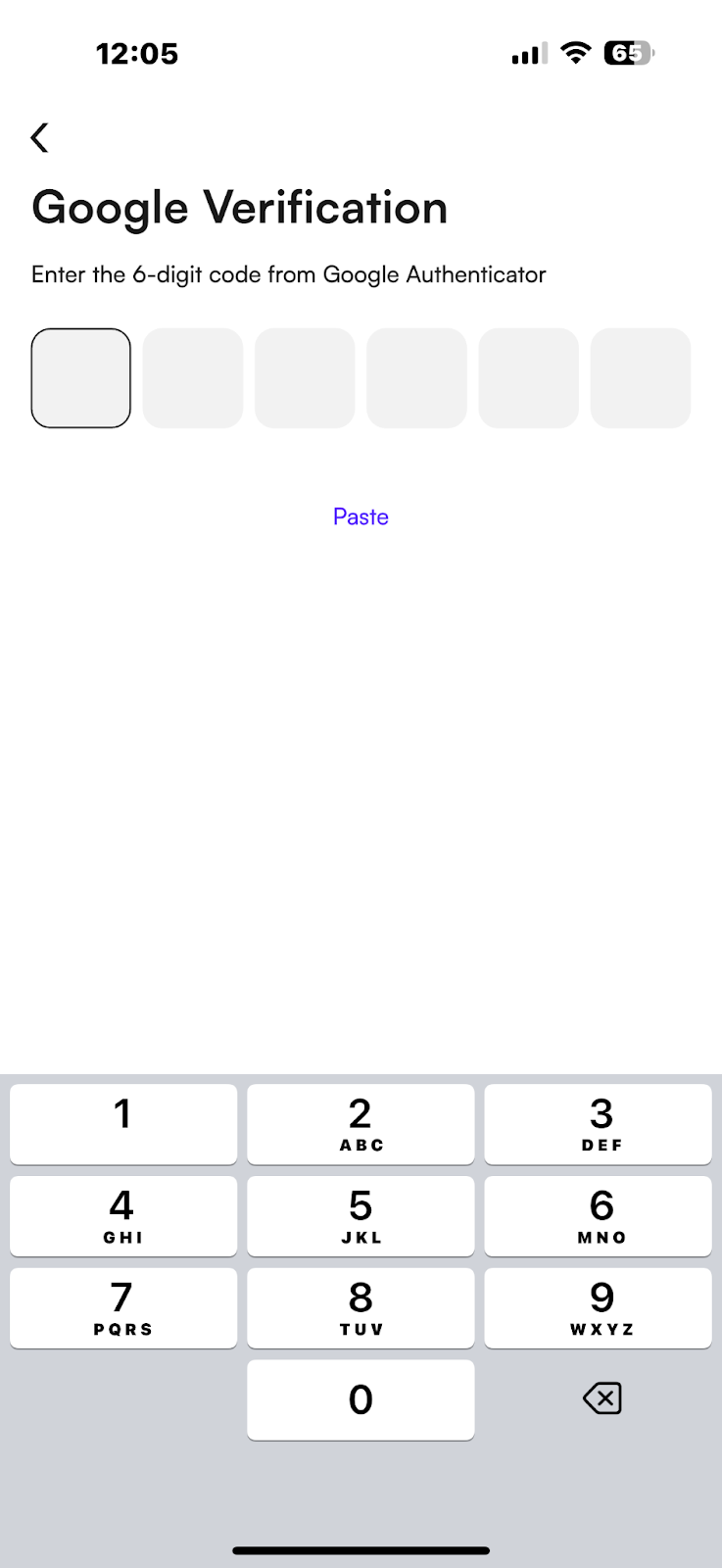
Enter the 6-digit verification code into the CoinW binding page and complete the process.
Notes
(1) Ensure you’ve installed the correct “Google Authenticator” app. Refer to the icon and name at the start of this article.
(2) Make sure the time and date on your phone match that of CoinW servers.
(3) Ensure the code and verification code entered are correct. Google Authenticator codes expire, so enter them within the valid time.
(4) Do not exit the CoinW APP binding page during the process. Exiting may refresh the secret key and cause binding failure.
【WEB】
I. Download the Google Authenticator App on your mobile phone
Please refer to the following icon:
Download link:
Android: Go directly to the app store or search in the browser to download. Please ensure you download the official app.
iOS: https://itunes.apple.com/cn/app/google-authenticator/id388497605?mt=8
Or search in the App Store. If not found, use an overseas Apple ID to download.
II. Enter the Google Binding Page on the Official Website
(1) Log in to the CoinW official website. Click the account icon in the top right corner, and click [Account & Security] to enter the security center.
(2) Under account management, find Google Authentication, click the [Manage] button on the right, and then click [Bind] to enter the Google Authenticator binding page.
(3) You need to verify two of your security options, including passkey, SMS code, and email code. If any option is unavailable, click [Security Option Unavailable] to reset.
III. Get Google Secret Key
Once verification is successful, you will enter the binding interface. A key will appear—copy this key.
Open the Google Authenticator App and tap the "+" button at the bottom right. Choose either "Scan QR Code" or "Enter Key" to proceed.
After adding successfully, a random 6-digit code will be generated.
Note: Save this key in a notepad to help rebind on a new device if needed.
IV. Enter the Google Code to Complete Binding
Enter the 6-digit verification code into the CoinW binding page and complete the process.
【APP】
I. Download the Google Authenticator App on your mobile phone
Same as Step 1 above.
II. Enter the Google Binding Page in the APP
(1) Open the CoinW APP, go to the homepage, and tap the account icon in the top left corner to enter the security center.
(2) Tap [Security Center] - [Google Authenticator], then tap [Set Up] to enter the binding page.
(3) You need to verify two of your security options, including passkey, SMS code, and email code. If any option is unavailable, click [Security Option Unavailable] to reset.
III. Get Google Secret Key
Same process as above.
IV. Enter the Google Code to Complete Binding
Enter the 6-digit verification code into the CoinW binding page and complete the process.
Notes
(1) Ensure you’ve installed the correct “Google Authenticator” app. Refer to the icon and name at the start of this article.
(2) Make sure the time and date on your phone match that of CoinW servers.
(3) Ensure the code and verification code entered are correct. Google Authenticator codes expire, so enter them within the valid time.
(4) Do not exit the CoinW APP binding page during the process. Exiting may refresh the secret key and cause binding failure.