FAQ
WEB
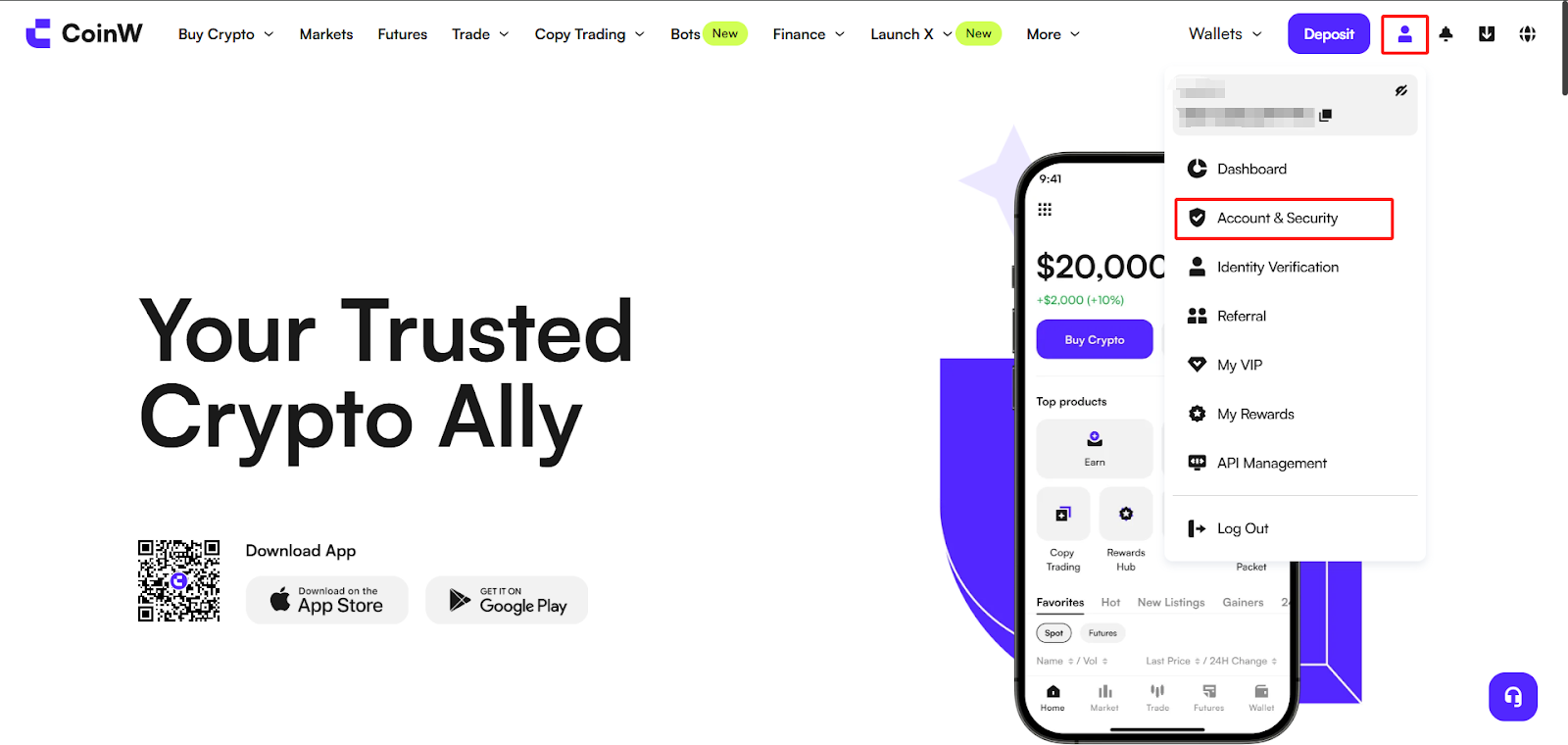
(1) Log in to the official CoinW website, click the account icon in the upper right corner, and click [Account & Security] to enter the Security Center;
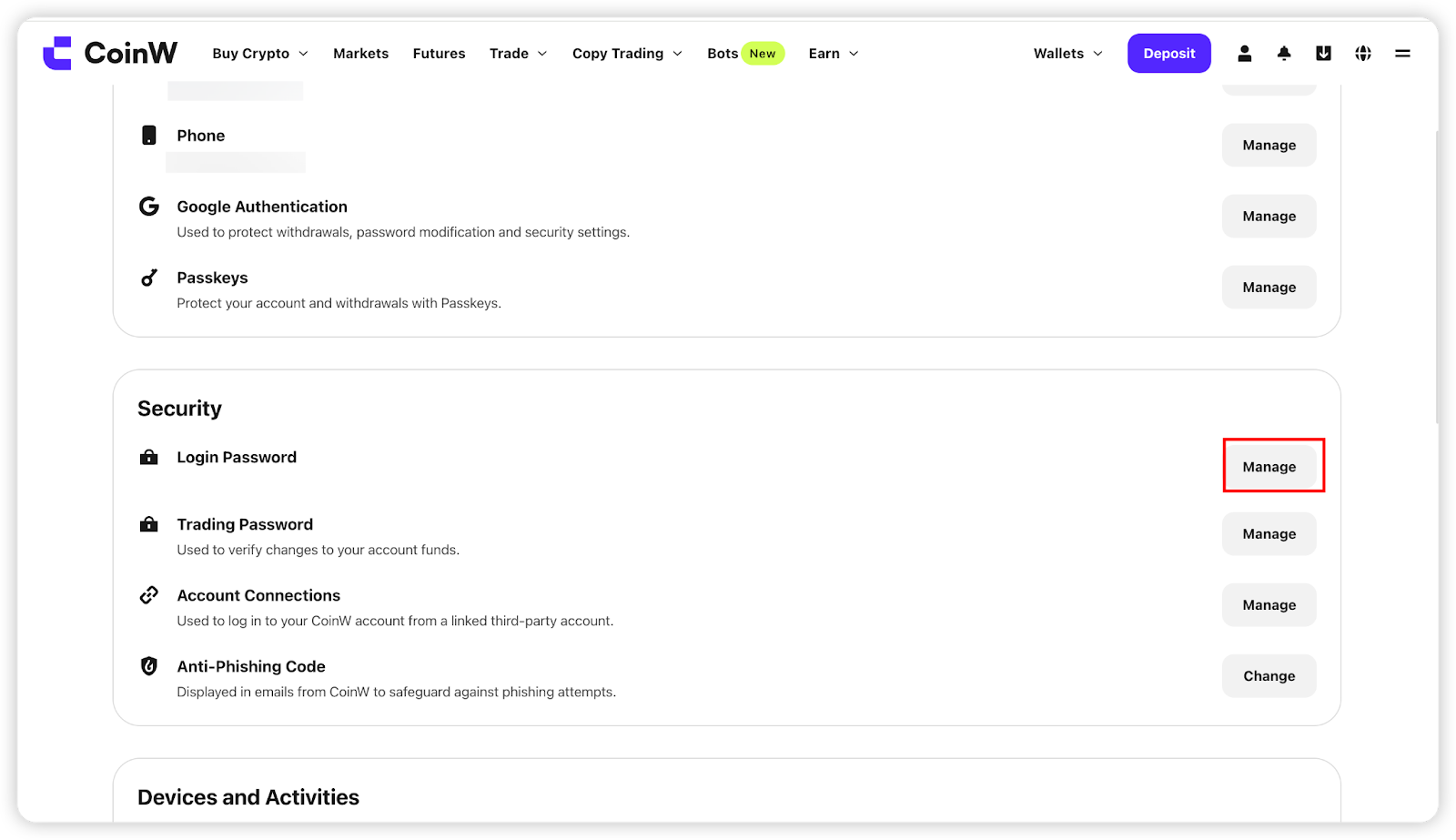
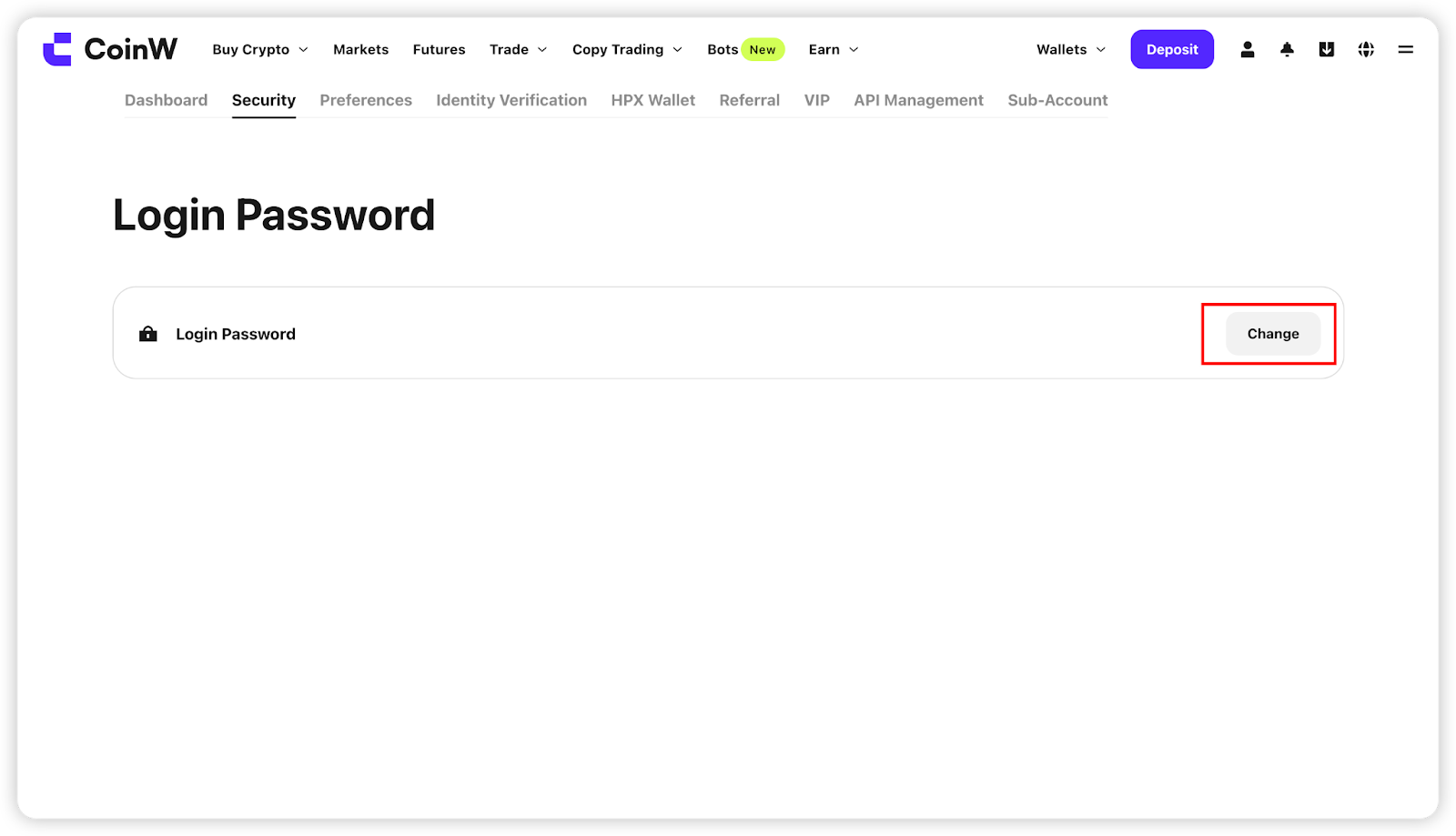
(2) Scroll down in the Password Center to find the Login Password option, click the [Manage] button on the right, and then click [Modify] to enter the modification page;
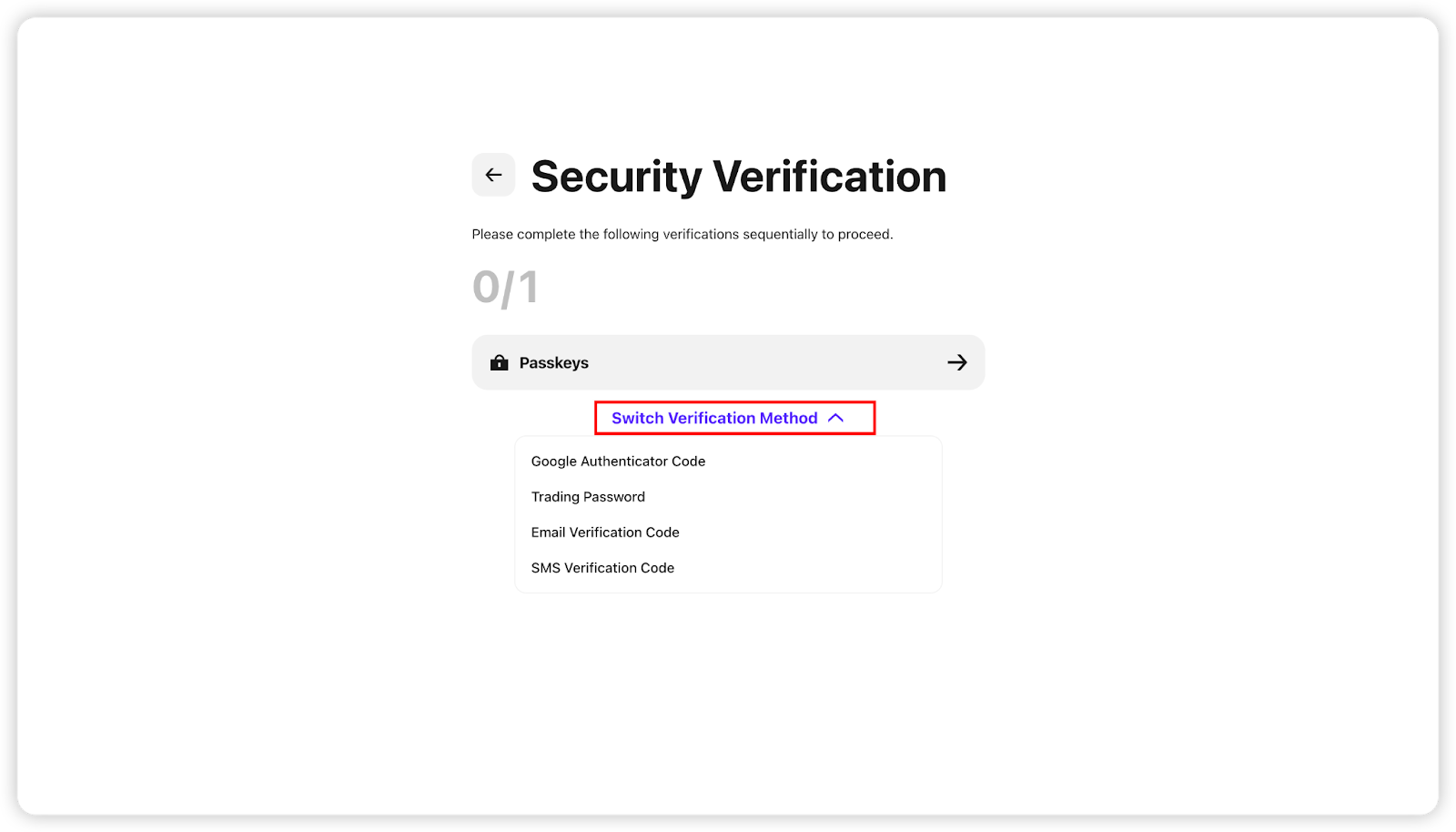
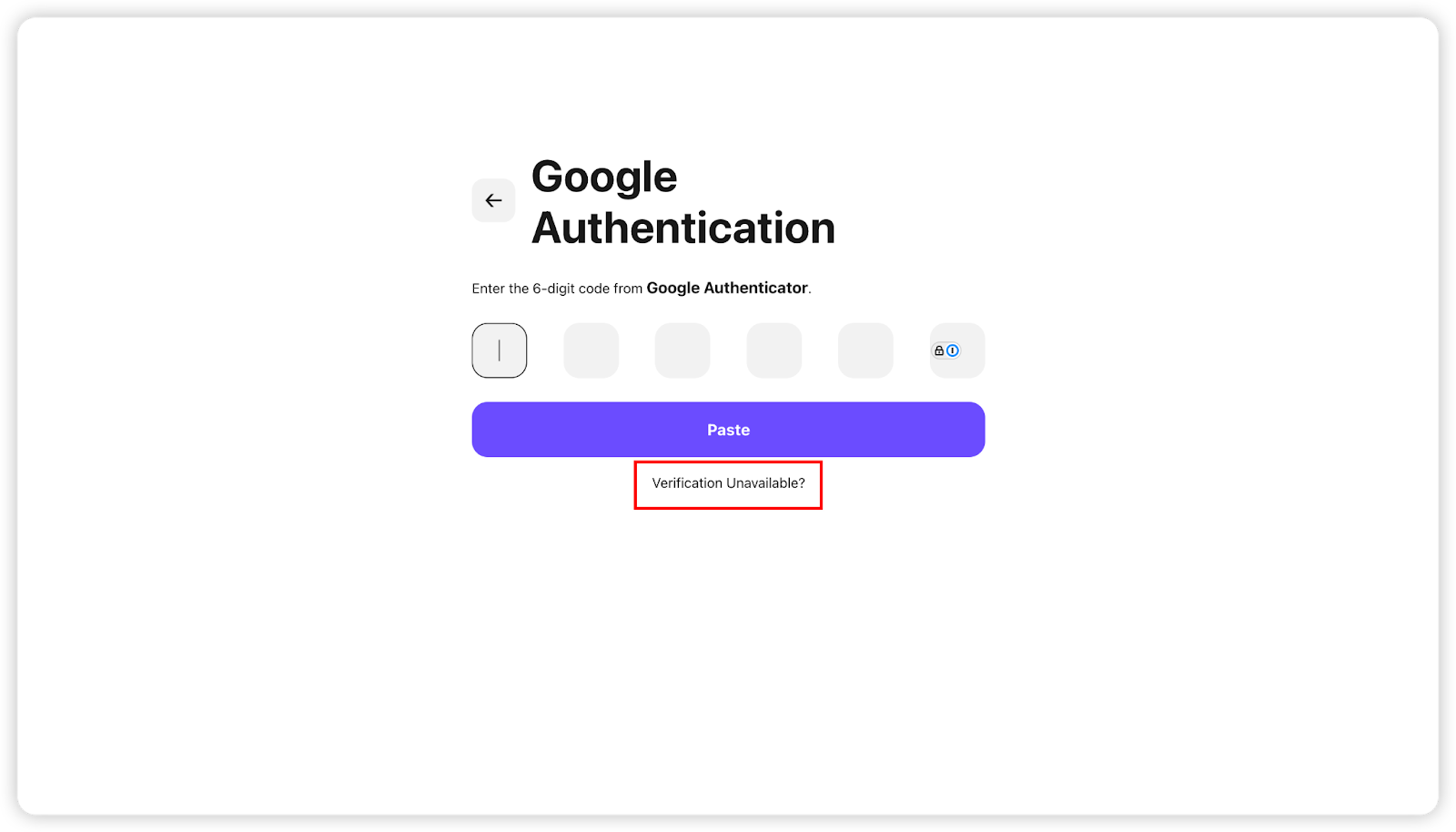
(3) Follow the instructions on the screen to verify one of your account's bound security options, such as SMS verification code, email verification code, Google verification code, or passkey — any one of them is sufficient;
If any option cannot be verified, you can click [Security option unavailable] below to reset the corresponding security option.
APP
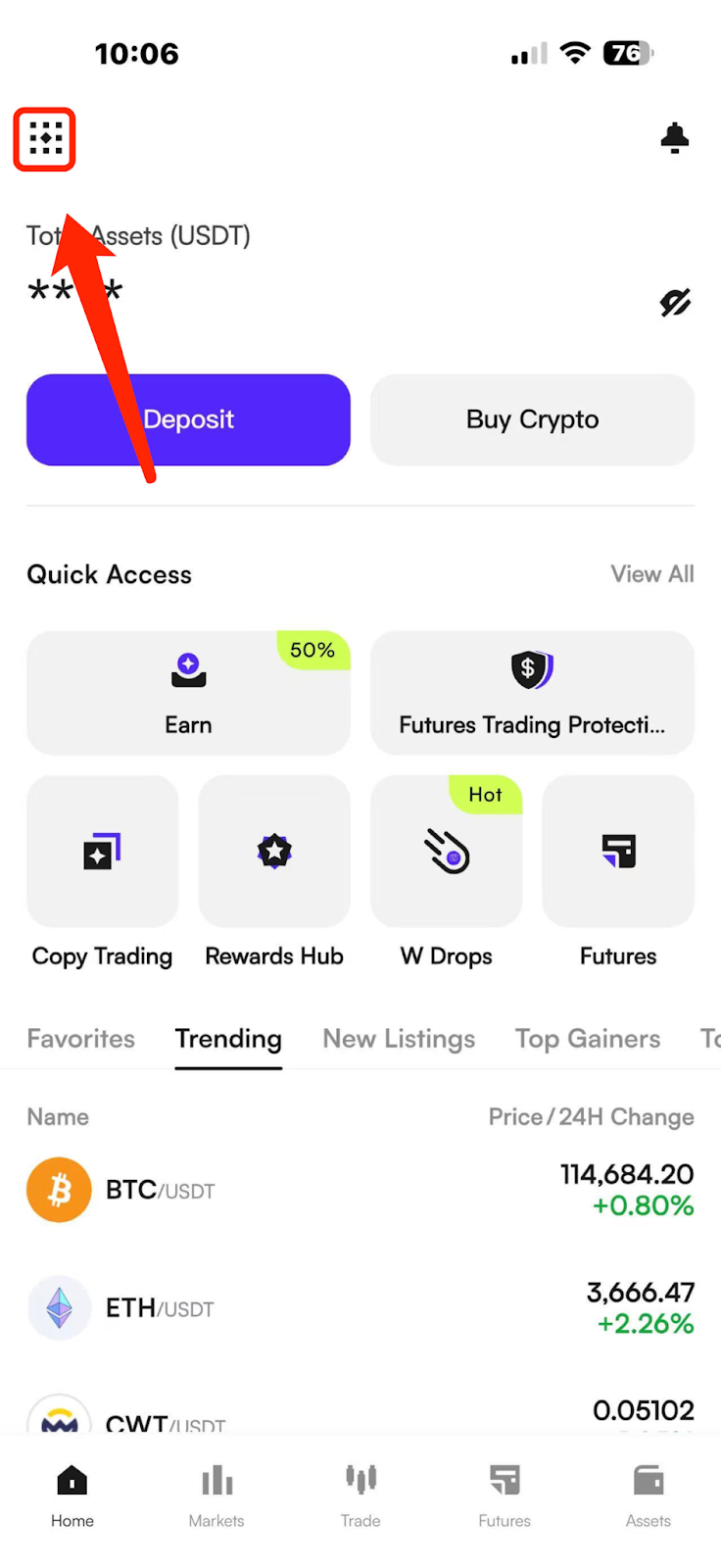
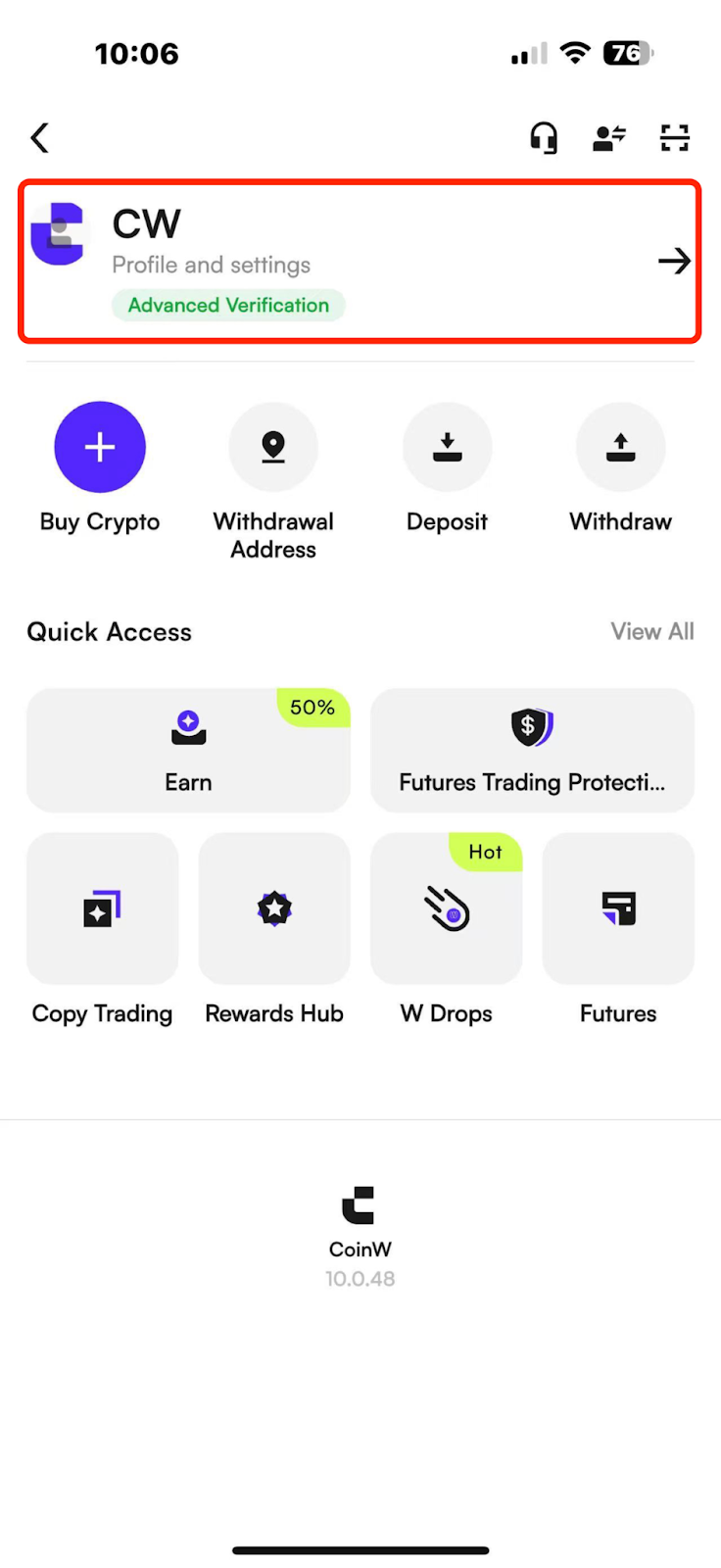
(1) Open the CoinW APP, go to the homepage, tap the account icon in the upper left corner, tap your profile picture to enter the Security Center;
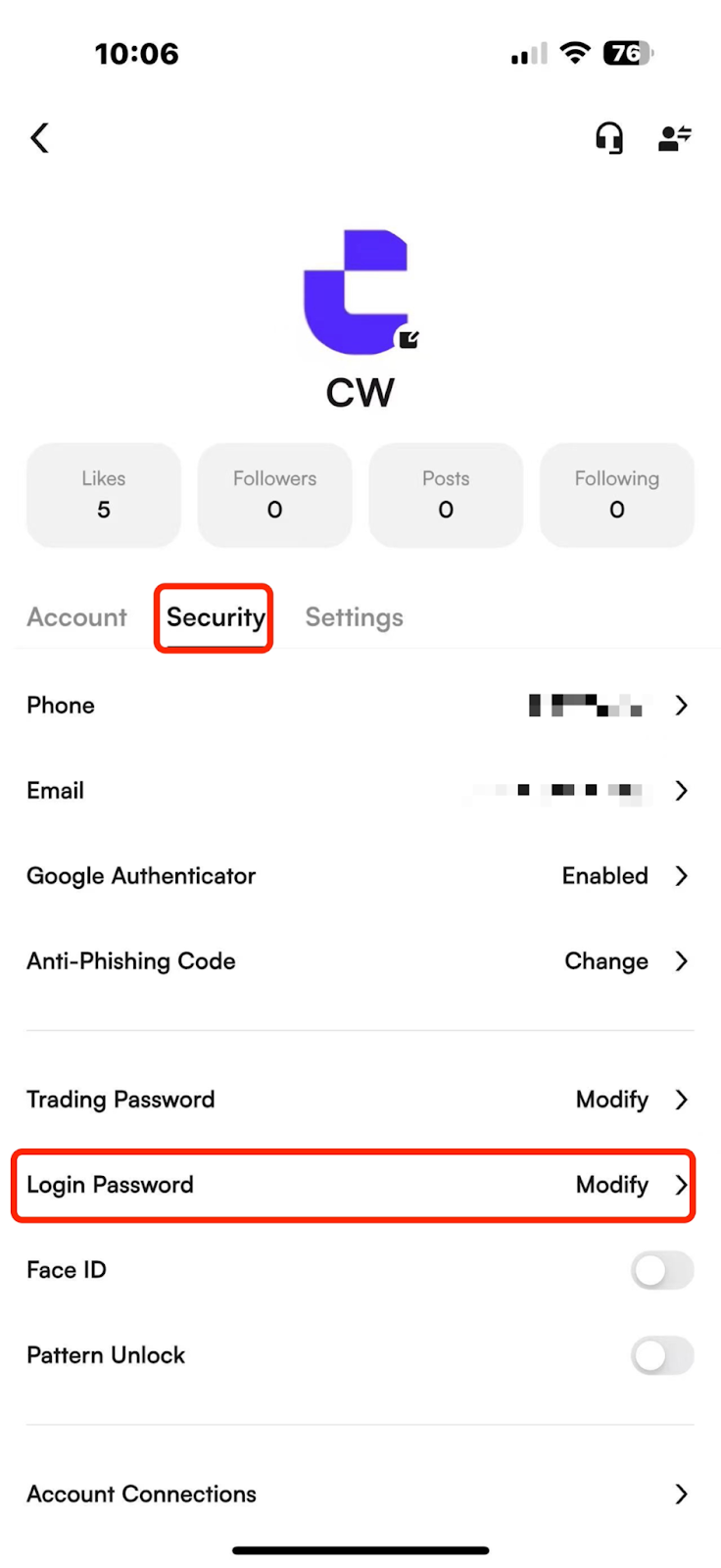
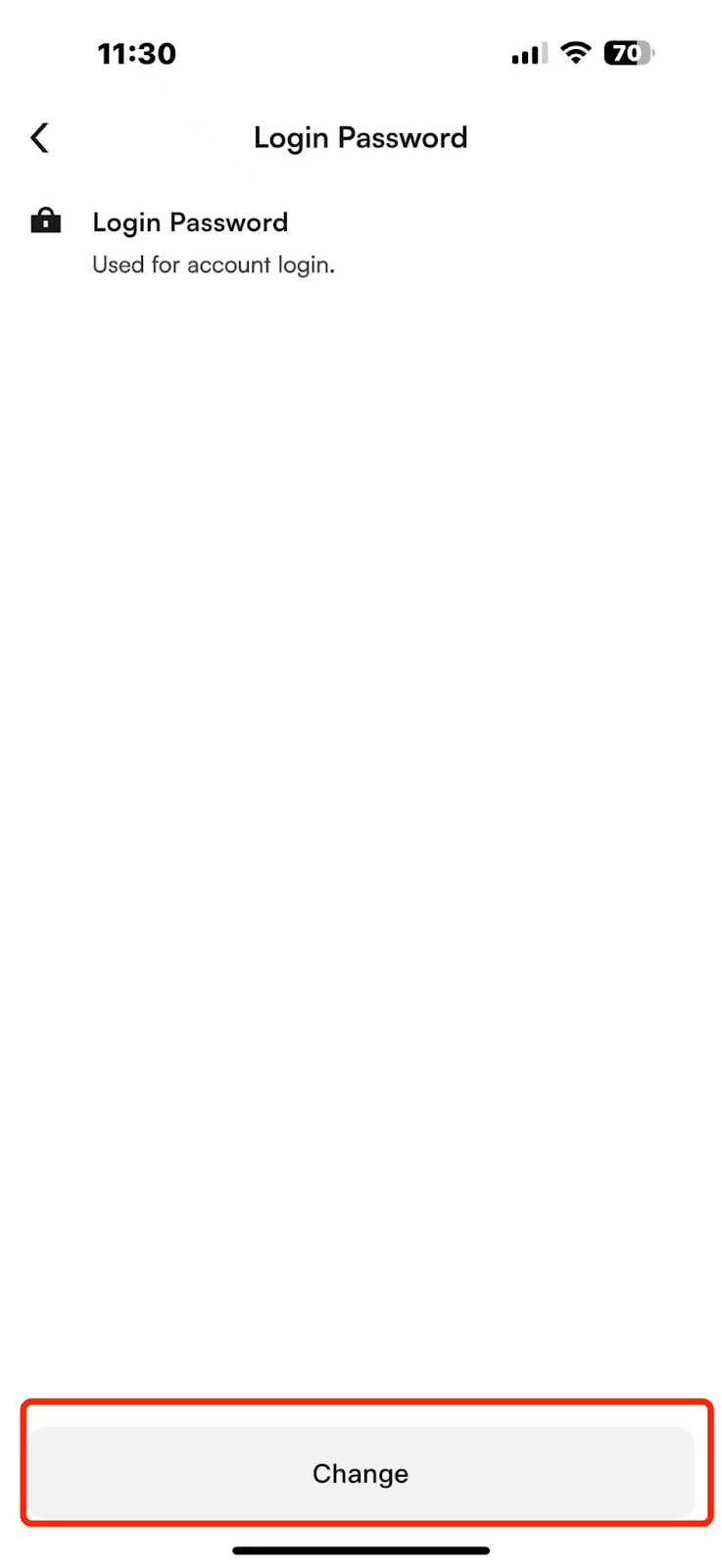
(2) Tap [Security Center] - [Login Password], tap to enter the interface for setting and changing your login password;
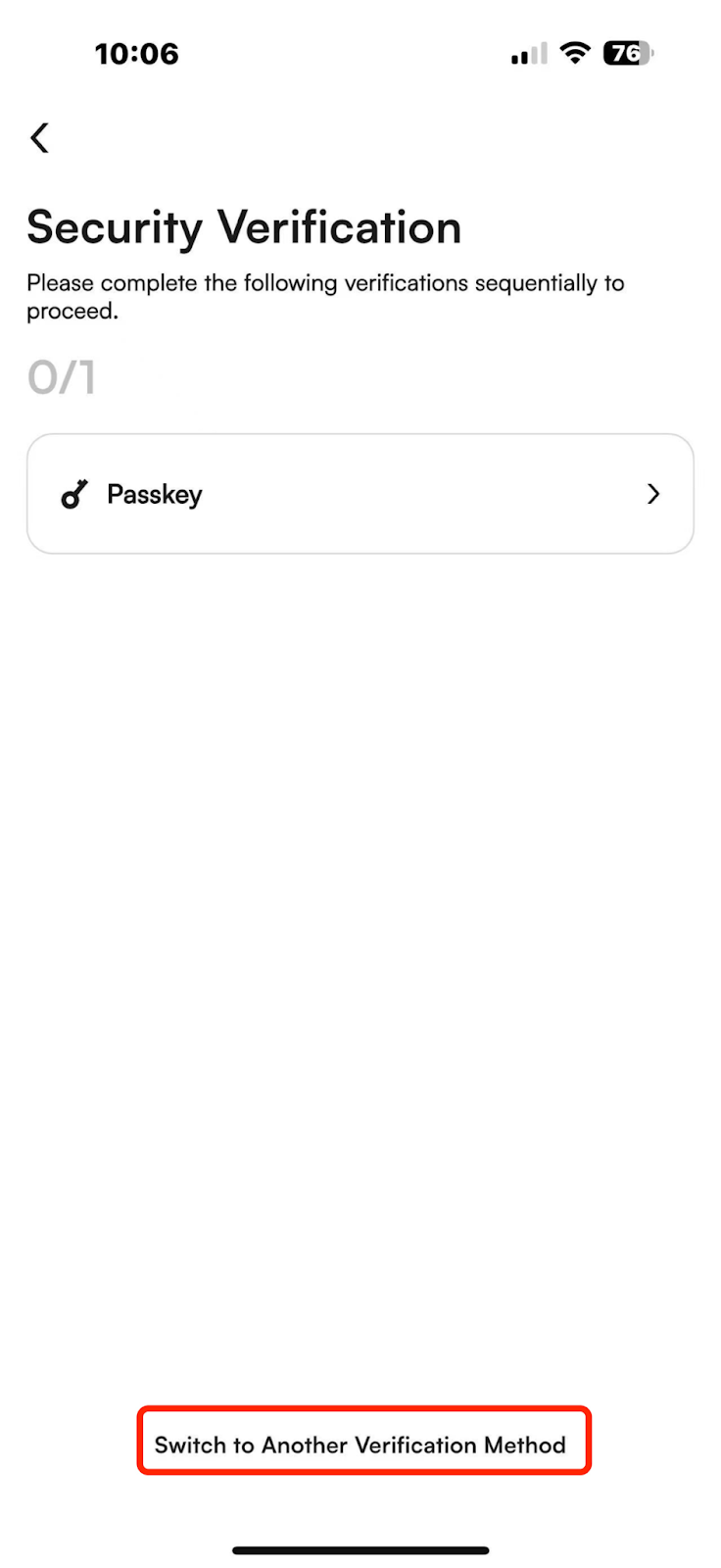
(3) Follow the instructions on the screen to verify one of your account's bound security options — SMS code, email code, Google verification code, or passkey. Any of them can be used;
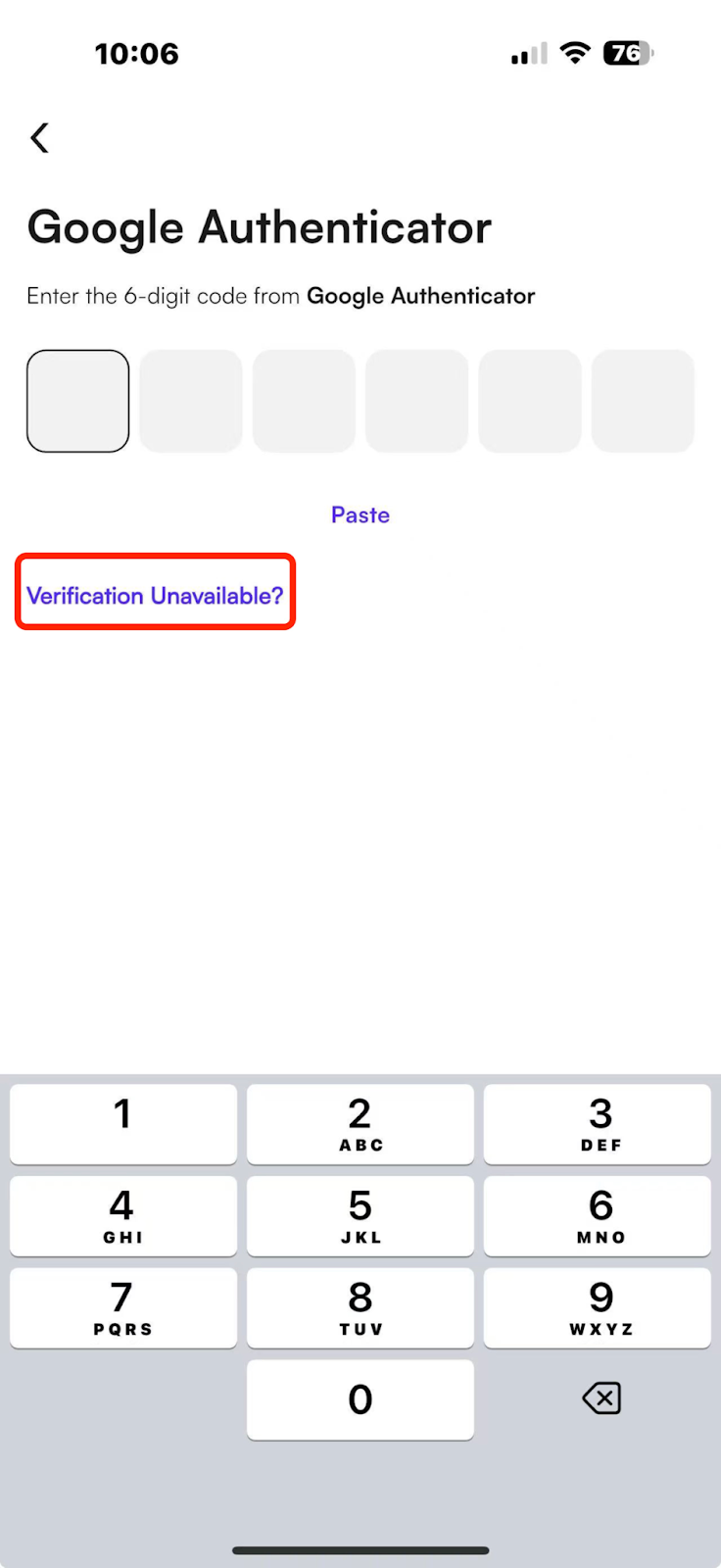
If verification is not possible, tap [Security option unavailable] below to reset the corresponding security options.
Notes:
(1) To ensure the security of your account, withdrawals and selling will be disabled within 24 hours after the login password is changed;
(2) After a successful modification, your account will be automatically logged out. Please log in again.
WEB
(1) Log in to the official CoinW website, click the account icon in the upper right corner, and click [Account & Security] to enter the Security Center;
(2) Scroll down in the Password Center to find the Login Password option, click the [Manage] button on the right, and then click [Modify] to enter the modification page;
(3) Follow the instructions on the screen to verify one of your account's bound security options, such as SMS verification code, email verification code, Google verification code, or passkey — any one of them is sufficient;
If any option cannot be verified, you can click [Security option unavailable] below to reset the corresponding security option.
APP
(1) Open the CoinW APP, go to the homepage, tap the account icon in the upper left corner, tap your profile picture to enter the Security Center;
(2) Tap [Security Center] - [Login Password], tap to enter the interface for setting and changing your login password;
(3) Follow the instructions on the screen to verify one of your account's bound security options — SMS code, email code, Google verification code, or passkey. Any of them can be used;
If verification is not possible, tap [Security option unavailable] below to reset the corresponding security options.
Notes:
(1) To ensure the security of your account, withdrawals and selling will be disabled within 24 hours after the login password is changed;
(2) After a successful modification, your account will be automatically logged out. Please log in again.