FAQ
In this article, you will learn the following:
How to add an emergency contact to your account via the web or App
How to manage (edit or delete) your emergency contact
When and how CoinW will reach out to your emergency contact
You can now set up an emergency contact for your CoinW account to prepare for unexpected situations. Your emergency contact may be eligible to inherit or take ownership of the account assets, depending on the circumstances.
Once you add at least one emergency contact, the emergency contact mechanism will be activated. In the event of prolonged account inactivity, CoinW will proactively reach out to you and your designated emergency contact using the provided contact information.
How to Add an Emergency Contact via CoinW App/Web
(1) Log in to your CoinW account and go to 【Account & Security】–【Emergency Contact】
【WEB】
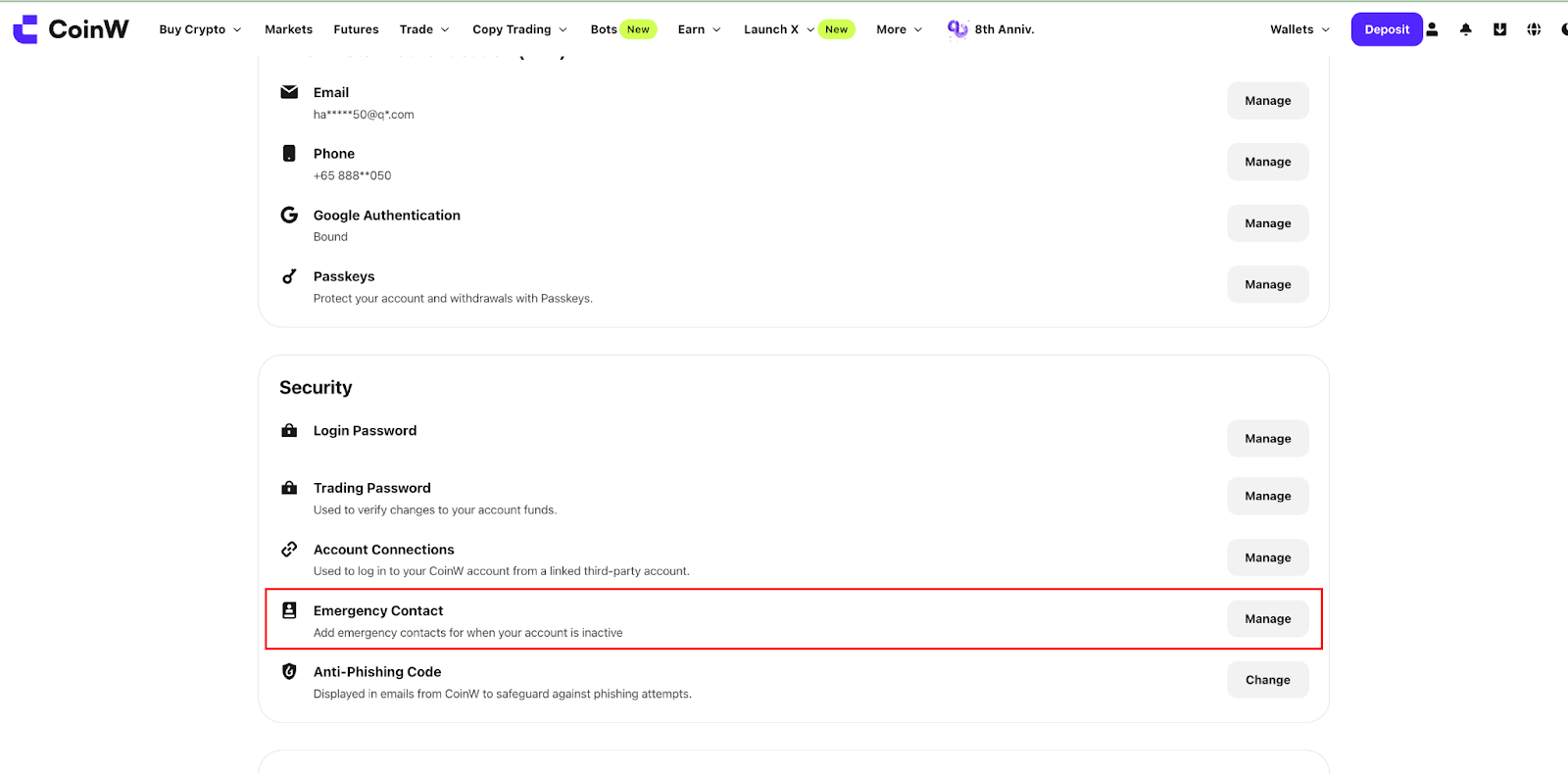
【APP】
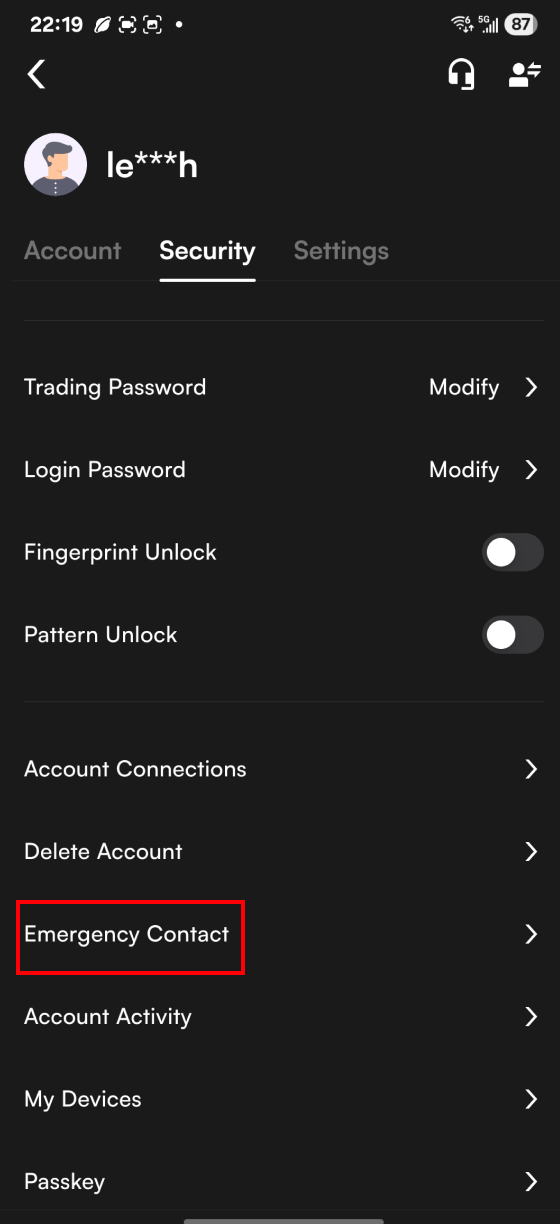
(2) Click【Emergency Contact】
【WEB】
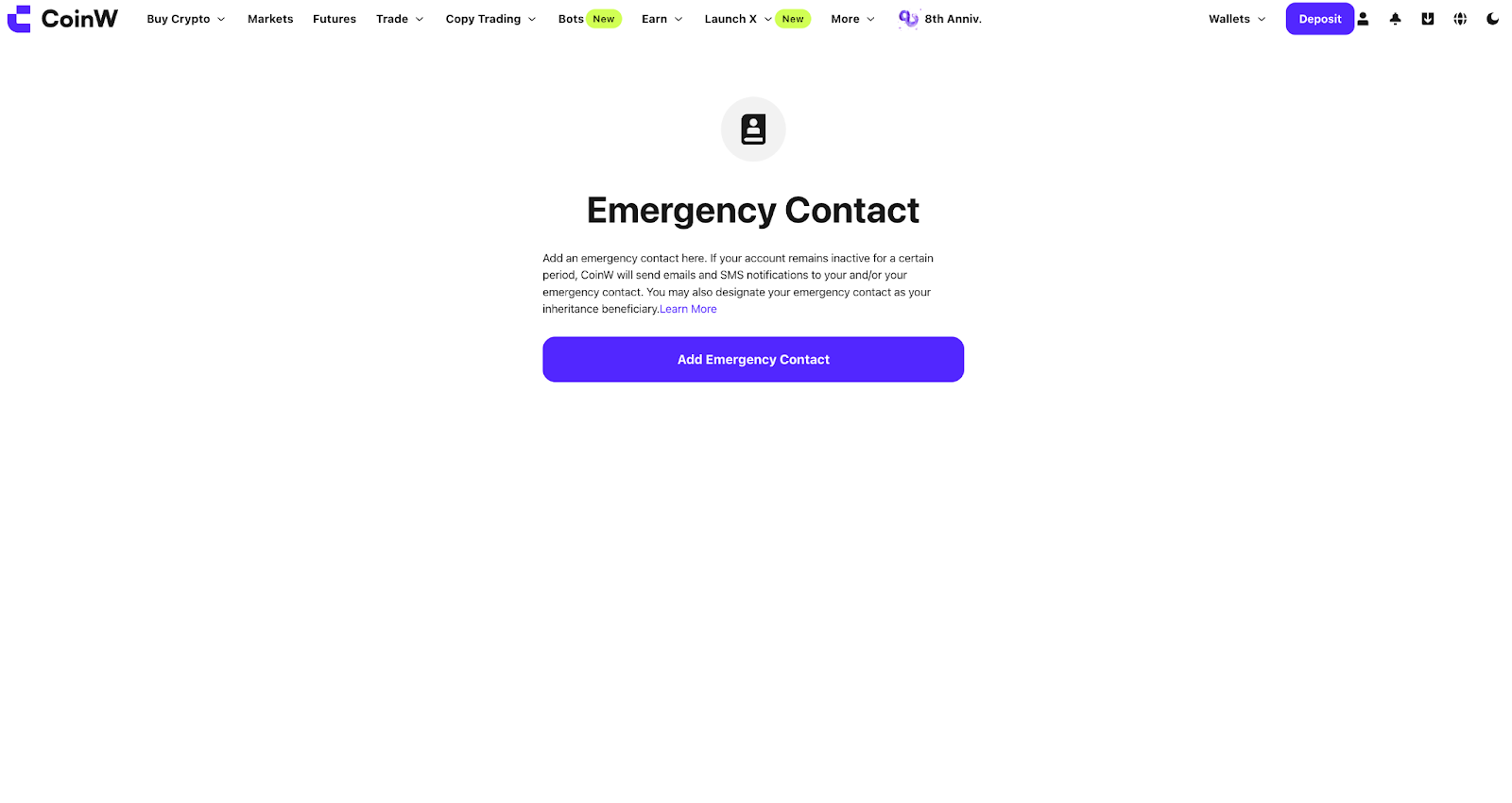
【APP】
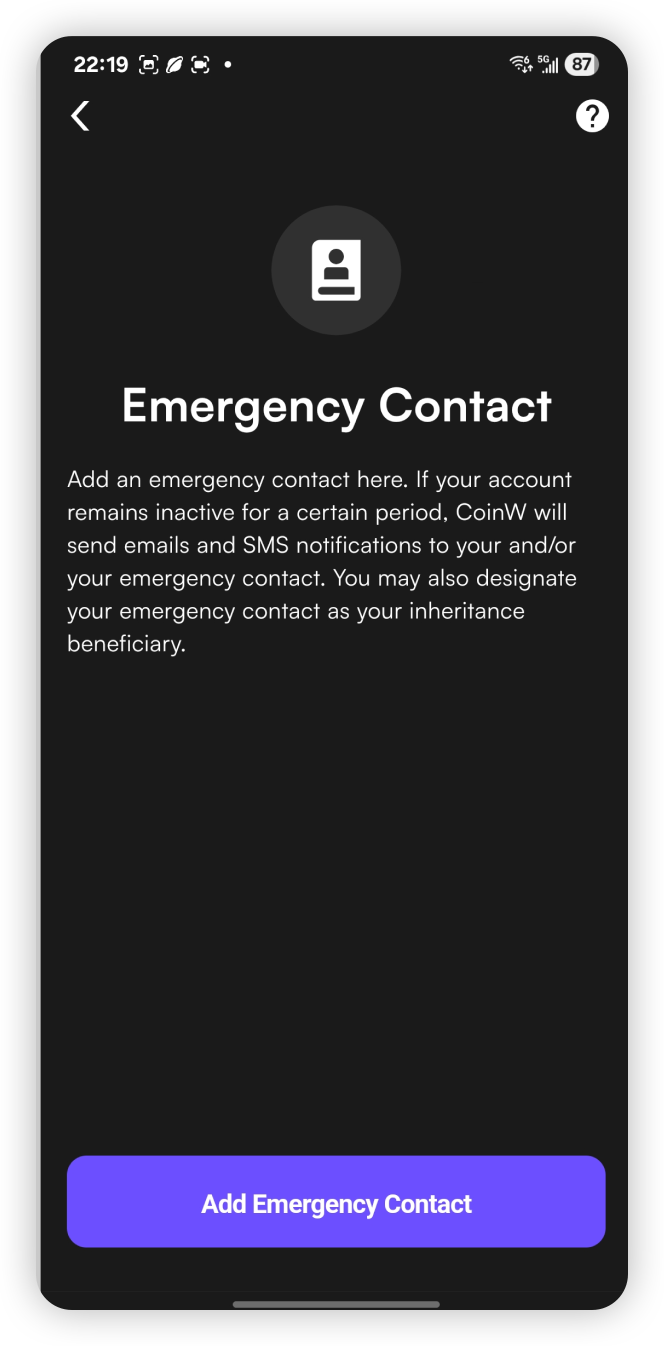
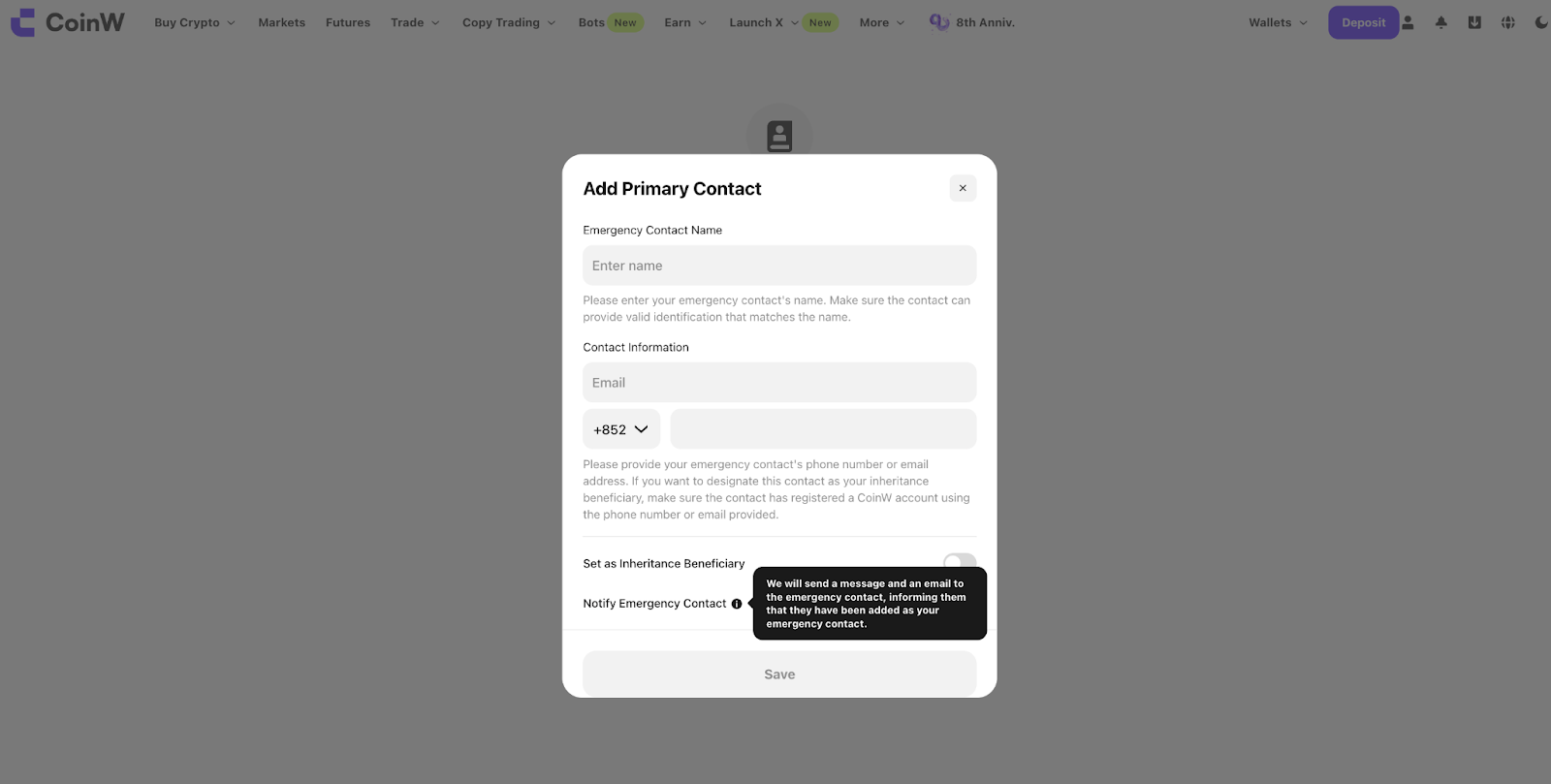
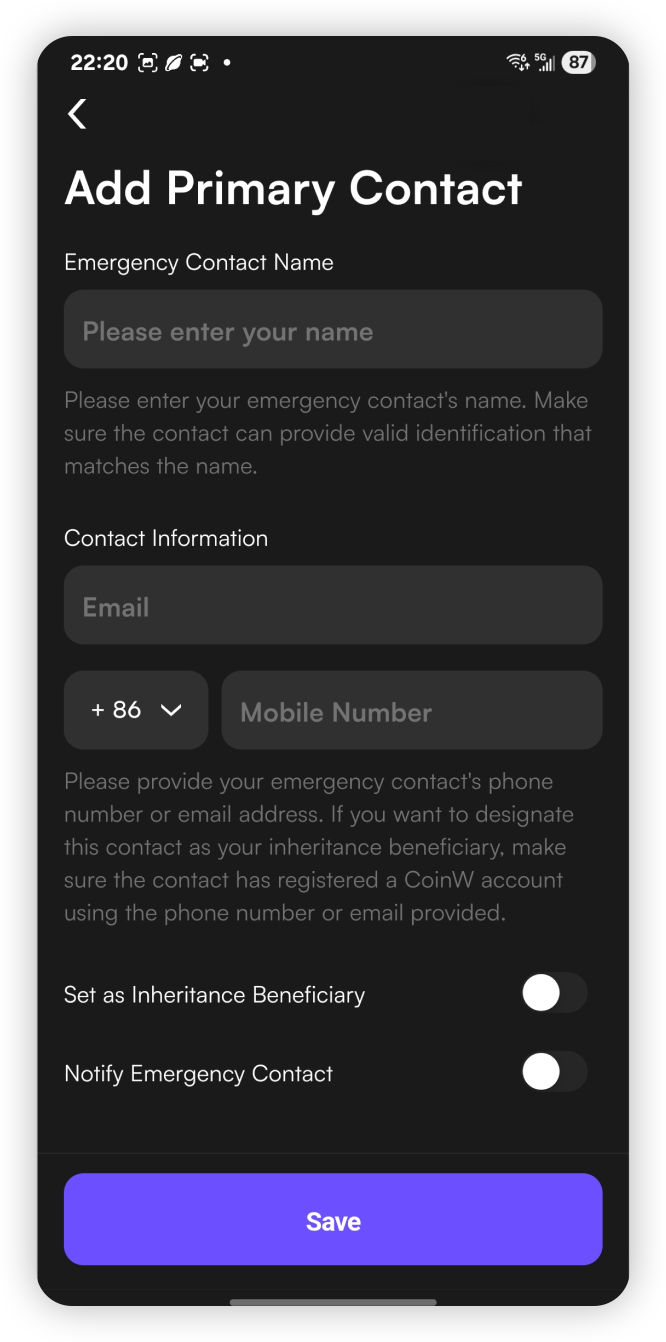
(3) Enter the emergency contact information (email and/or phone number), then click【Save】
Please note that you can enable the【Notify Emergency Contact】option. If enabled, the system will send a one-time notification to inform the contact that they have been added as your emergency contact.
【WEB】
【APP】
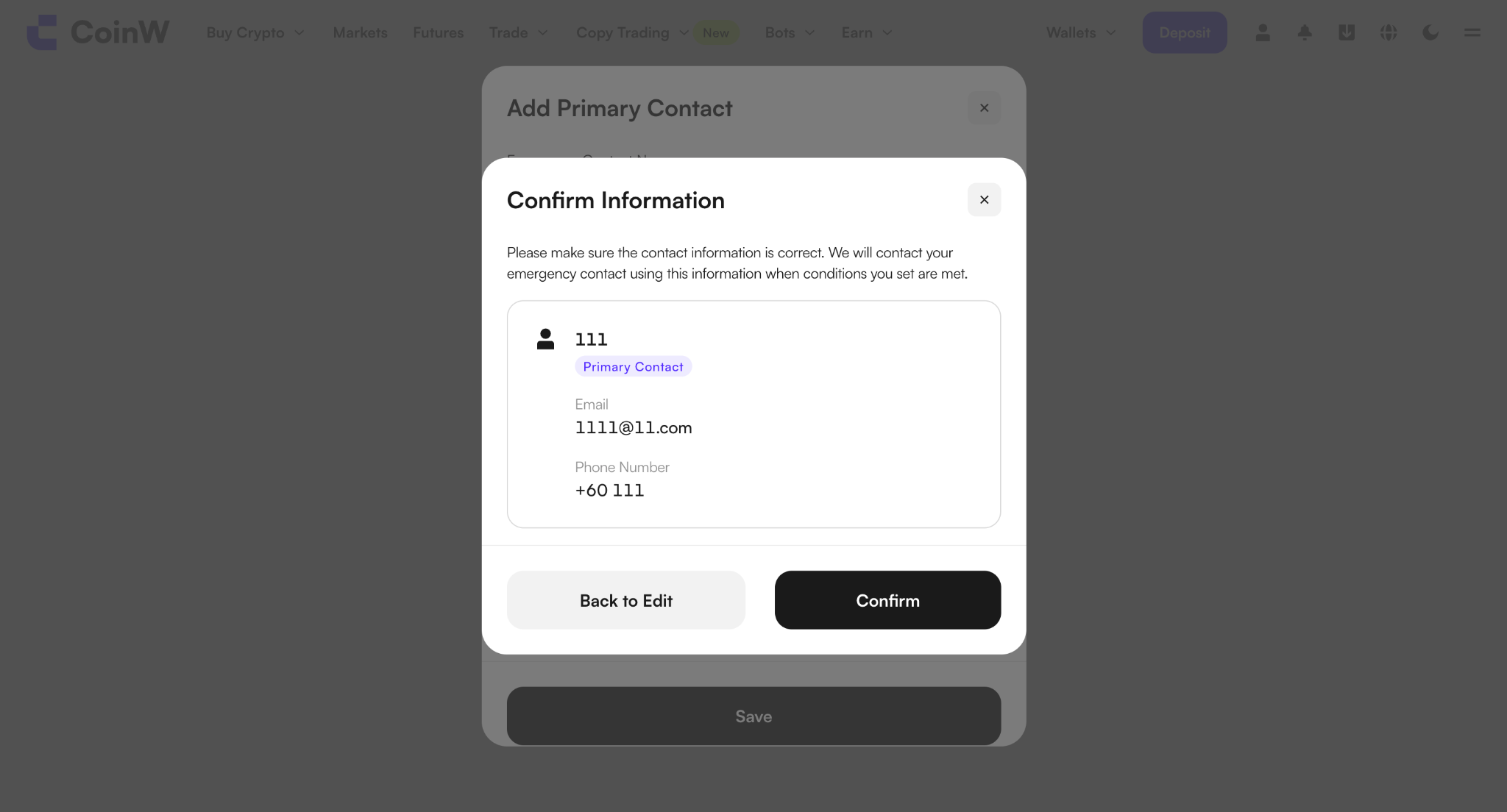
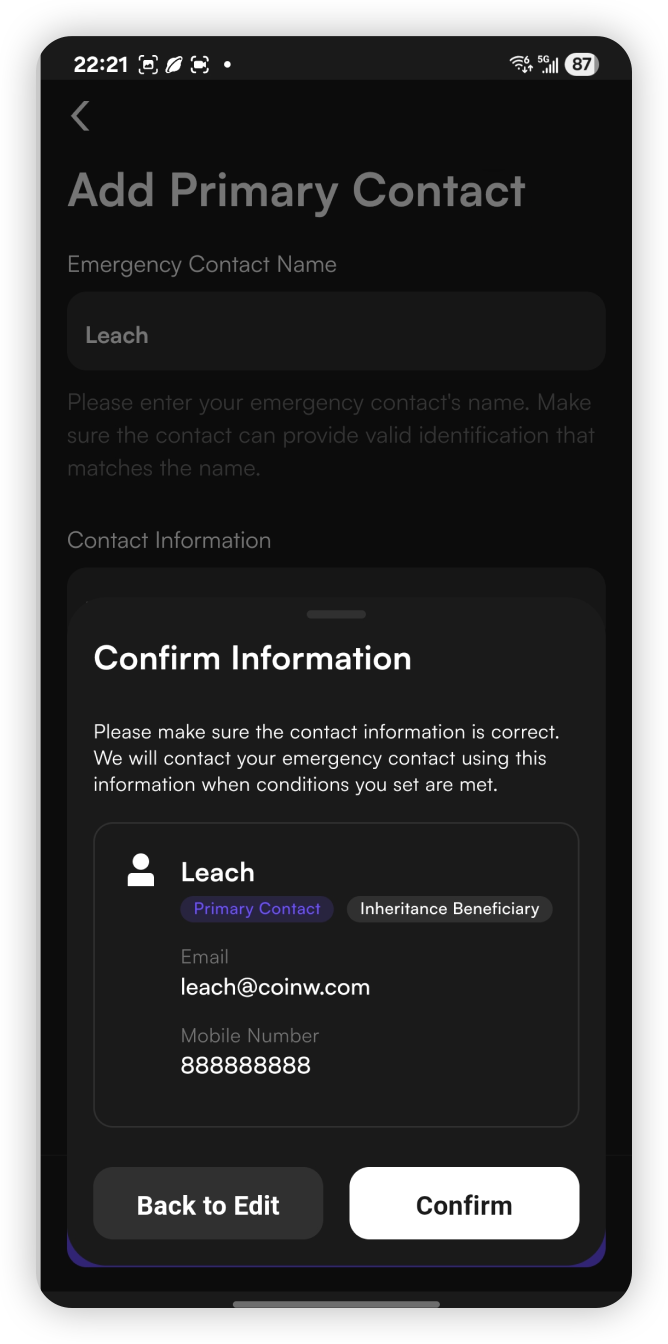
(4) Double-check the emergency contact information, then click【Continue】 to save.
【WEB】
【APP】
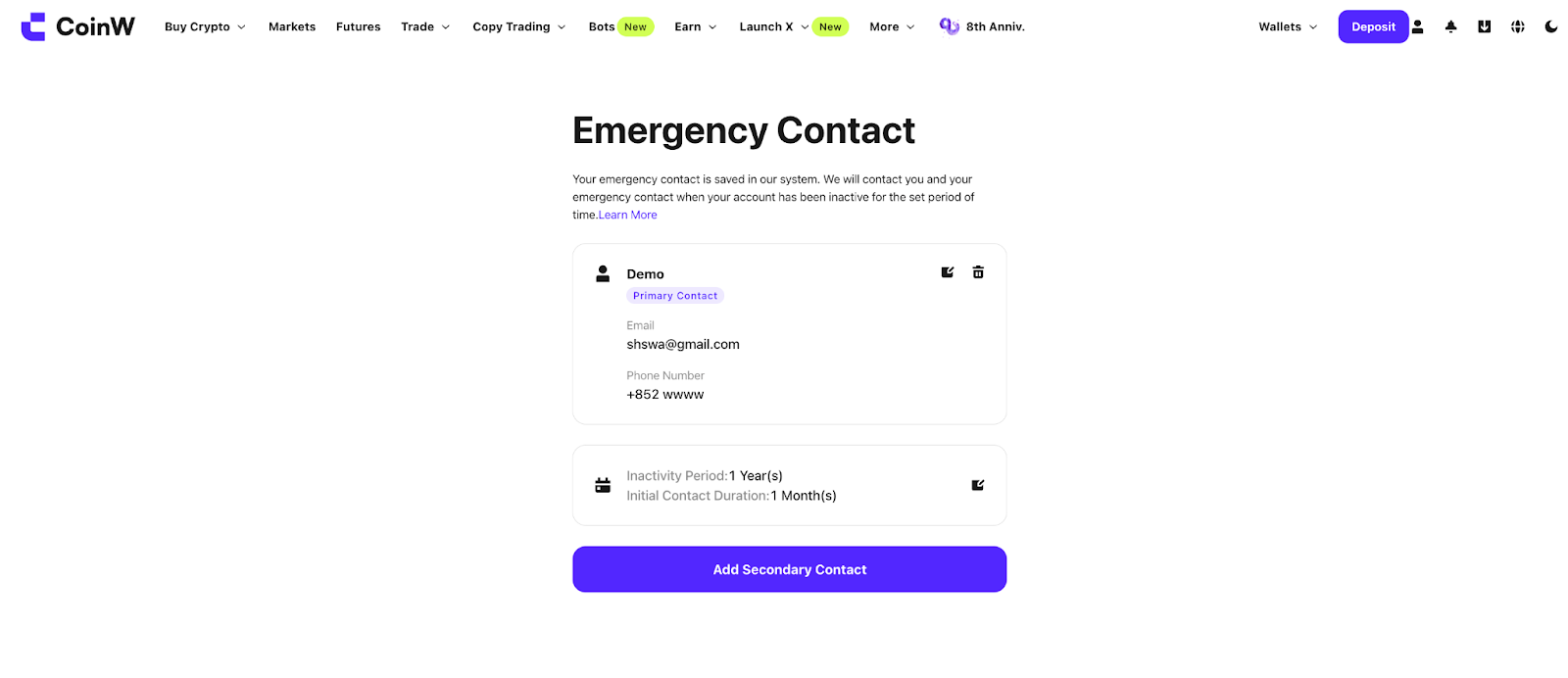
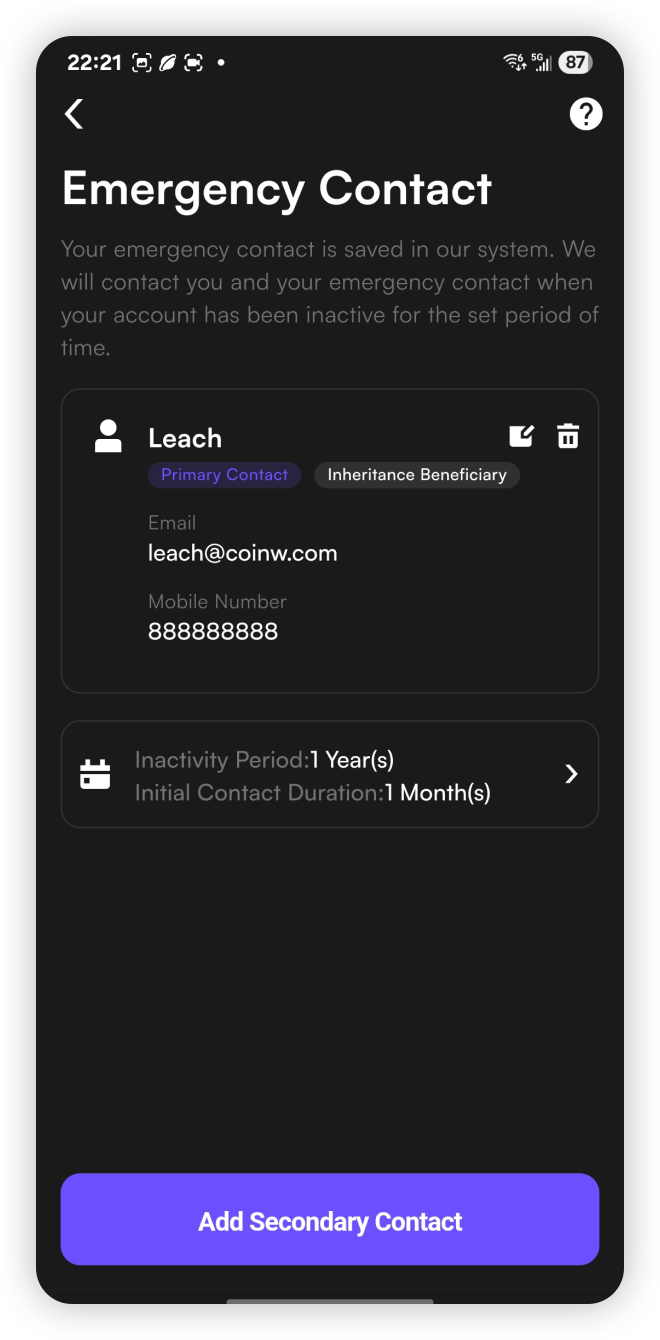
(5) Once your emergency contact has been successfully added, you may click the 【Add Second Contact】button to add another contact (this step is optional).
【WEB】
【APP】
How to Manage (Edit or Delete) an Emergency Contact
How to Delete/Edit an Emergency Contact
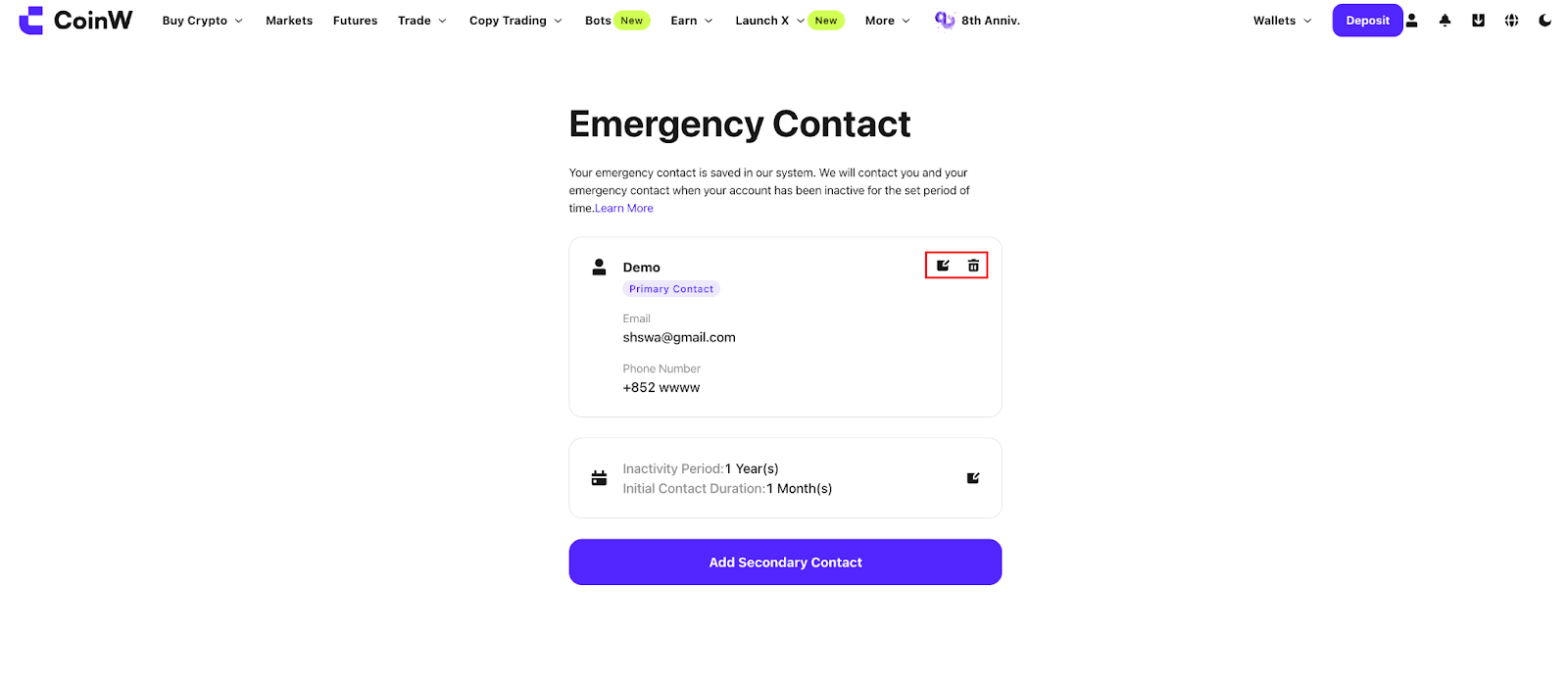
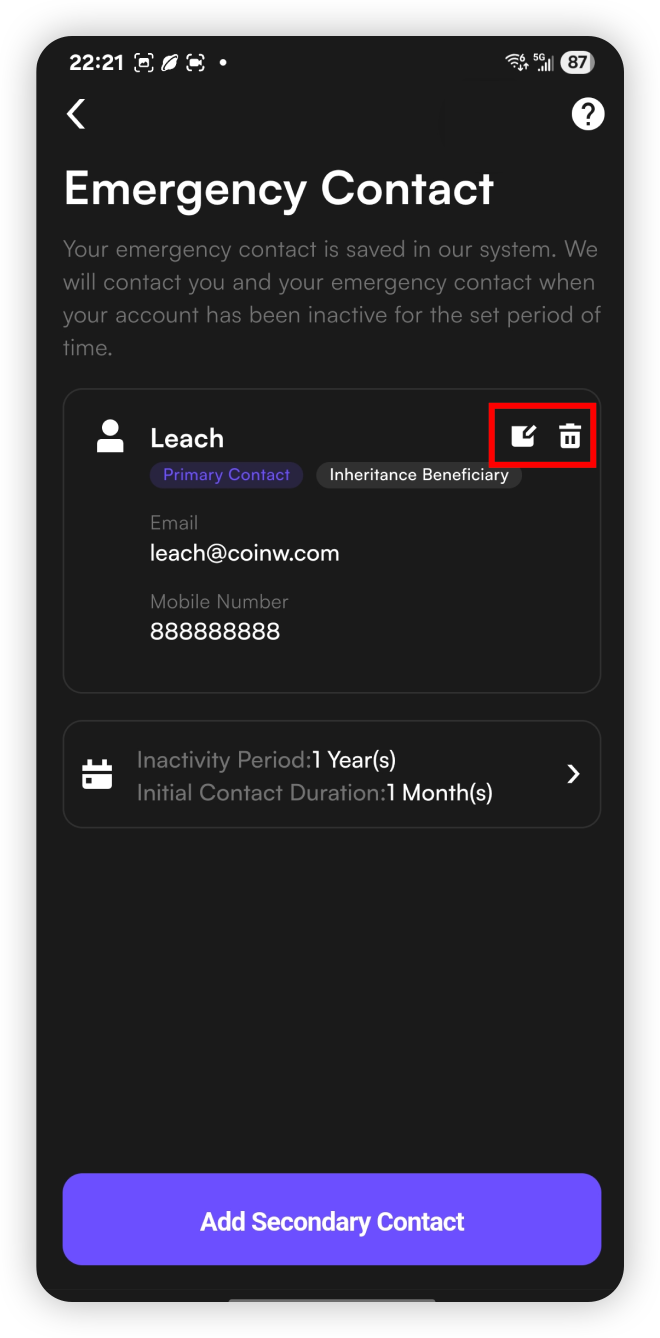
Go to【Account & Security】-【Emergency Contact】, then select the【Edit】icon next to the name of the emergency contact you wish to update.
【WEB】
【APP】
Set “Account Dormancy Period” and “Contact Window”
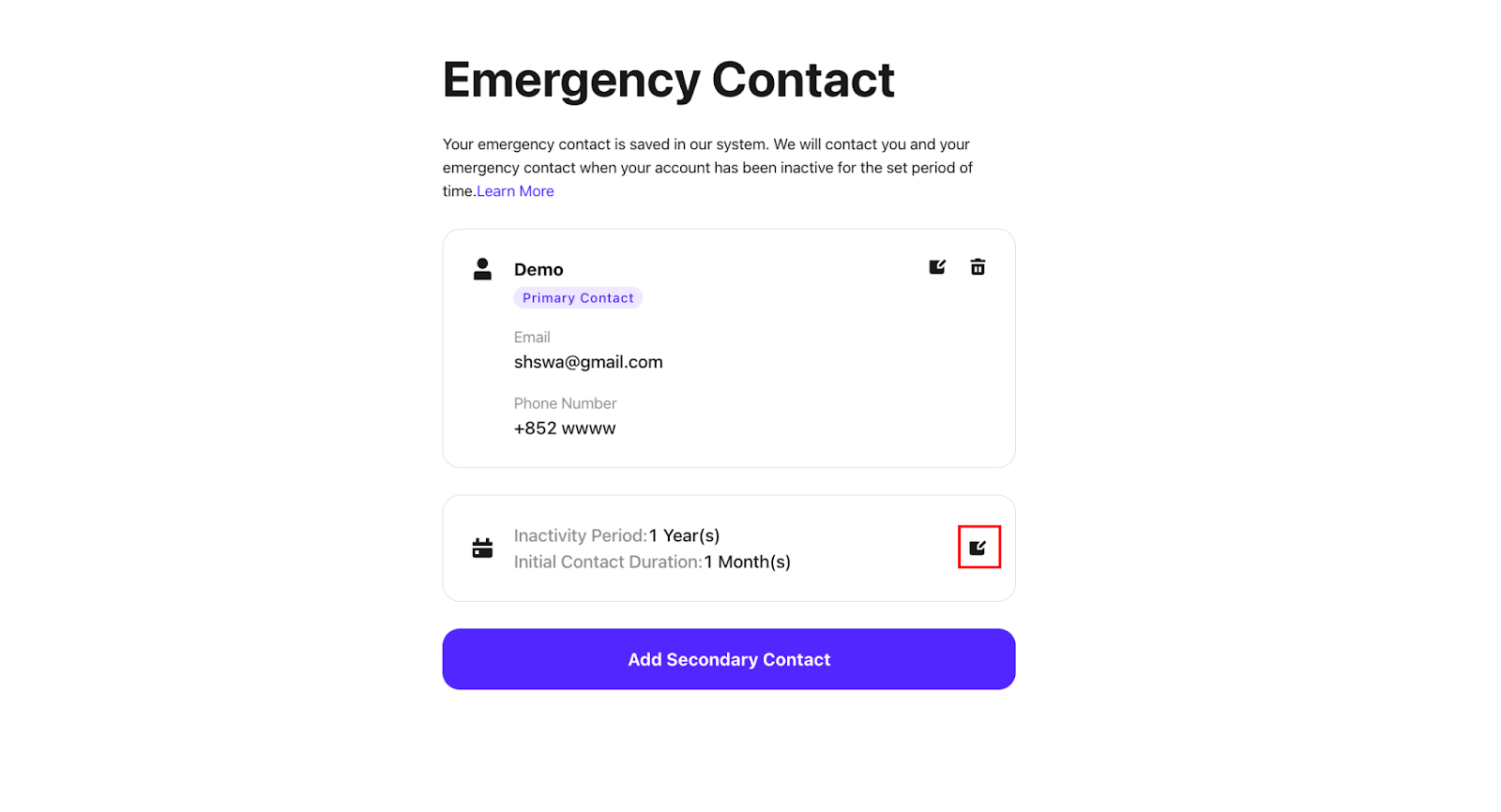
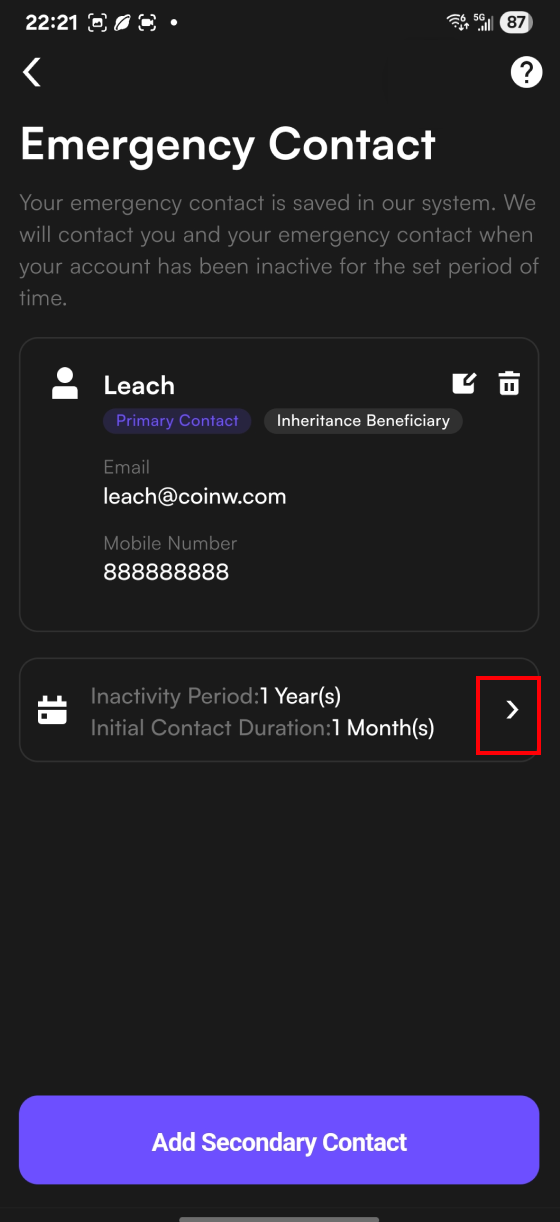
(1) Go to the [Emergency Contact] page, then select the【Edit】icon next to [Account Dormancy Period].
On the App, the button can be found at the bottom of the page.
【WEB】
【APP】
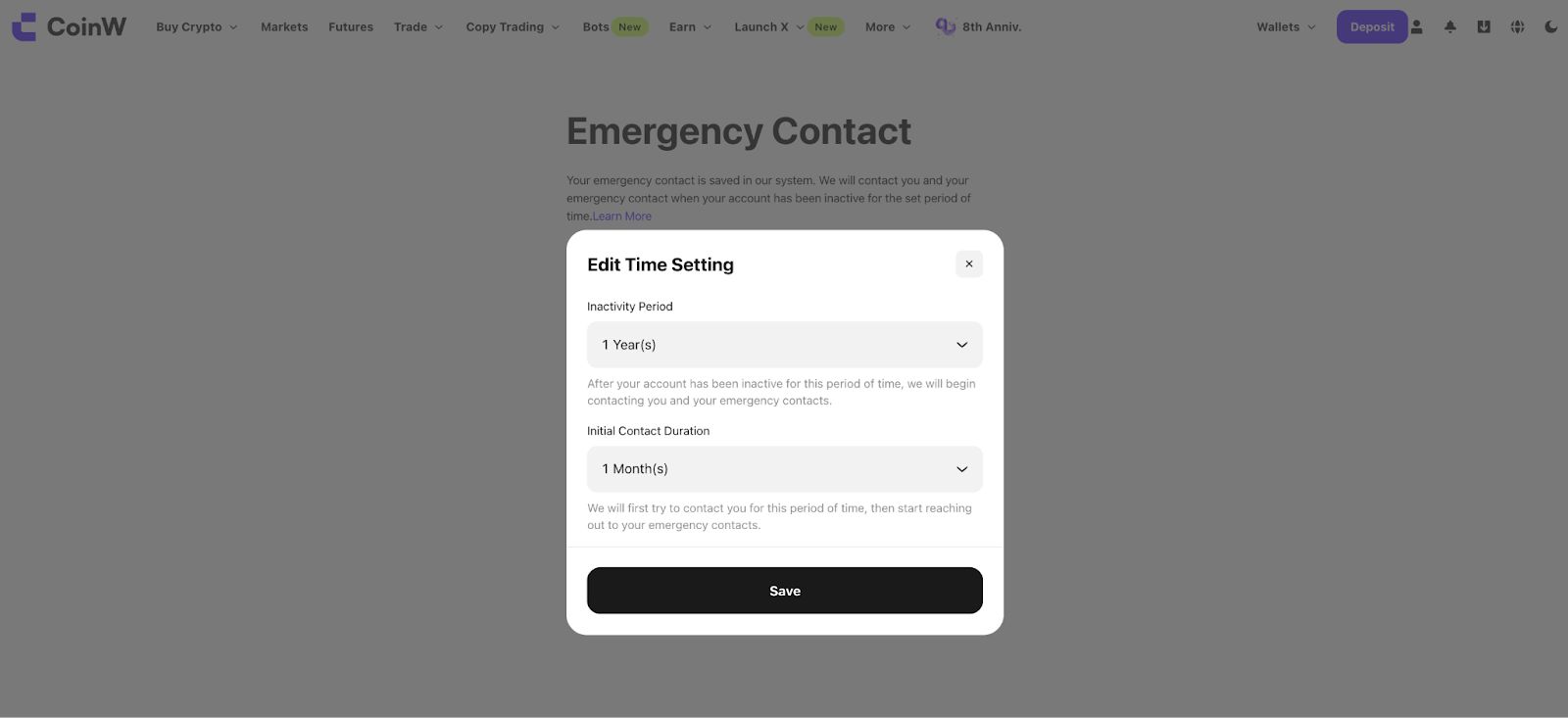
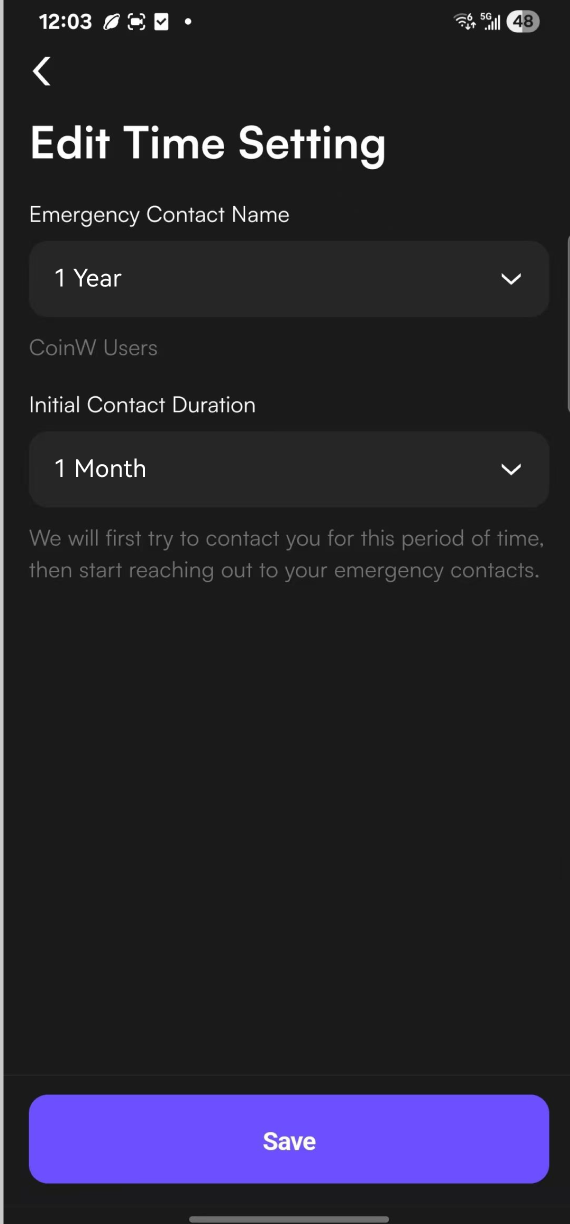
(2) Set your preferences for【Account Dormancy Period】and【Contact Window】
Account Dormancy Period: If your account shows no activity during this period, we will begin contacting you and your emergency contact. The default setting is 1 year, but you may also choose 2 years, 3 years, or 5 years.
Contact Window: During this period, we will first attempt to contact you before reaching out to your emergency contact. The default setting is 1 month, but you may also choose 2 months or 3 months.
【WEB】
【APP】
(3) Click【Save】 to confirm your settings.
Contacting Your Emergency Contact
When your account remains inactive for a long period (based on your last login or session update) and exceeds the dormancy period you set, we will first attempt to contact you directly. If you still do not log in after the Contact Window ends, we will begin reaching out to your emergency contact(s) using the details you provided (both the primary and secondary contact, if applicable).
We will send messages to your emergency contact via both email and SMS. These messages will be resent every 7 days after the initial attempt.
In this article, you will learn the following:
How to add an emergency contact to your account via the web or App
How to manage (edit or delete) your emergency contact
When and how CoinW will reach out to your emergency contact
You can now set up an emergency contact for your CoinW account to prepare for unexpected situations. Your emergency contact may be eligible to inherit or take ownership of the account assets, depending on the circumstances.
Once you add at least one emergency contact, the emergency contact mechanism will be activated. In the event of prolonged account inactivity, CoinW will proactively reach out to you and your designated emergency contact using the provided contact information.
How to Add an Emergency Contact via CoinW App/Web
(1) Log in to your CoinW account and go to 【Account & Security】–【Emergency Contact】
【WEB】
【APP】
(2) Click【Emergency Contact】
【WEB】
【APP】
(3) Enter the emergency contact information (email and/or phone number), then click【Save】
Please note that you can enable the【Notify Emergency Contact】option. If enabled, the system will send a one-time notification to inform the contact that they have been added as your emergency contact.
【WEB】
【APP】
(4) Double-check the emergency contact information, then click【Continue】 to save.
【WEB】
【APP】
(5) Once your emergency contact has been successfully added, you may click the 【Add Second Contact】button to add another contact (this step is optional).
【WEB】
【APP】
How to Manage (Edit or Delete) an Emergency Contact
How to Delete/Edit an Emergency Contact
Go to【Account & Security】-【Emergency Contact】, then select the【Edit】icon next to the name of the emergency contact you wish to update.
【WEB】
【APP】
Set “Account Dormancy Period” and “Contact Window”
(1) Go to the [Emergency Contact] page, then select the【Edit】icon next to [Account Dormancy Period].
On the App, the button can be found at the bottom of the page.
【WEB】
【APP】
(2) Set your preferences for【Account Dormancy Period】and【Contact Window】
Account Dormancy Period: If your account shows no activity during this period, we will begin contacting you and your emergency contact. The default setting is 1 year, but you may also choose 2 years, 3 years, or 5 years.
Contact Window: During this period, we will first attempt to contact you before reaching out to your emergency contact. The default setting is 1 month, but you may also choose 2 months or 3 months.
【WEB】
【APP】
(3) Click【Save】 to confirm your settings.
Contacting Your Emergency Contact
When your account remains inactive for a long period (based on your last login or session update) and exceeds the dormancy period you set, we will first attempt to contact you directly. If you still do not log in after the Contact Window ends, we will begin reaching out to your emergency contact(s) using the details you provided (both the primary and secondary contact, if applicable).
We will send messages to your emergency contact via both email and SMS. These messages will be resent every 7 days after the initial attempt.